
Add new material and sheet
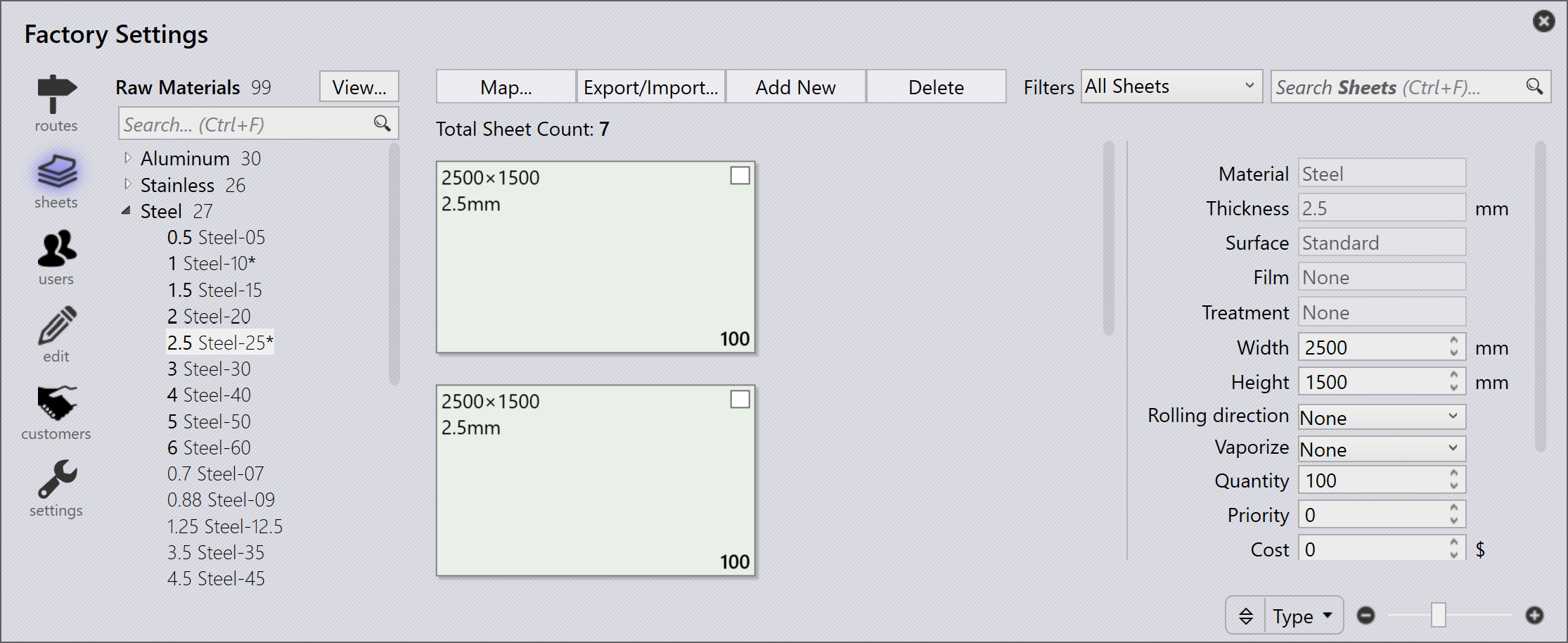
Sheet management can be accessed by clicking the Factory icon and selecting sheets. This provides an overview of the materials that are set up. Selecting any material listed on the left displays the available sheets, thicknesses, sizes, and quantities.
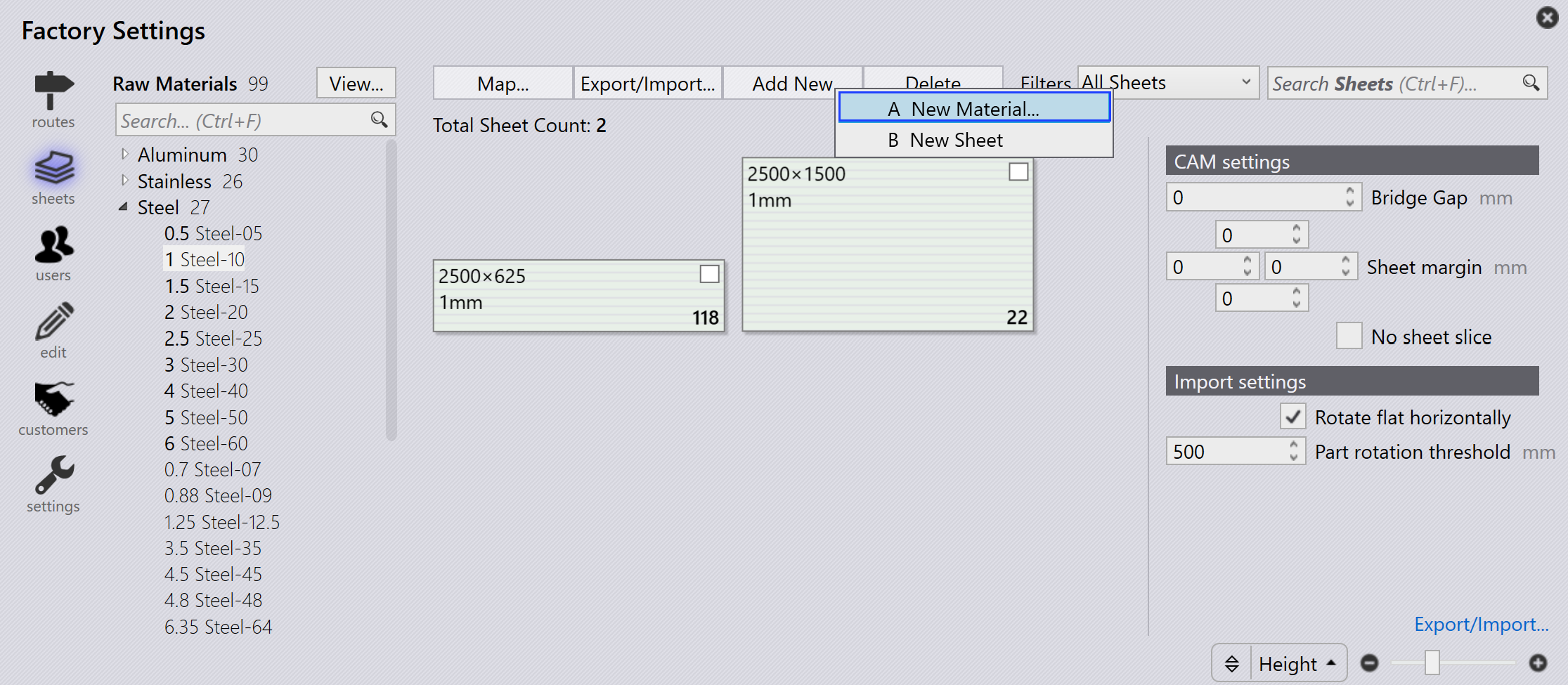
To add a new material, click Add new → New Material… from sheets page in factory.
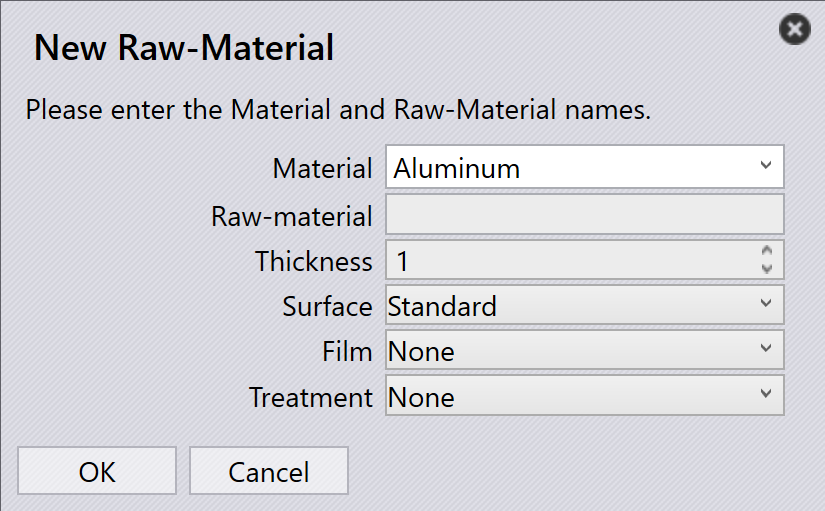
Enter Material, Raw Material, Thickness and Material parameters. Click OK.
View material
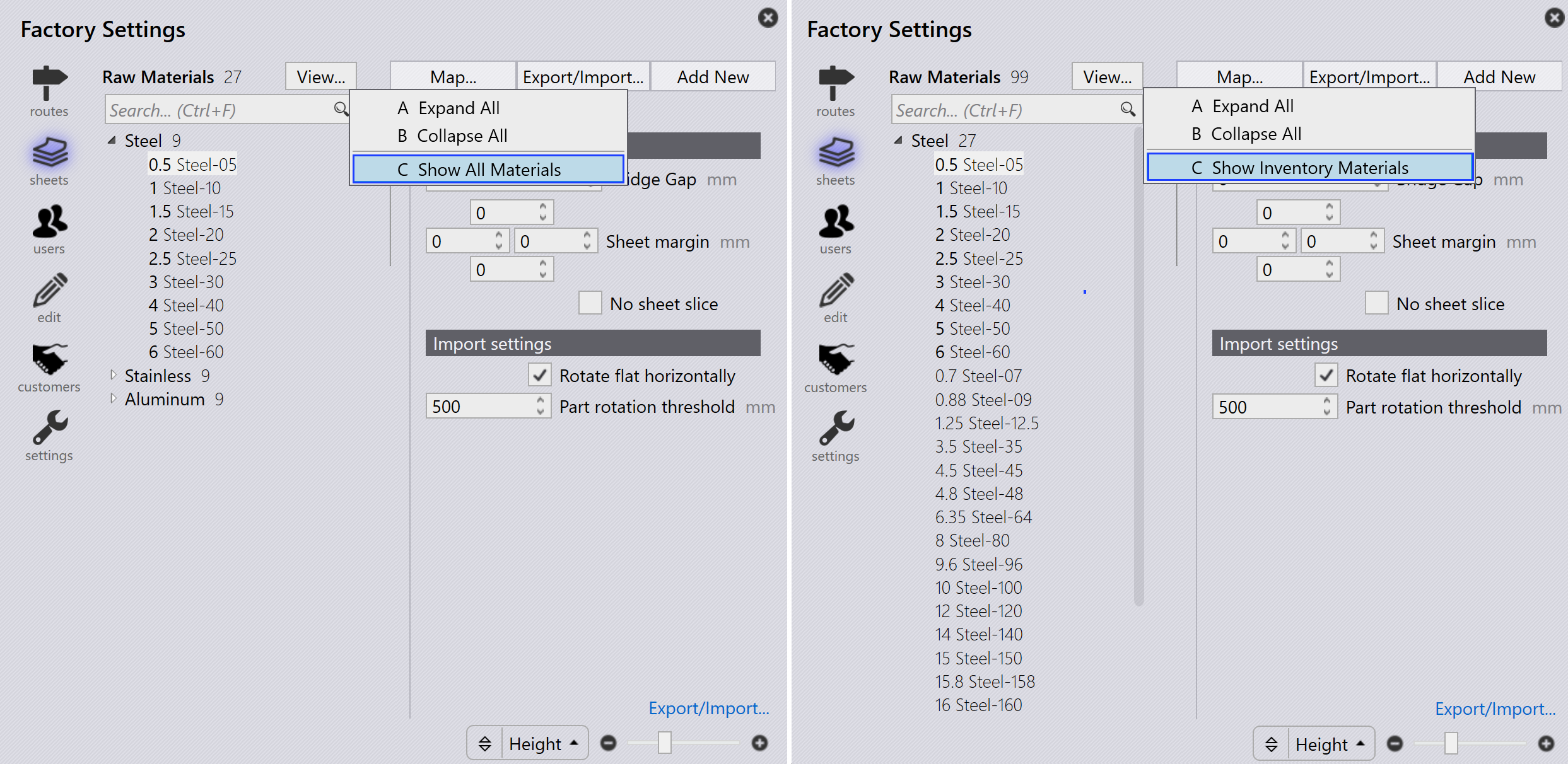
View… option in factory → Sheets have following options:
-
Expand All: Expands all material categories.
-
Collapse All: Collapses all material categories.
-
Show All Materials: Lists all raw materials irrespective of sheet inventory.
-
Show Inventory Materials: Lists only raw materials that have sheet inventory.
| Raw Material thickness shown in bold represents sheet availability. |
Add sheet
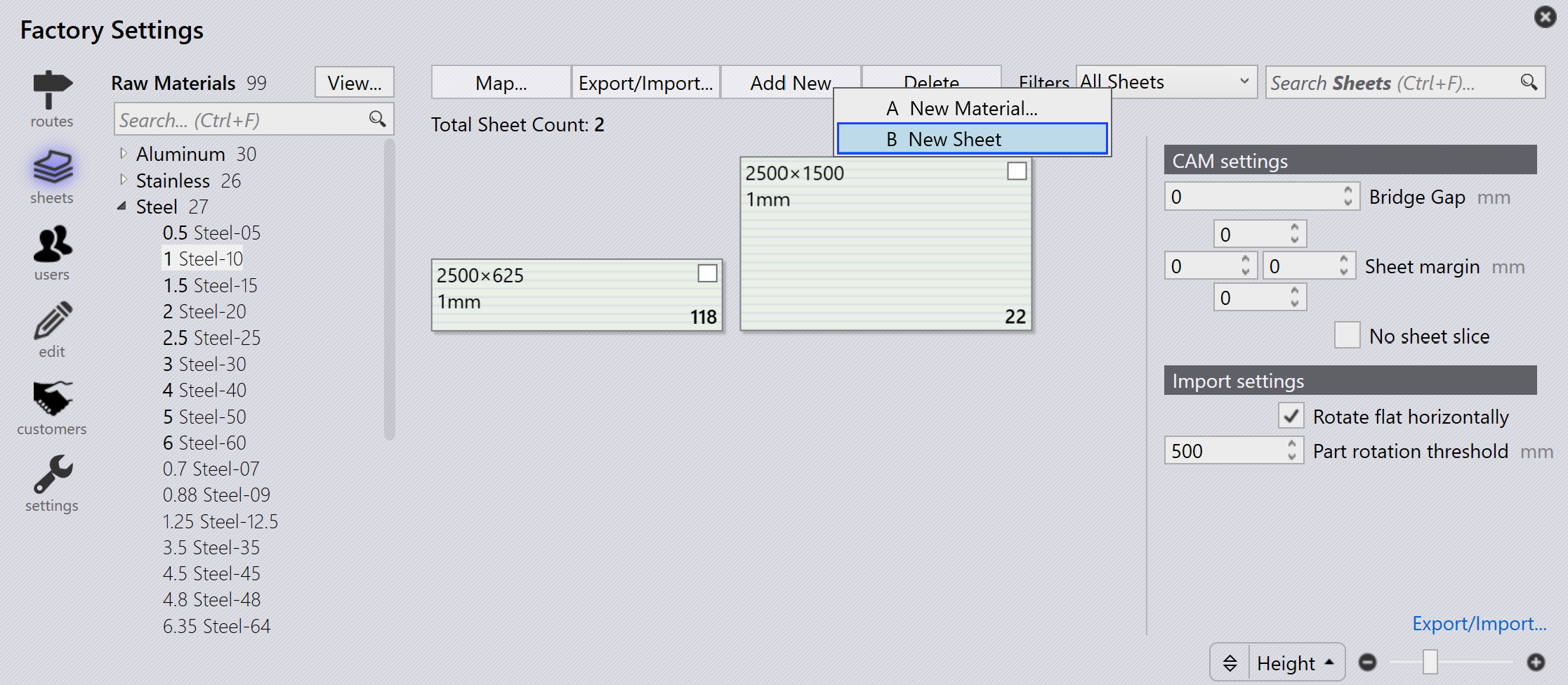
To add a new sheet, click Add new → New Sheet from Sheets page in factory. Modify Sheet parameters.
-
Search Sheets (Ctrl + F)…: Filters sheets with respect to size, grain, comments, heat number, remnant and vaporize.
-
Slider (+ / –): Adjusts the zoom level of the sheet preview.
-
Filter by: Controls the sheet preview based on the selected option (Width, Height, Area, Quantity, Grain, or Type).
|
Editing or deleting a material or sheet can be done only before a part is assigned to that material or a layout is nested on that sheet. Changing the material name is not possible at this stage. Therefore, a new material must be created. |