
Routes
Based on your license, Praxis will have a default set of CAM machines and routing configurations. You can customize these configurations to fit your specific manufacturing workflows.
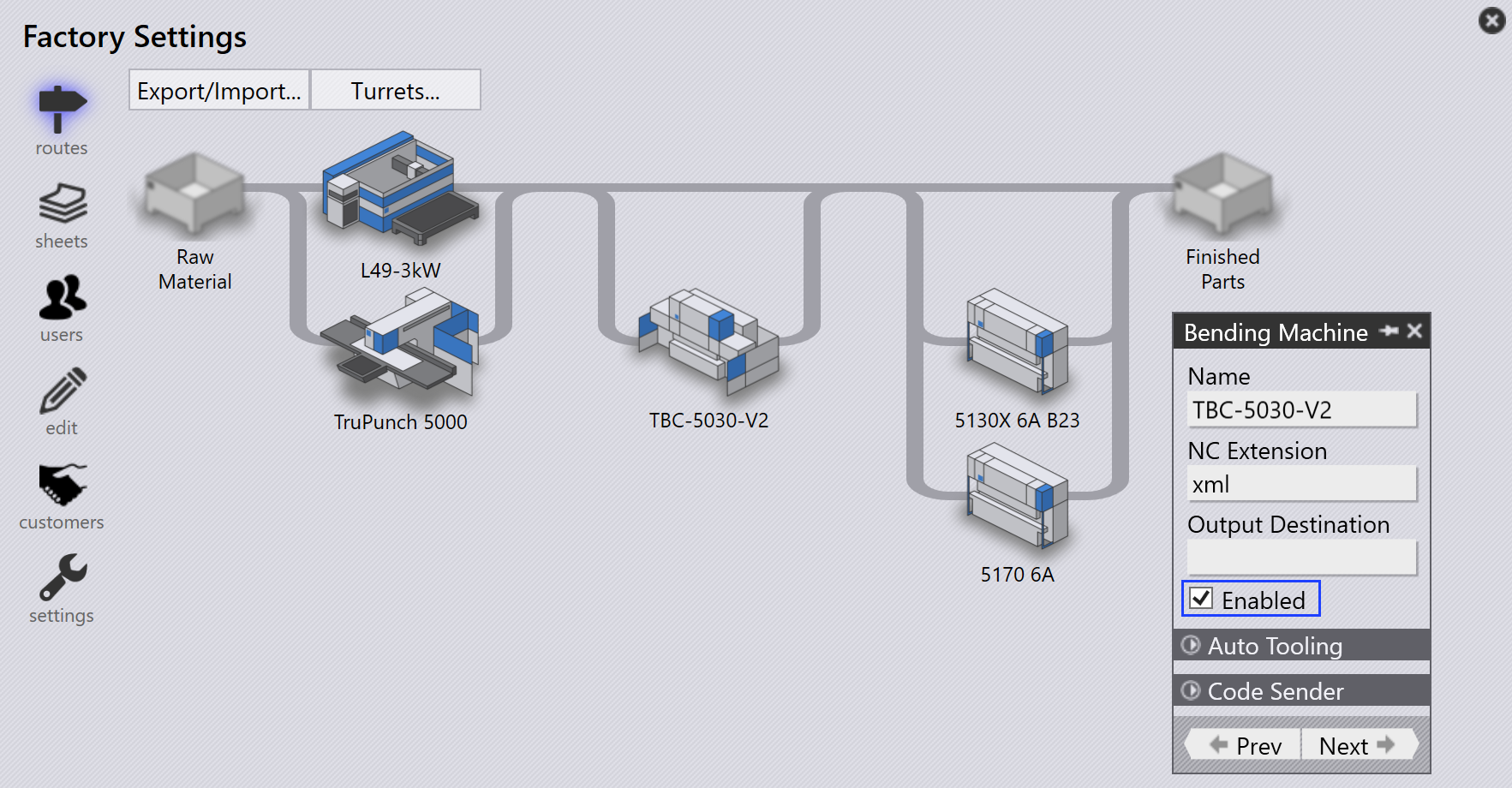
On the routes page, machines are represented as processing stations, each identified by a picture and a name.
Routes connect the stations, showing the possible workflow paths a part can follow from start to finish. You can view station properties by hovering over a station with the mouse.
Clicking on a station opens a panel with detailed information about that station, including its name, type, and availability status.
-
To edit station availability, click on the station and toggle the Enabled checkbox in the panel.
Export/Import routing configurations
The Export/Import feature allows users to save their current routing configurations and apply them to other projects or instances.
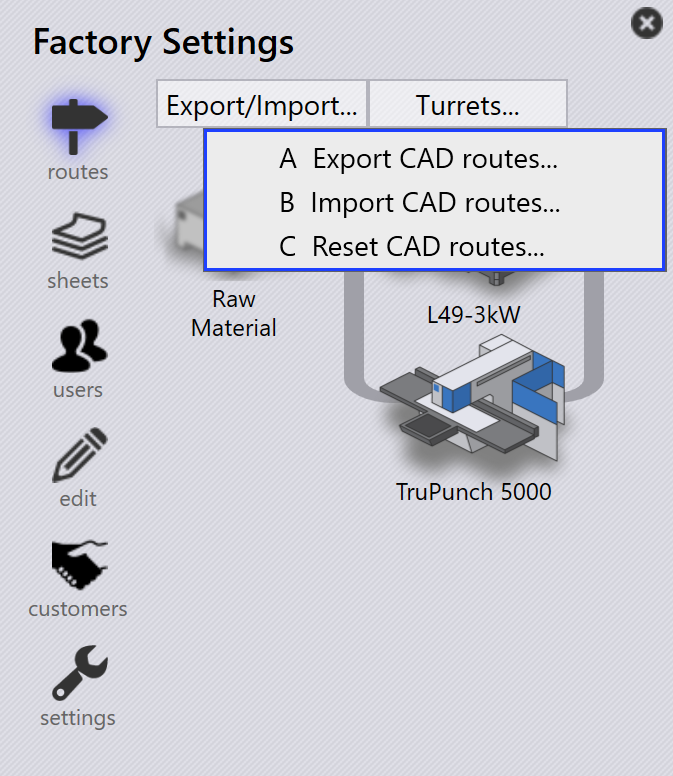
Export CAD routes
Click Export CAD routes… to save all current route condition rules to a CSV file.

The CSV lists materials and their routing conditions. Columns represent machine names and conditions (e.g., Material, SpecialTool, HasBend, MaxBendLength). A value of 1 indicates routing to a machine; a blank cell means no routing.
You can modify this CSV and re-import it into the system.
Import CAD routes
Use Import CAD routes… to apply a modified CSV file.
| Before importing, run Reset CAD routes to clear existing configurations. |
The system reads the file and updates route conditions. Rules can include conditions like HasBend and MaxBendLength.

If HasBend = 1, the rule applies to parts with bends.
If MaxBendLength =1, the rule further limits based on the part’s longest bend length.
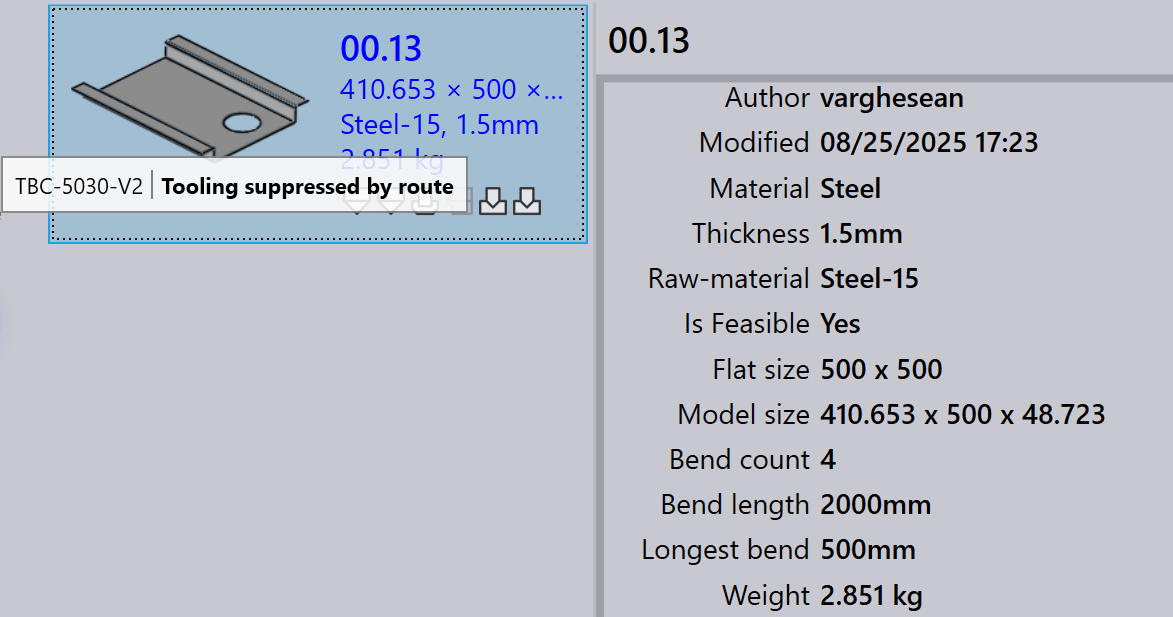
Part 00.13 has a longest bend of 500 mm. It matches the first rule, so TBC-5030-V2 is excluded.
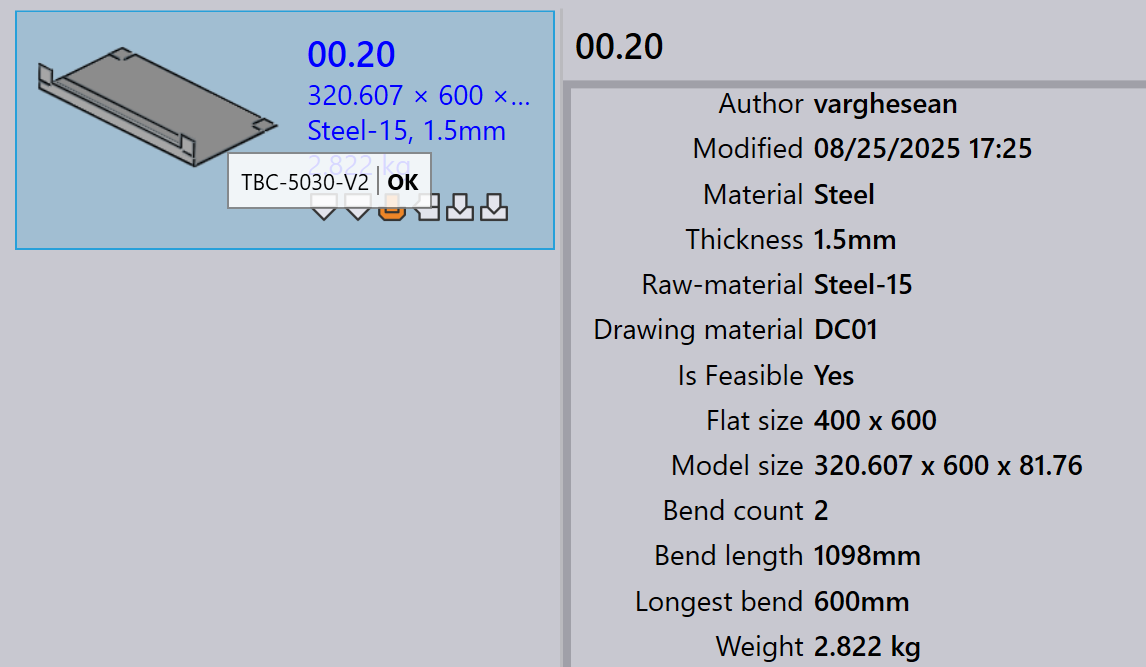
Part 00.20 has a longest bend of 600 mm. It does not match the first rule and follows the second rule, routing to all machines.
Reset CAD routes
Use Reset CAD routes to clear all existing configurations before importing a new CSV.
| If you import without resetting, old rules may conflict with new ones. |