
Praxis Reference Manual

  • Welcome to Praxis
  • Installation
    • Hardware requirement
    • Supported file formats
    • Prerequisites
    • Server installation
    • Client installation
    • Change license
  • Configuration
    • Add/Remove machine
    • Setup tooling
    • Configure users
    • Language
    • Material
      • Add new material and sheet
      • Export/Import material
      • Replace material
    • Map material
    • Map CAM pages
    • Map fields from CAD (lookup keys)
  • The user interface
  • Workflow
  • Library
    • Open
      • Import parts
      • Import orders
      • Import jobs
      • Import assemblies
    • Library view
      • Parts
      • Assembly
    • Part status
      • Part validation
      • Part panel
      • Part filters
    • Tooling status
      • Tooling validation
        • Bend tooling validation
        • Cut tooling validation
        • Fold tooling validation
      • Tooling panel
    • Saving filters
  • Orders
    • Orders view
  • Jobs
    • Create job
    • Job view
    • Job panel
    • Auto plan
    • Interactive nesting
    • Repacking
    • Nest management
      • Layout view
      • Layout panel
      • Report sender
    • Remnant management
      • Auto remnant management
      • Manual remnant management
    • Twinline nesting
    • Out-of-date
    • Job filters
  • Factory
    • Routes
    • Sheets
    • Users
    • Edit
    • Customers
    • Settings
      • Environment
      • Import
      • Bend
      • Cut
      • Notifications
      • Watch
      • Job
      • Reports
  • Impressum
The user interface

The user interface

The Praxis user interface provides access to all major functions through the command bar and menu bar, enabling efficient navigation and operation.
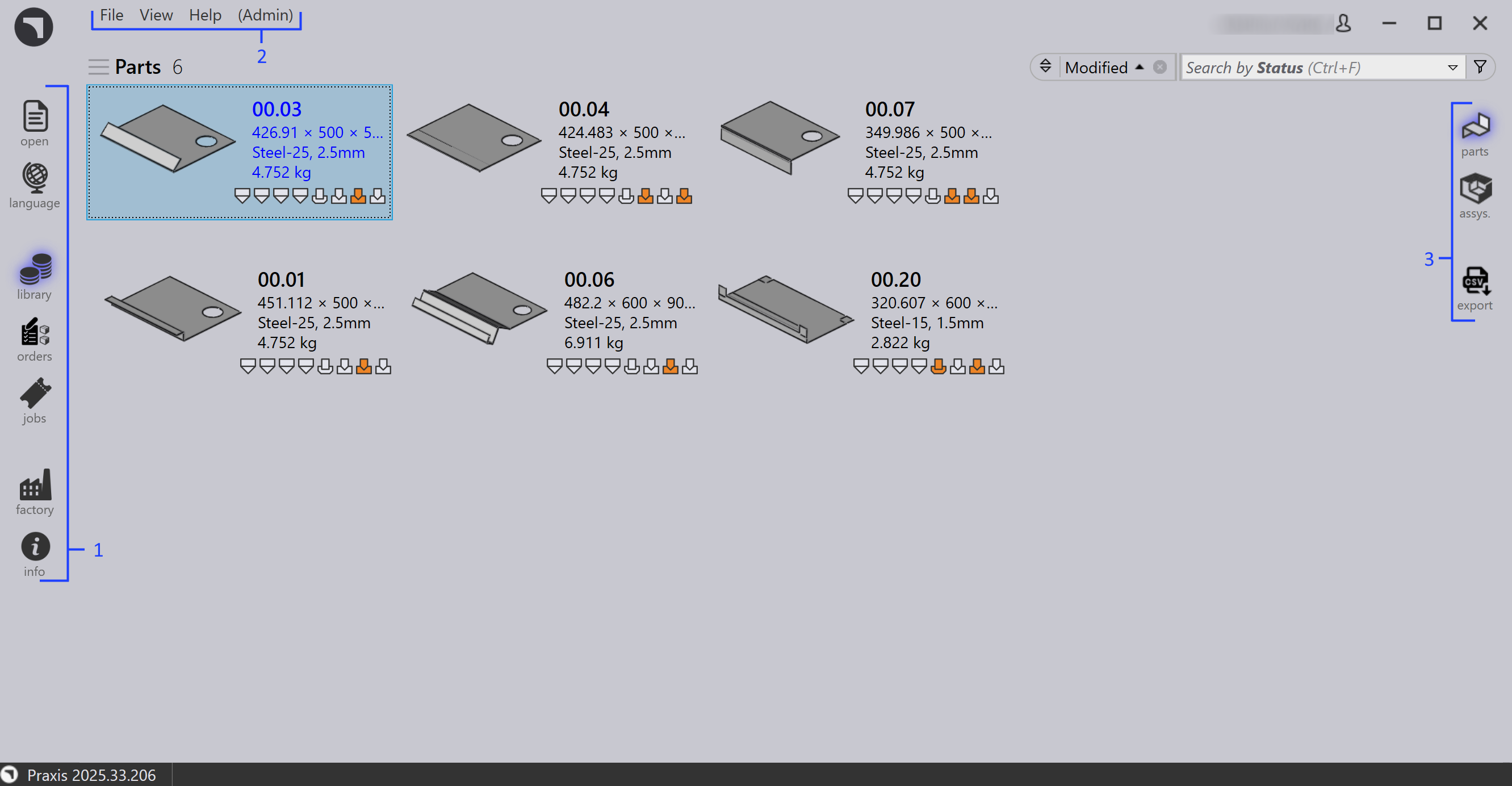
Interface

In the image:

1 - Command bar

2 - Menu bar

3 - Subcommands

Command bar

Open - Imports parts, jobs, orders, and assemblies into the library. For details, see Open.

Language - Changes the user interface language. For details, see Language.

Library - Opens the library home page, where parts and assemblies are shown separately. For details, see Library.

Jobs - Displays imported or created jobs. For details, see Jobs.

Factory - Opens the central location for configuring and managing routes, materials, users, and customer data for production setup. For details, see Factory.

Info - Displays information about the software.

Menu bar

File - Provides options to open parts, jobs, orders, and assemblies, and to exit the application.

View - Allows switching between screens and accessing different views.

Help - Provides access to the help manual and software update options.

Admin - Contains administrative settings and configuration options.

Subcommands

Parts - Displays the Part Library items.

Assys - Switches to assembly items in the Library view.

Export - Exports the current part or tooling report as CSV.

Contents

  • Command bar
  • Menu bar
  • Subcommands
Map fields from CAD (lookup keys) Workflow

      Copyright © 2025 TRUMPF Metamation. All rights reserved.

    Compiled by Bento