
Auto remnant management
Enable remnant
Praxis supports automated remnant sheet creation from a layout during nesting. This feature is available only with Flux Cut machines.
-
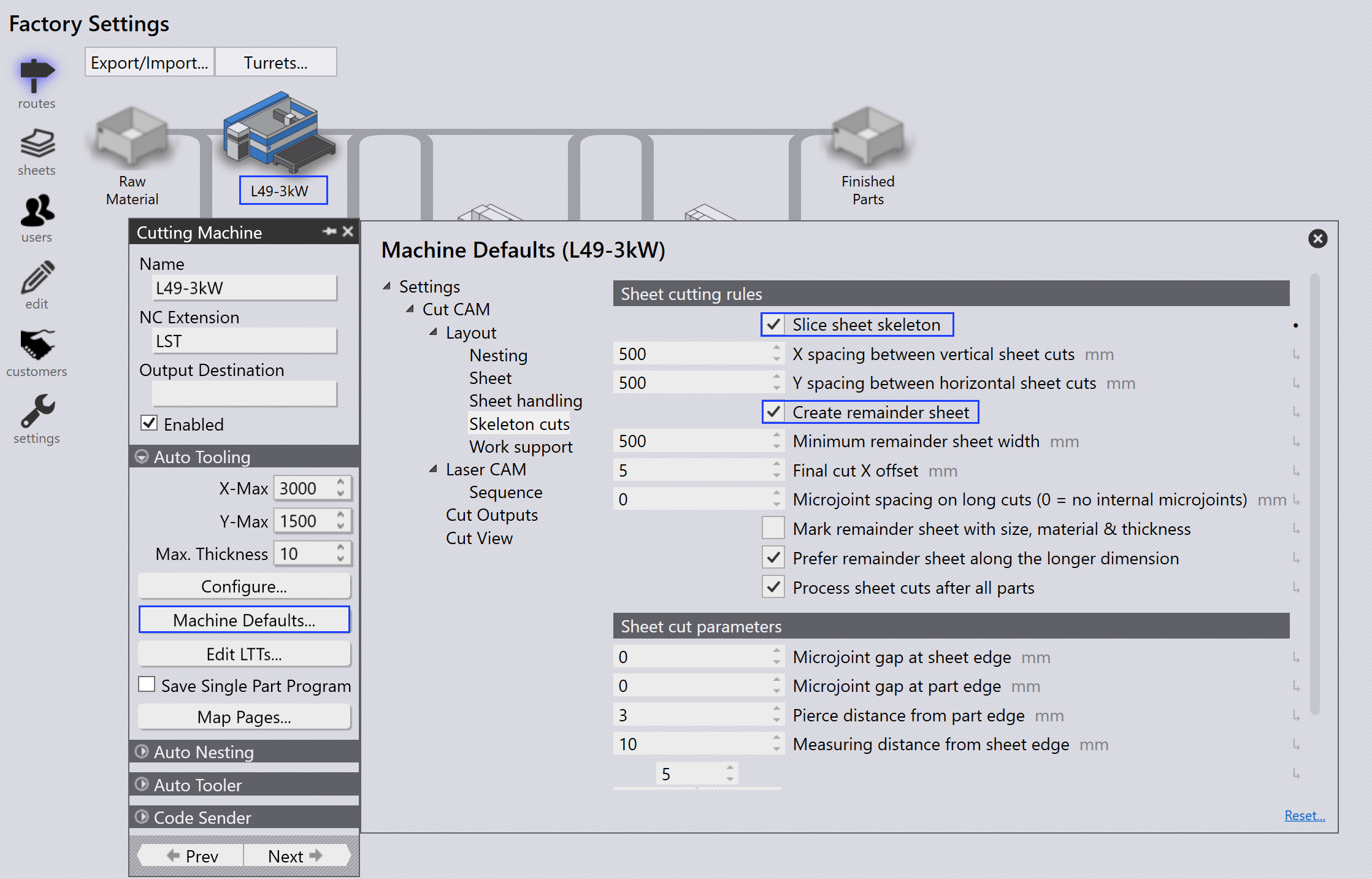
Click factory → Machines → Machine Defaults → Skeleton cuts.
-
Select the Slice Sheet Skeleton & Create Remainder Sheet option to enable this feature.
When enabled, the remaining area of a nested sheet is sliced into remainder sheets based on the assigned Minimum Remainder Sheet Value in X & Y.
Configure auto remnant
-
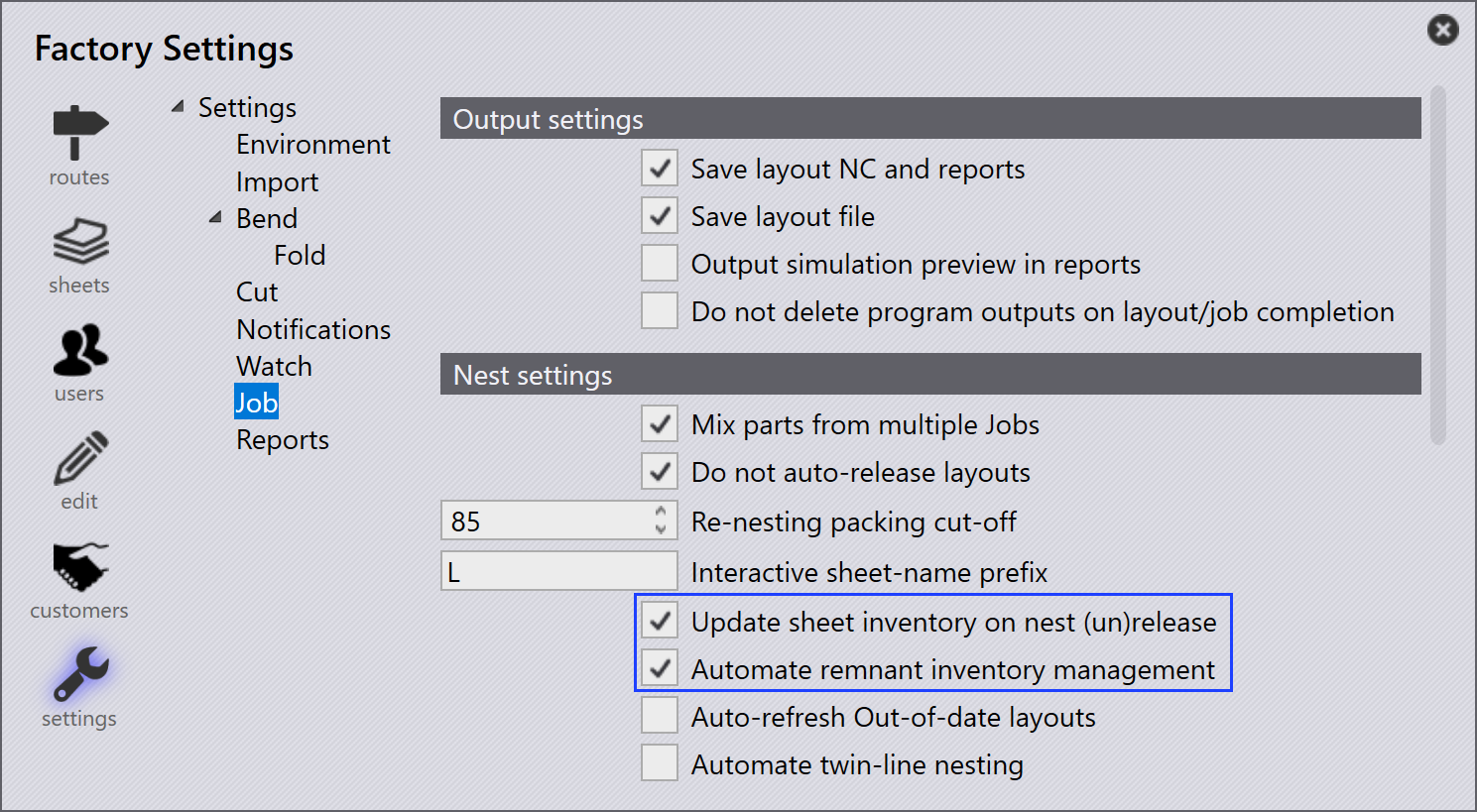
Click factory → Settings → Job.
-
Select Update sheet inventory on nest (un)release and Automate remnant inventory management.
Auto remnant
When you nest parts, if the leftover sheet area meets the Minimum Sheet Value X & Y, Praxis automatically creates a Remnant Sheet from the leftover space.
-
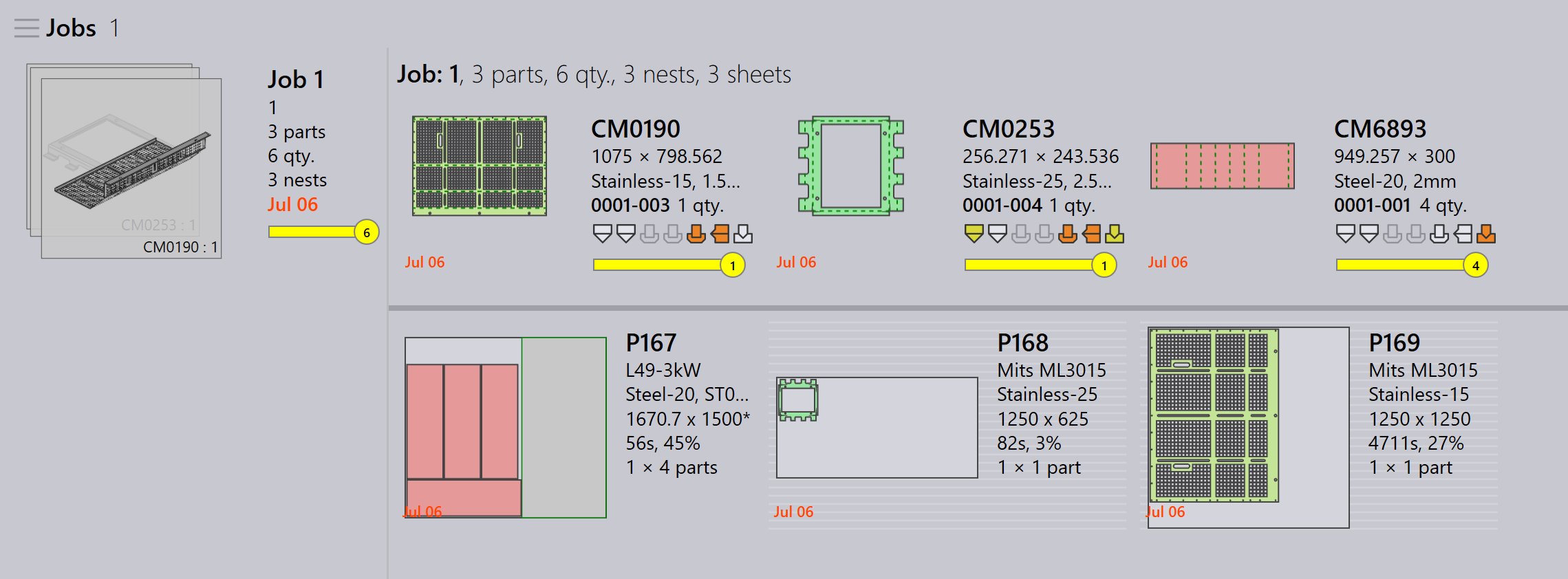
In the Job Nest view, nests that have remnant sheets are shown with a green border outline and grey background.
-
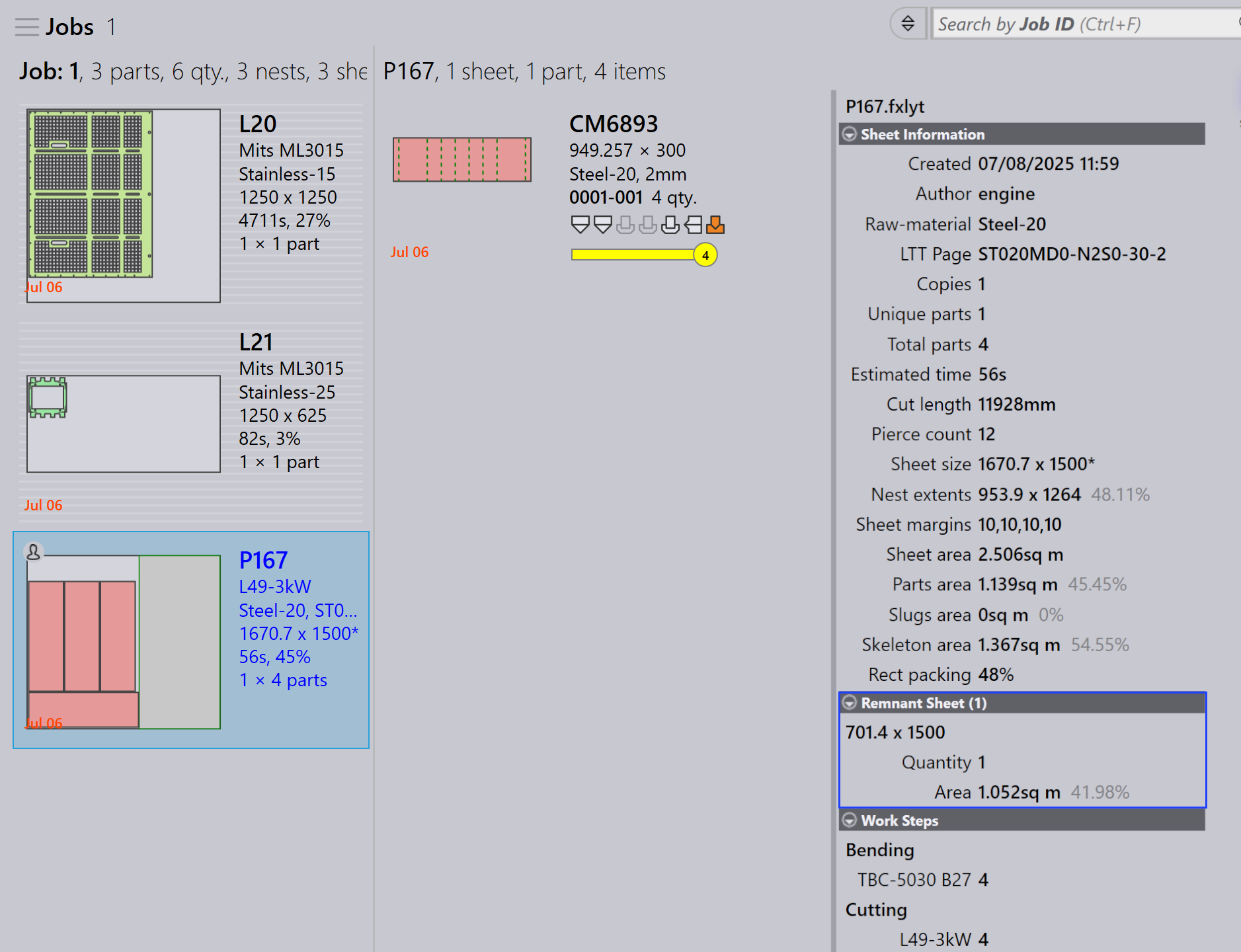
Double-click the nest to open the Nest Detail page. Remnant sheet information is displayed with remnant sheet size, quantity, and area.
-
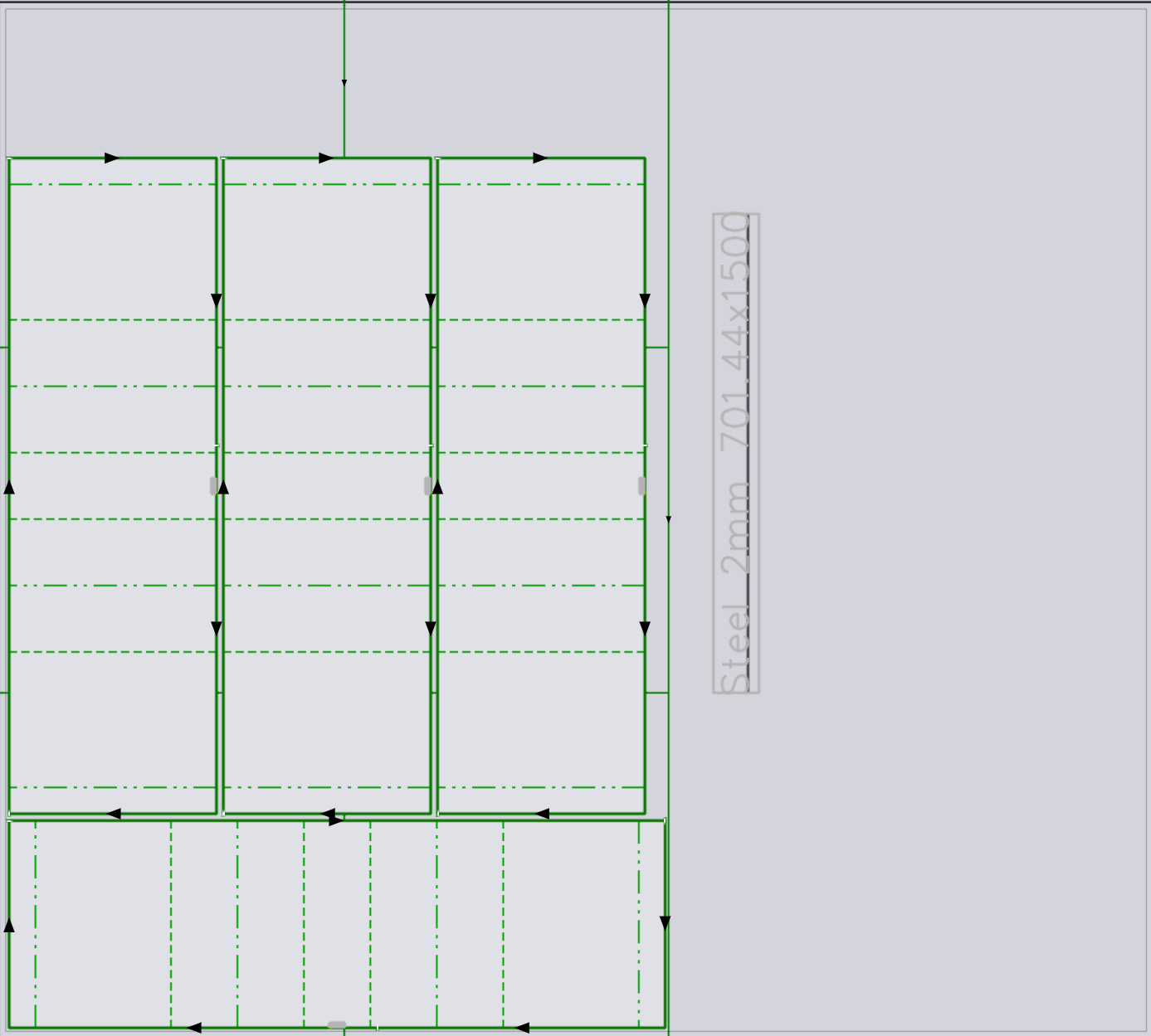
Right-click the nest and select Edit to open it in Flux. The nest shows slice lines between parts and skeleton slice lines along with the remnant dimensions engraved. (Material, Thickness, and Remnant Size).
The remnant dimension engraving Mark helps the operator pick the sheet without measuring, making it easy to use in future nests.
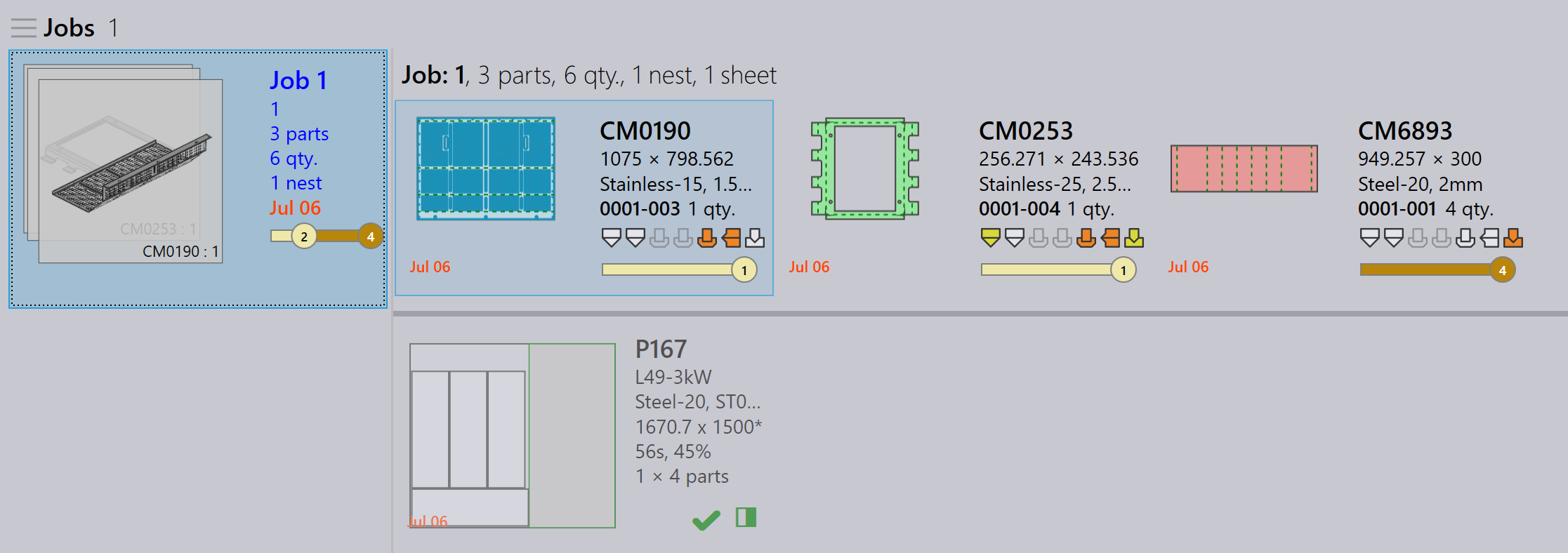
When you click Mark Complete, the remnant sheet is shown with a green tick mark, indicating that the nest is completed. A partially shaded square icon indicates that the remnant sheet is created and updated in the sheet inventory.
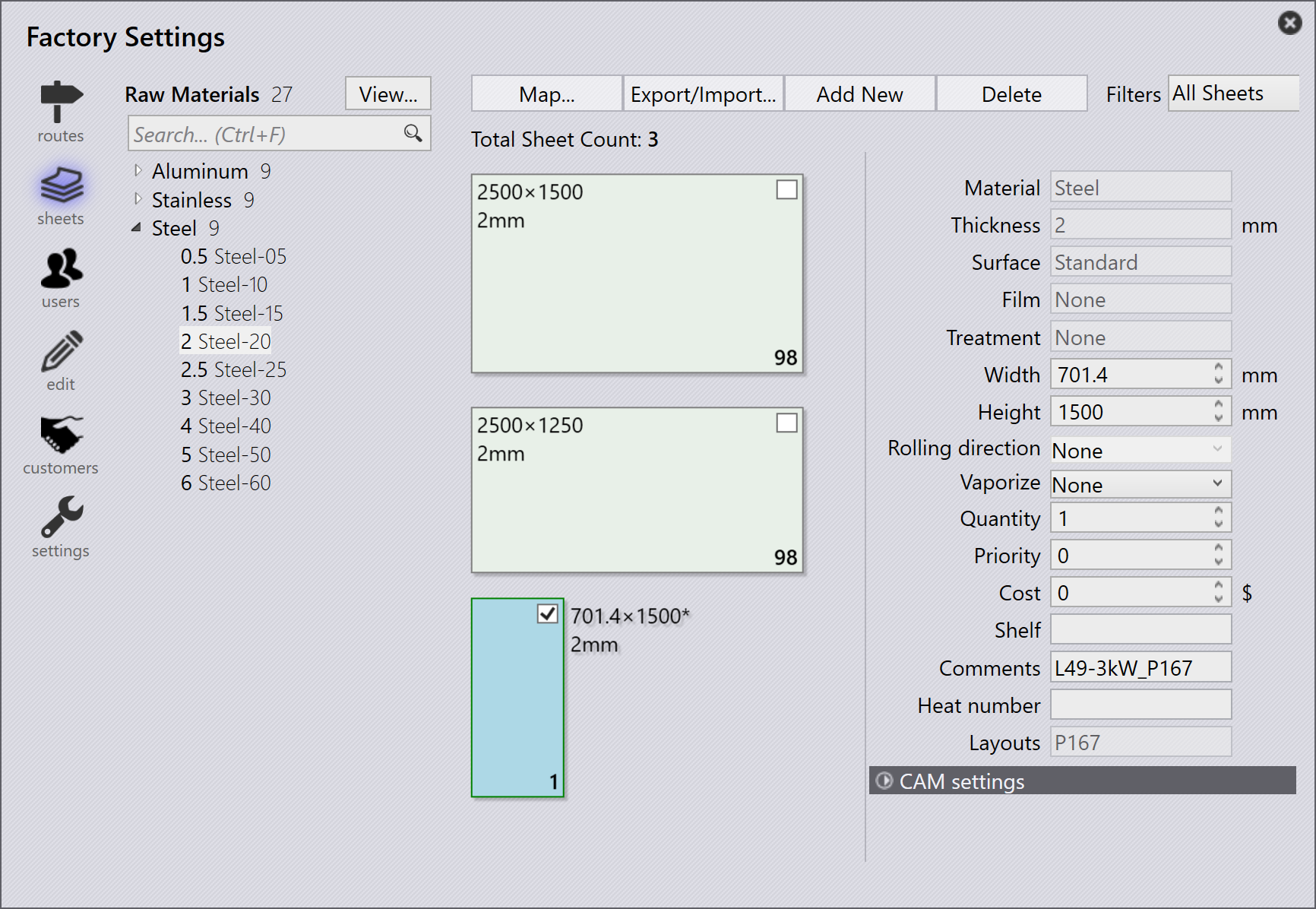
The sheet database is updated with the remnant sheet’s size and quantity, which is identified with an asterisk (*) symbol at the end of sheet size. Remnant sheets have a green border.
Auto plan or interactive plan of a job considers remnant sheets as high priority in the nest plan, ensuring they are used first to keep the shop floor free of unused remnants.