
Server installation
Follow the instructions to install Praxis Server installation along with SQL.
|
Administrator Rights
To execute this installation, user must have administrative privileges. |
-
Execute Setup.Praxis.<version>.exe to begin the installation.
| Version is a number. |
-
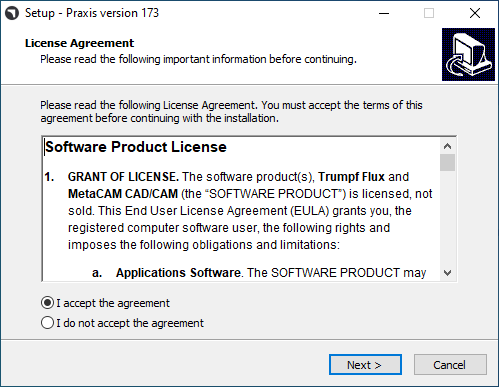
Read the license agreement and choose I accept the agreement and then Click Next .
Step 1 : Install Location
-
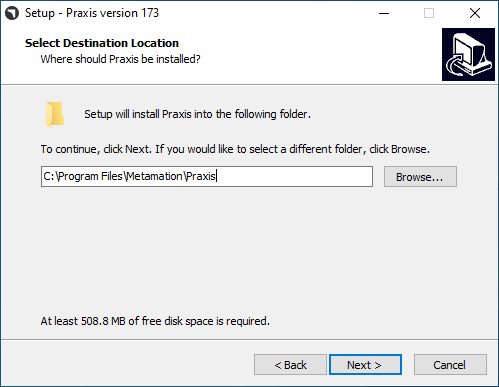
Mention the installation directory or accept the installation default
C:\Program Files\Metamation\Praxisand click Next.-
C:\Program Files\Metamation\Praxis- Install folder will have following folders : Bin, MetaCAM, Samples and Tracker. -
C:\Program Data\Metamation- Data Folder will have following folders : Praxis, Flux and MetaCAM.
-
Step 2 : Components Selection
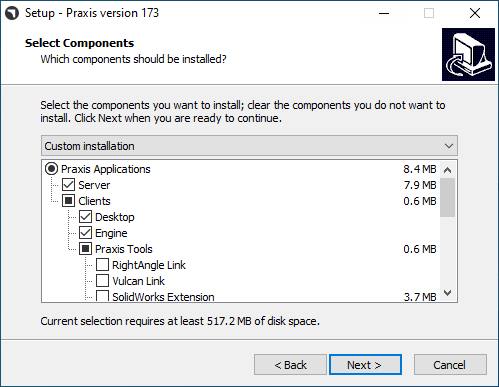
| Installation Type | Components |
|---|---|
Full |
Server + Desktop client + Engine |
Client |
Desktop Client |
Server |
Server + Desktop client |
Station |
Picks all Stations Terminal like Flux, MetaCAM, RightAngle(Bend Controller), Vulcan(Laser Machine Controller) |
Custom |
Picks by user choice. |
-
Choose Full Installation. Pick Code Senders and Bend Code Senders from Praxis Tools. Now the Installation type changes to Custom. Click Next.
Step 3 : Choose Install SQL Server
|
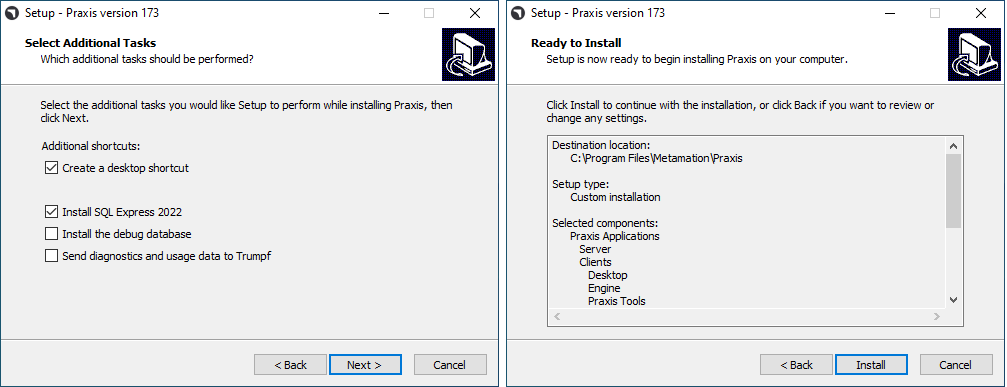
SQL Express 2022 installation is needed only for the Praxis Server. This option is not available for Client and Sync Installations. Also this is Checked ON and installed for the first time and can be ignored thereafter. If already SQL installed in Praxis server, user can ignore Step 3. |
-
In Select Additional Tasks : Click Install SQL Express and Click Next.
-
In Ready to Install : Summarize all install features and Click Install.
Step 4 : SQL Server Installation
Once Praxis components are installed, the installer proceeds with the SQL server installation. Accept the License Agreement to proceed and install SQL express with the default options.
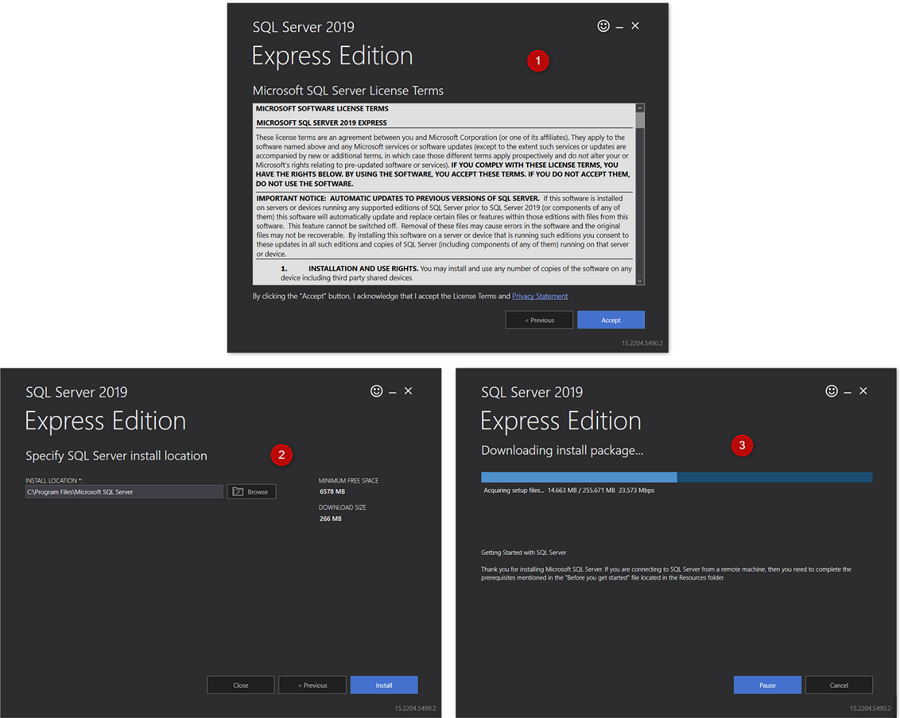
Once the installation is completed Click Close and complete the installation.
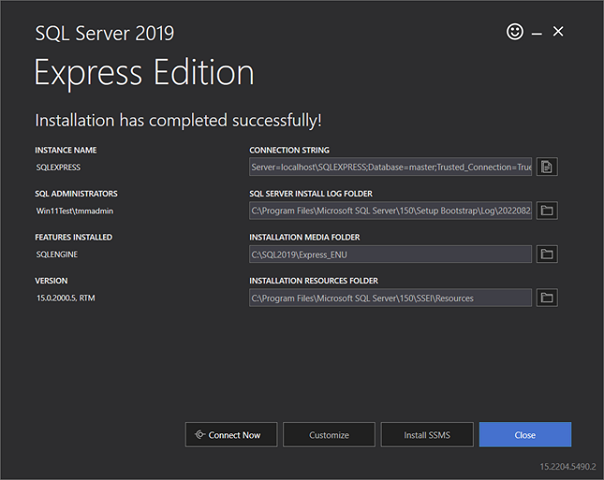
| Depending on the Windows version, closing the SQL installation may prompt a restart. |
Step 5 : Windows Desktop shortcuts
-
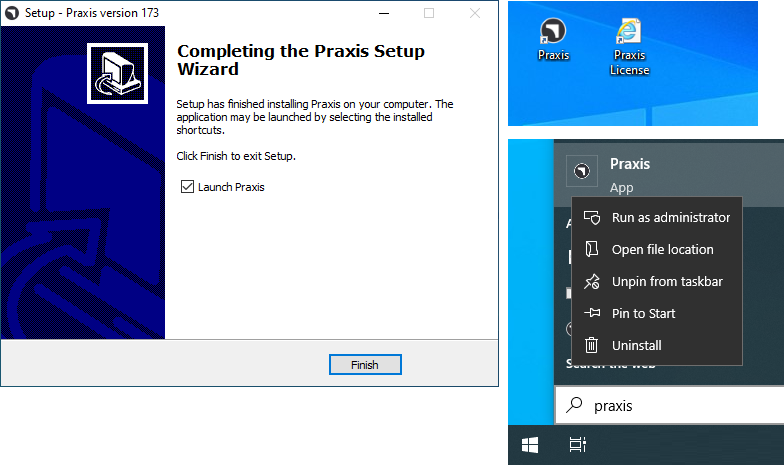
After SQL install, if System not restarts, then select the Launch Praxis checkbox and Click Finish.
-
If System restarts, then Launch Praxis shortcut icon in Desktop or type Praxis in Windows Start Program and Run as administrator.
| Server installation : Praxis and Praxis License Shortcut icons are available in Desktop. + Client/SYNC Installation : Only Praxis shortcut icon available in Desktop. |
Step 6 : License Registration
-
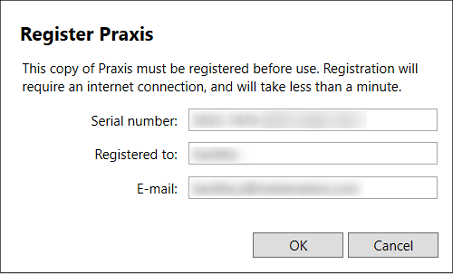
In Serial Number field, type the Praxis Serial key provided by Trumpf Metamation Service Team. Type <Company Name> in "Registered to" field and E-Mail. Click OK.
|
In case of Network firewall blocks the license registration or No internet in the Praxis Server PC, then Praxis license is done by Offline activation. Email the Prax.request from C:\ProgramData\Metamation\Praxis Folder to Trumpf Metamation Service Team. Trumpf Metamation Team will provide the Prax.lock which needs to be dropped in this folder. |
Step 7 : Initial one time Configuration
-
Type Database Name and Set Data Storage Location. Select Use SQL Server checkbox and select the SQL server name to connect to the Database. Click OK.
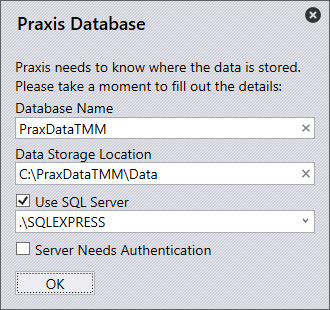
-
Praxis Desktop Client opens showing Database Connection Succeeded at the lower bottom.
-
Praxis, Flux and MetaCAM Configuration files were created with default config machines or against Praxis license machines. The same config will be shared across all Praxis Clients.
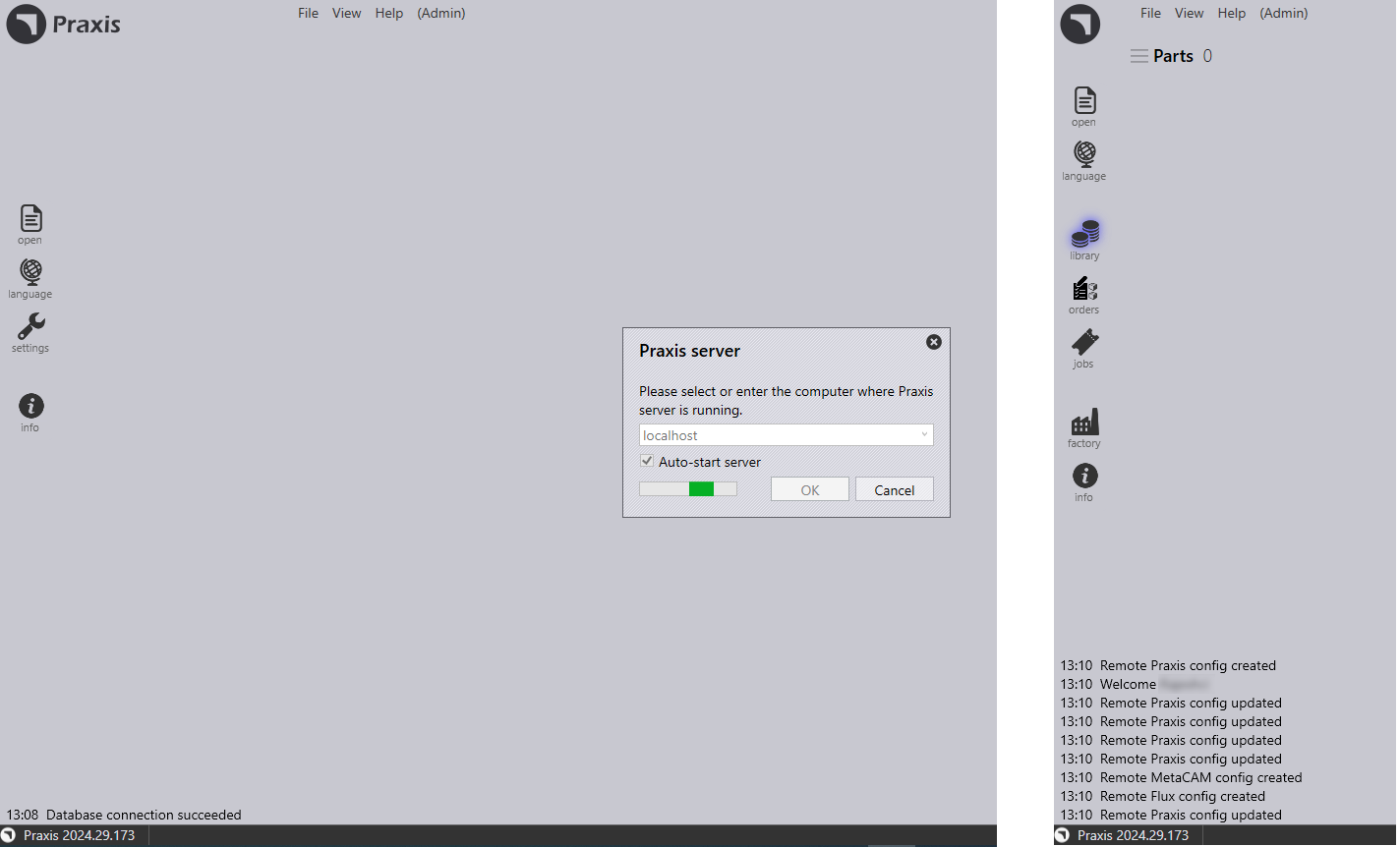
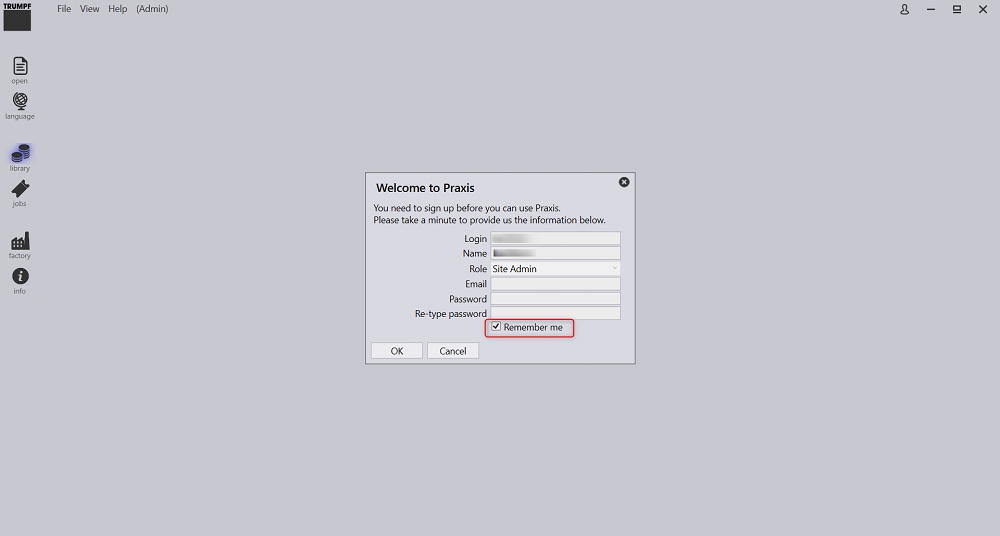
Welcome screen shows with Windows User LoginName as Praxis Login and Name. First Praxis User is considered as Site Admin. Provide Email and Password. Click OK .
Select Remember me checkbox to save the login credentials for next time. Clear Remember me checkbox will prompt for login and password dialog whenever Praxis application is launched.
Step 8 : Praxis sign-in
-
Close Praxis and reopen it. The system prompts you to enter the Praxis login credentials.
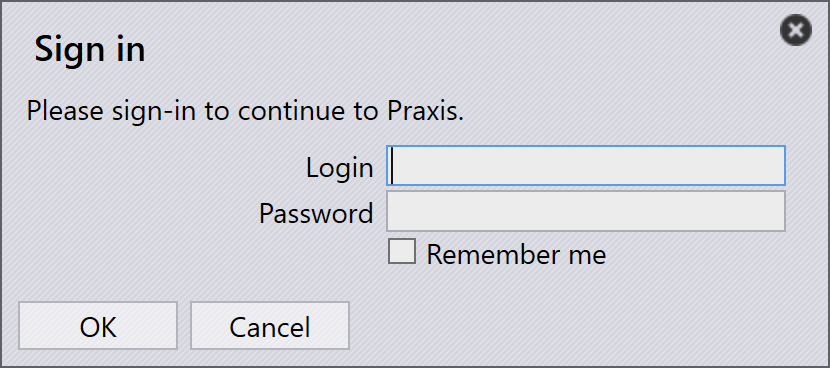
-
The logged-in username is displayed next to the user icon in the Praxis application header.

-
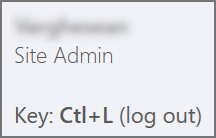
When you hover over the user icon, the system displays:
-
The user role (for example: Programmer, Admin).
-
A shortcut to log out: Ctrl+L.
-
-
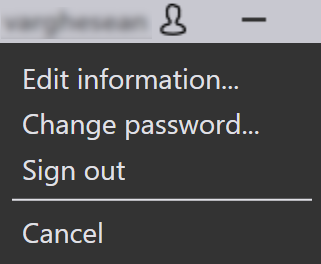
Clicking the user icon opens a menu that allows you to:
-
Edit information… - Update your profile details.
-
Change password… - Change your account password.
-
Sign out - Sign out of the application.
-
Cancel - Close the menu without making any changes.
-
Step 9 : Factory Machine Configuration
-
Praxis License [All machines enables license bit] : Default Praxis Machine and Material are considered as Factory Configuration.
-
Praxis License [No demo and few machine bit enabled] : Those Few machines and default Material are considered as Factory Configuration.
-
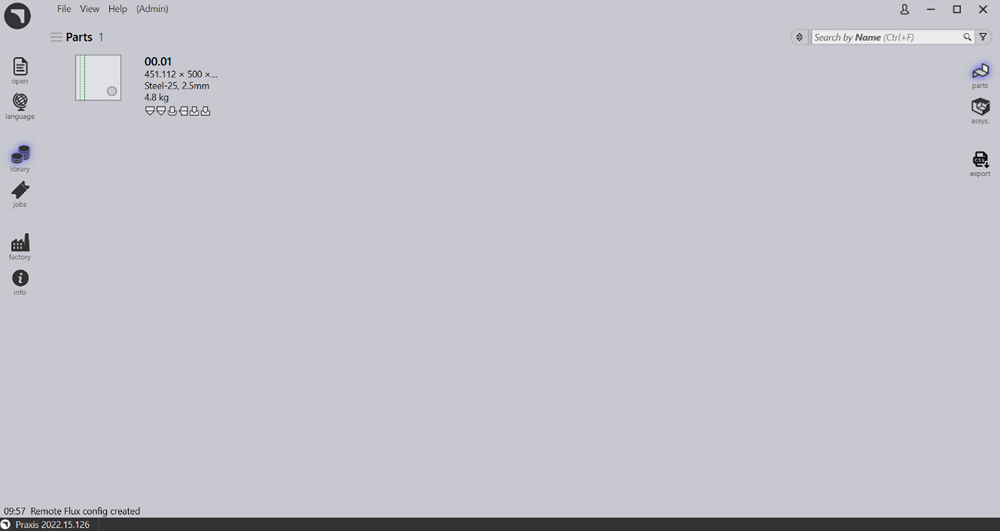
(Open → Import) a new Part from the
C:\Program
Files\Metamation\Praxis\Samples\Parts
and verify if the Part is imported successfully.
Note 1 : Praxis Monitor
-
Praxis Monitor with Engine Installation (Site admin rights):
-
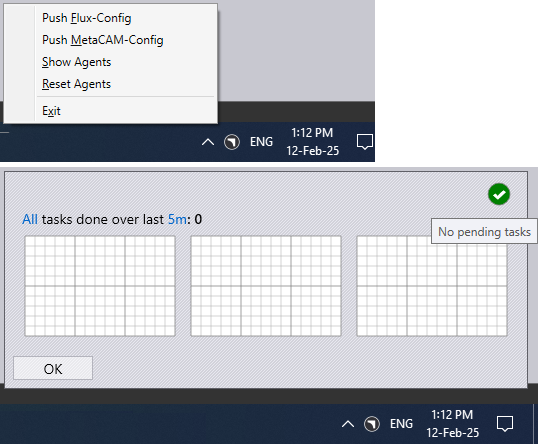
Praxis Monitor with Engine along with Site Admin Praxis Rights will have following options:
-
Push Praxis configuration, Flux, MetaCAM configuration across all Praxis Clients. Also have rights to create New Praxis User Login.
-
Show Agents will show the total engine available to do automation task which is against the Praxis License.
-
-
-
Praxis Monitor without Engine Installation (Site admin rights):
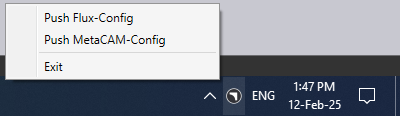
-
Praxis Monitor without Engine Installation (Non Site Admin rights):
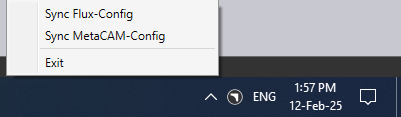
|
PC running Praxis application must have the Engine Praxis component installed [Server PC or in any Client install]. Engine Praxis component installed PC should be running 24x7 to do all automation tasks. |
Note 2 : Lock Tracker
-
Click Praxis License shortcut available in Praxis Server Desktop. Alternatively, open http://localhost:7171/metamation/locktrack url in any web browser.
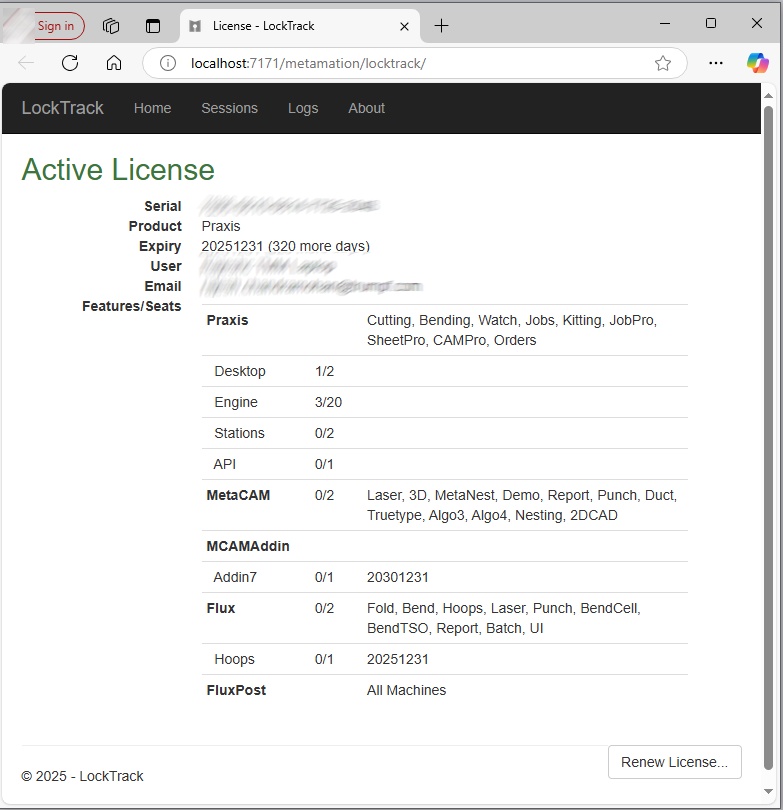
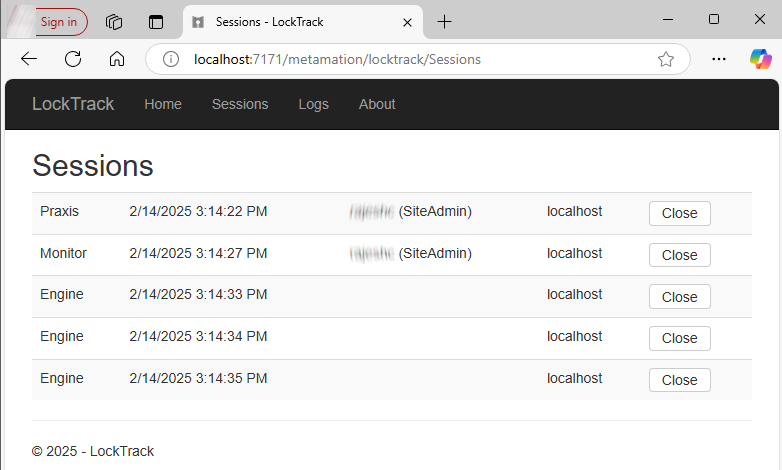
This will open Lock Tracker module which have License information, Praxis current session information and Log.
LockTracker HOME Page : This show the Praxis Serial Number, Serial Expiry information and Serial bits available information.
LockTracker SESSIONS Page : Current Praxis Server connected information like Praxis Desktop client PC, PMonitor, PEngine Status.
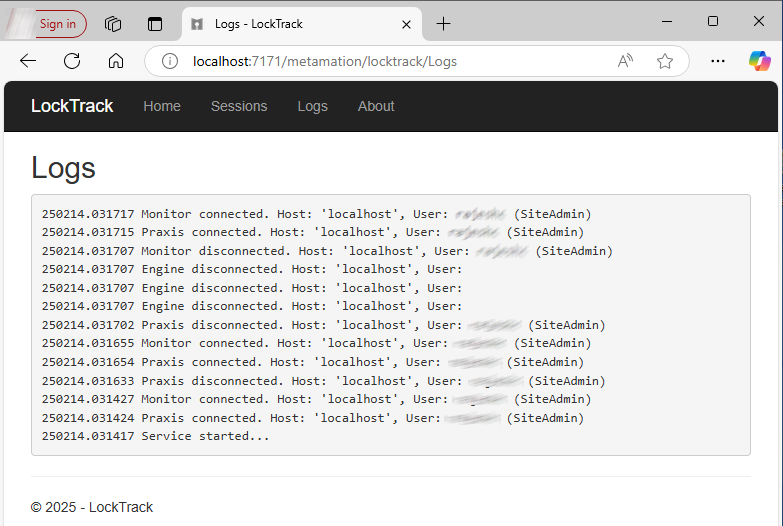
LockTracker LOGs Page : Praxis client start and log off | Pmonitor start and PEngine connect/disconnect status etc., can be viewed in this Logs page.
Note 3 : OpenGL
-
Praxis application while opening which gets closed immediately and also pmonitor is not shown at the task bar.
-
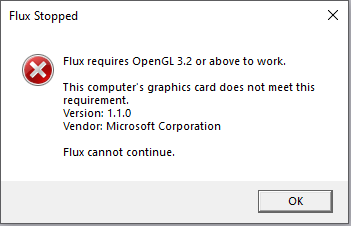
This represents OpenGl issue.
-
Another way to confirm this: Open C:\Program Files\Metamation\Praxis\Bin\Flux.exe which displays error dialog about the OpenGL issue.
-
Update C:\ProgramData\Metamation\Praxis\Prax.ini, options section with GLVersion=1 make Praxis application open successfully.
[Options]
GLVersion=1.0