
Saving filters
Saved filters allow you to reuse frequently applied criteria in Parts, Jobs, and Layouts, streamlining your workflow. Each module comes with default filters, but additional filter lists can be created by Site Admins or Programmers as needed. Reusing saved filters saves time and helps maintain consistency across searches.
-
Click on
 icon to view the default filters.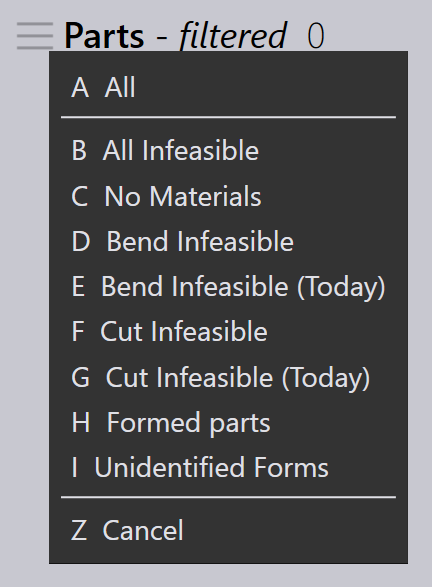
Steps to save filters
-
Click on
 icon, Select any filter item.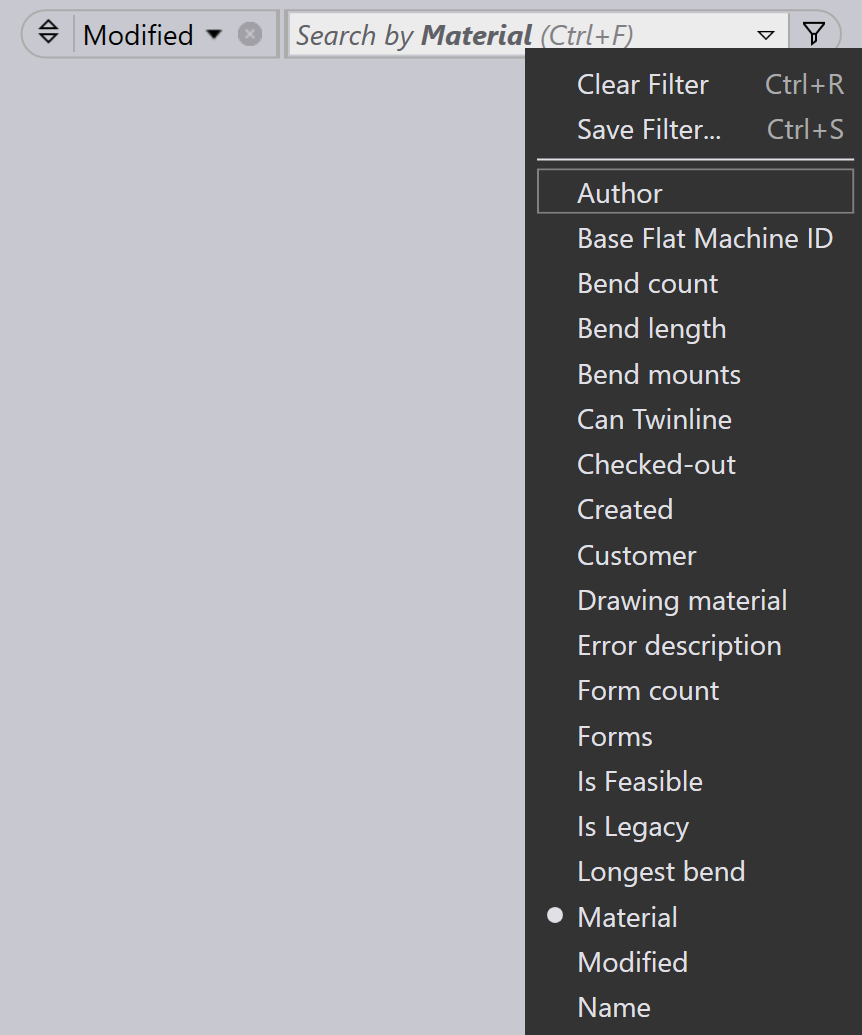
-
From the dropdown menu of the selected filter item, choose an option. A tick mark will appear next to the selected condition.
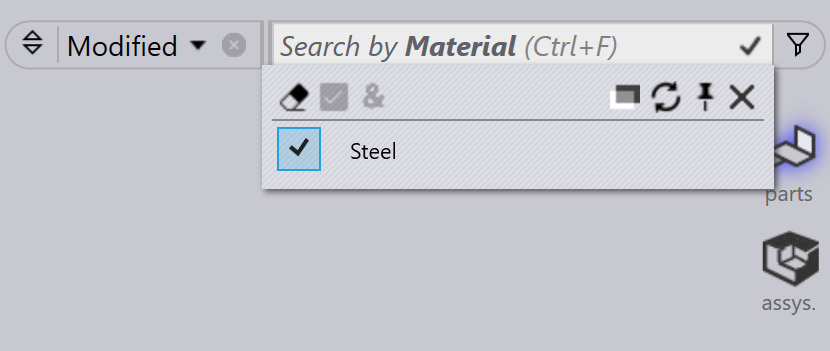
-
To apply the condition, click on
icon and then select
Add Condition Ctrl++. You can repeat this
step to add multiple conditions.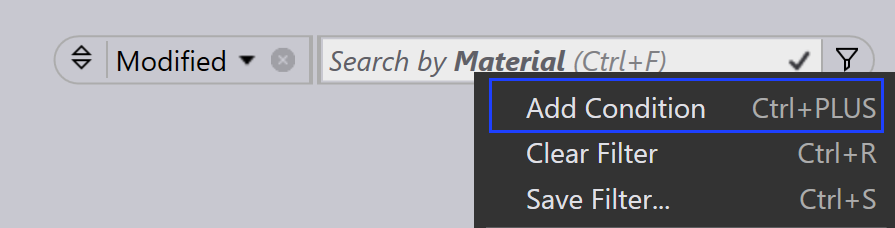
-
To save these selected filters with conditions, click on Save Filter… Ctrl+S.
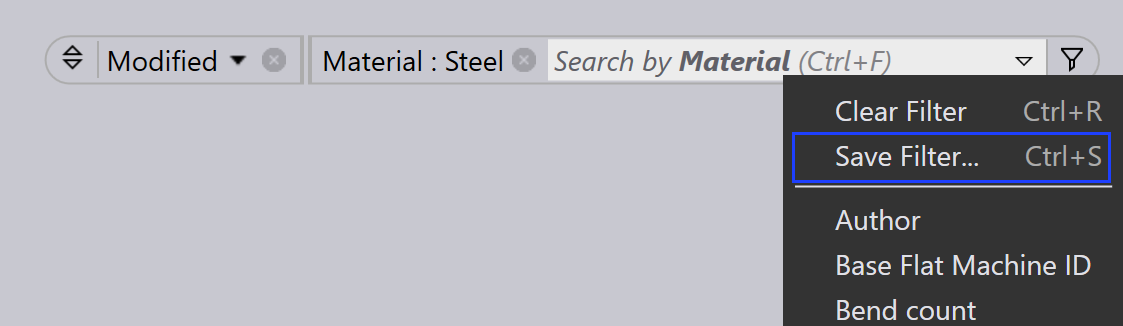
-
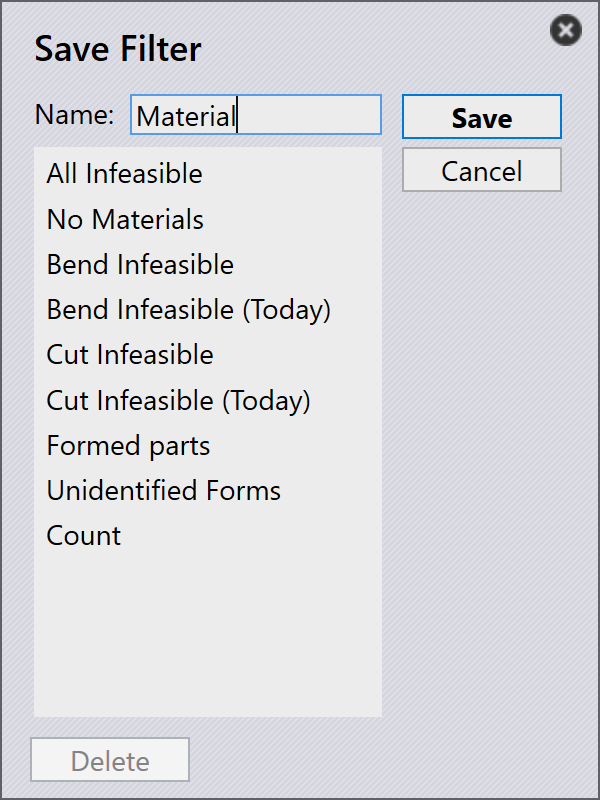
Enter the name and then click on Save.
-
From the Save Filter dialog, you can also delete any previously saved filters.
-
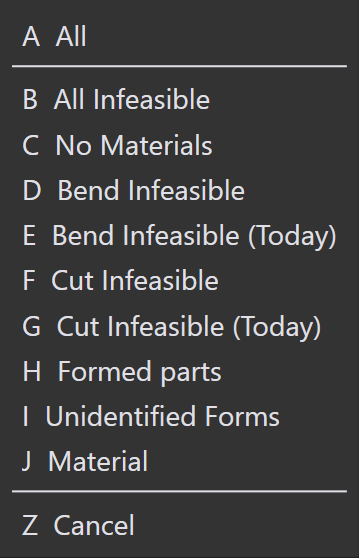
These filters will be saved in the Default filter list, Here Material is saved to the default list.
| Filters created by SiteAdmin & Admin are shared across all users. Filters created by Programmer & Operator are shared across only to Programmers and Operators user roles. |
Filter commands
| Command | Icon | Shortcuts | Description |
|---|---|---|---|
Clear Selection |
|
Ctrl+X |
Unselects all selected choices and refreshes the filter items view. |
Select Highlighted |
|
Ctrl+A |
Selects all highlighted choices. This command stays disabled if item highlighting is not applicable for the selected field. |
Match All |
|
& |
Displays only items that meet all selected conditions. |
Pin In/Out Menu |
|
Ctrl+Down/Up |
When pinned, the dropdown menu stays open even when the current focus moves to another window. |
Close Menu |
|
Esc |
Closes the dropdown menu. |


