
Praxis Reference Manual

  • Welcome to Praxis
  • Installation
    • Hardware requirement
    • Supported file formats
    • Prerequisites
    • Server installation
    • Client installation
    • Change license
  • Configuration
    • Add/Remove machine
    • Setup tooling
    • Configure users
    • Language
    • Material
      • Add new material and sheet
      • Export/Import material
      • Replace material
    • Map material
    • Map CAM pages
    • Map fields from CAD (lookup keys)
  • The user interface
  • Workflow
  • Library
    • Open
      • Import parts
      • Import orders
      • Import jobs
      • Import assemblies
    • Library view
      • Parts
      • Assembly
    • Part status
      • Part validation
      • Part panel
      • Part filters
    • Tooling status
      • Tooling validation
        • Bend tooling validation
        • Cut tooling validation
        • Fold tooling validation
      • Tooling panel
    • Saving filters
  • Orders
    • Orders view
  • Jobs
    • Create job
    • Job view
    • Job panel
    • Auto plan
    • Interactive nesting
    • Repacking
    • Nest management
      • Layout view
      • Layout panel
      • Report sender
    • Remnant management
      • Auto remnant management
      • Manual remnant management
    • Twinline nesting
    • Out-of-date
    • Job filters
  • Factory
    • Routes
    • Sheets
    • Users
    • Edit
    • Customers
    • Settings
      • Environment
      • Import
      • Bend
      • Cut
      • Notifications
      • Watch
      • Job
      • Reports
  • Impressum
Installation
/
Change license

Change license

If a license needs to be updated or extended, then this can be performed by following the below steps:

Close the software and services on the server (Pserver and Pmonitor).

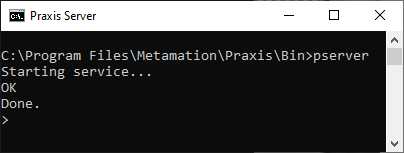
Start a DOS command prompt in admin mode.

Browse to C:\Program Files\Metamation\Praxis\Bin by typing in cd\ and press Enter.

Type in PSERVER and press Enter
licchange1

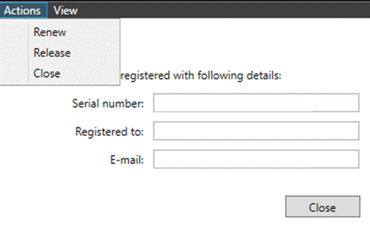
Type in LIC and press Enter and you will see the below dialog appear.
licchange2

Clicking on Actions you have the following options:

  • Renew which will attempt to renew the license.

  • Release which will unregister the license and make it available for registration on a new computer.

  • Close which will close the current dialog box.

Clicking on View you can select Details and the information about your current license will be displayed.

In order for a Renewed license change to take effect then you must restart the Pserver applications / services after renewing.
Client installation Configuration

      Copyright © 2025 TRUMPF Metamation. All rights reserved.

    Compiled by Bento