Parts
The Part Library in Praxis serves as a centralized workspace where all imported parts are displayed as interactive tiles. It allows users to quickly view part details, check tooling status across machines, and perform actions such as searching, navigating, or opening part-specific information.
For information on importing parts, see Import parts.
-
Use shortcut P to navigate to the library.
-
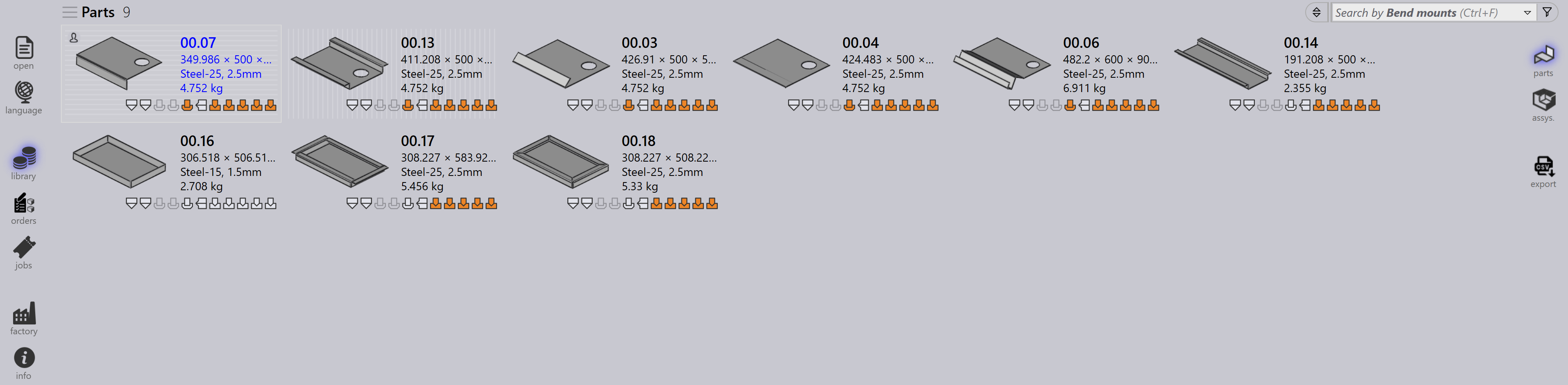
The Library view displays all imported parts as tiles.
-
Each tile shows:
-
Part picture.
-
Basic part properties — name, size, material, thickness, etc.
-
Tooling status for available factory machines.
-
-
The view refreshes automatically with live data, You can force a refresh anytime by pressing F5.
-
Parts can be searched by Part-Name or Material using the Search box:
-
Click inside the search box or press Ctrl+F.
-
Type the text to search, Praxis updates the list live.
-
Press Esc to reset the search text.
-
Part detail page
-
Double clicking a tile or pressing Enter after selecting a tile changes the view into the details.
-
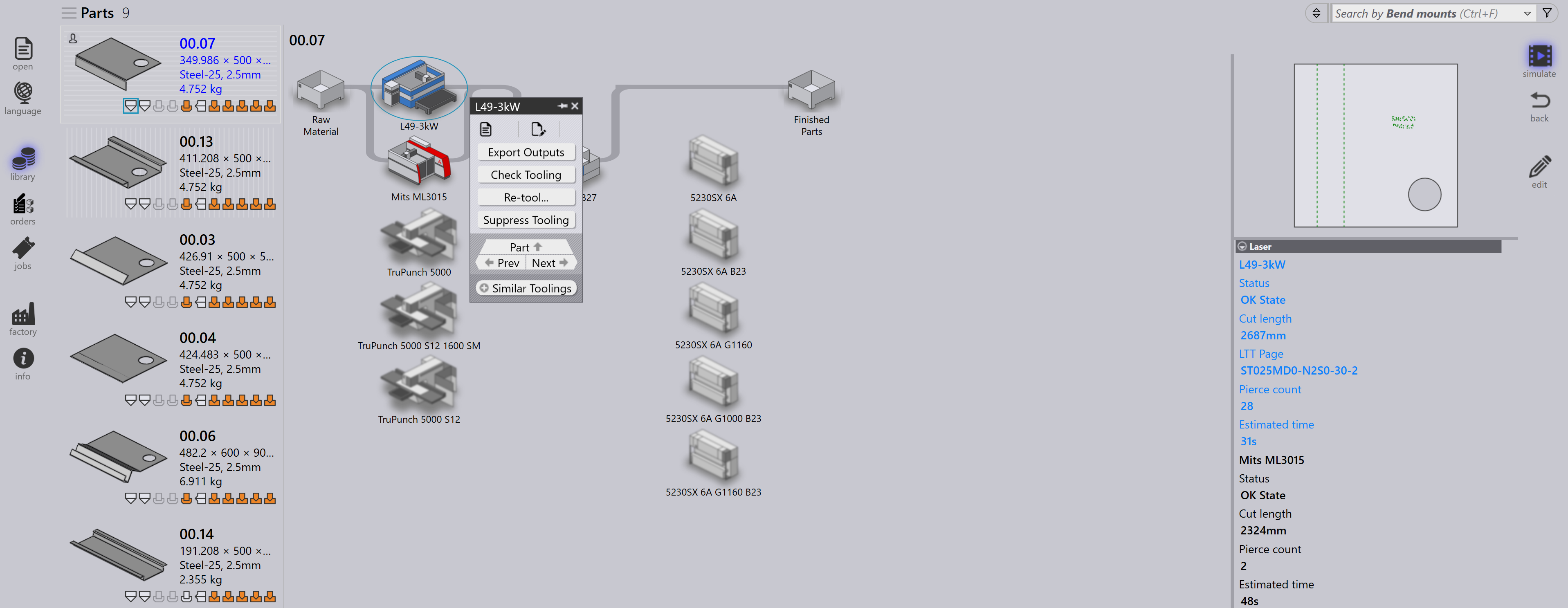
Click on any part to view its machine route. Selecting a machine within the route opens the machine panel, where you can review and modify tooling.
-
Additionally, the details page on the right displays tooling parameters and information about the machines used.