Praxis Reference Manual

  • Welcome to Praxis
  • Installation
    • Hardware requirement
    • Supported file formats
    • Prerequisites
    • Server installation
    • Client installation
    • Change license
  • Configuration
    • Add/Remove machine
    • Setup tooling
    • Configure users
    • Language
    • Material
      • Add new material and sheet
      • Export/Import material
      • Replace material
    • Map material
    • Map CAM pages
    • Map fields from CAD (lookup keys)
  • The user interface
  • Workflow
  • Library
    • Open
      • Import parts
      • Import orders
      • Import jobs
      • Import assemblies
    • Library view
      • Parts
      • Assembly
    • Part status
      • Part validation
      • Part panel
      • Part filters
    • Tooling status
      • Tooling validation
        • Bend tooling validation
        • Cut tooling validation
        • Fold tooling validation
      • Tooling panel
    • Saving filters
  • Orders
    • Orders view
  • Jobs
    • Create job
    • Job view
    • Job panel
    • Auto plan
    • Interactive nesting
    • Repacking
    • Nest management
      • Layout view
      • Layout panel
      • Report sender
    • Remnant management
      • Auto remnant management
      • Manual remnant management
    • Twinline nesting
    • Out-of-date
    • Job filters
  • Factory
    • Routes
    • Sheets
    • Users
    • Edit
    • Customers
    • Settings
      • Environment
      • Import
      • Bend
      • Cut
      • Notifications
      • Watch
      • Job
      • Reports
  • Impressum
Orders
/
Orders view

Orders view

The options on the right side of the Orders page represent different views of orders based on their processing stage. Selecting a view updates the displayed orders, allowing you to focus on specific stages of the workflow.

Ready

Selecting the Ready view displays orders that are prepared but not yet converted into jobs.
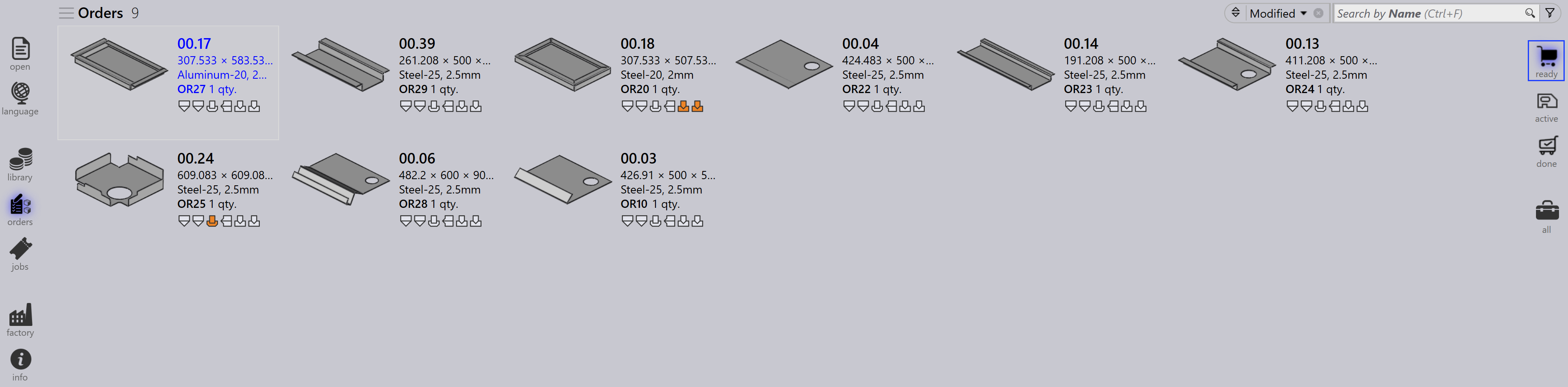
Ready
  • Shows orders that are ready for job creation.

  • Useful for identifying orders pending processing.

Active

Selecting the Active view displays orders that have been converted into jobs and are currently being processed.
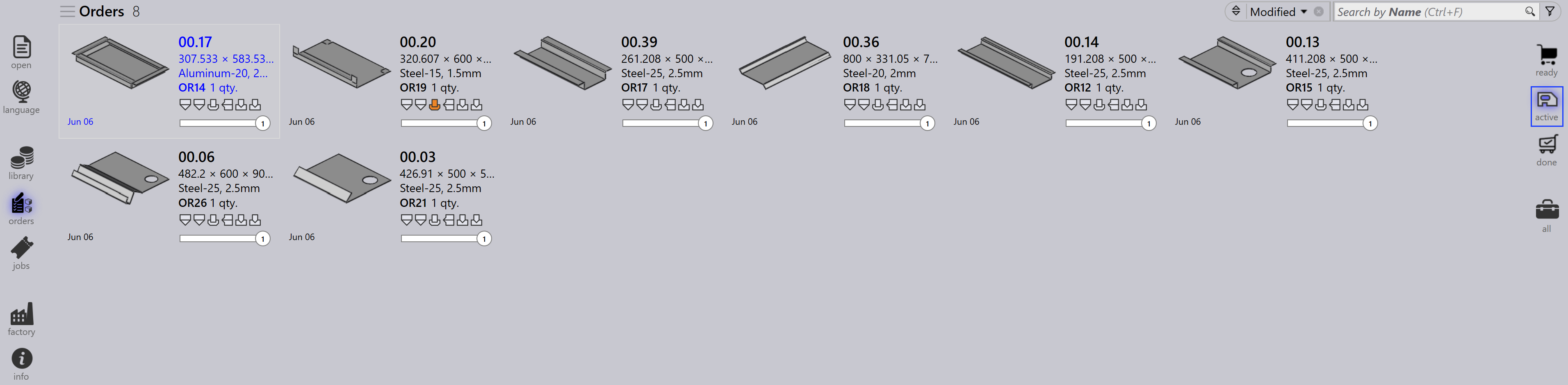
Active
  • Represents orders already moved to the Job stage.

  • Helps track orders that are in execution.

  • Useful for monitoring ongoing production.

Done

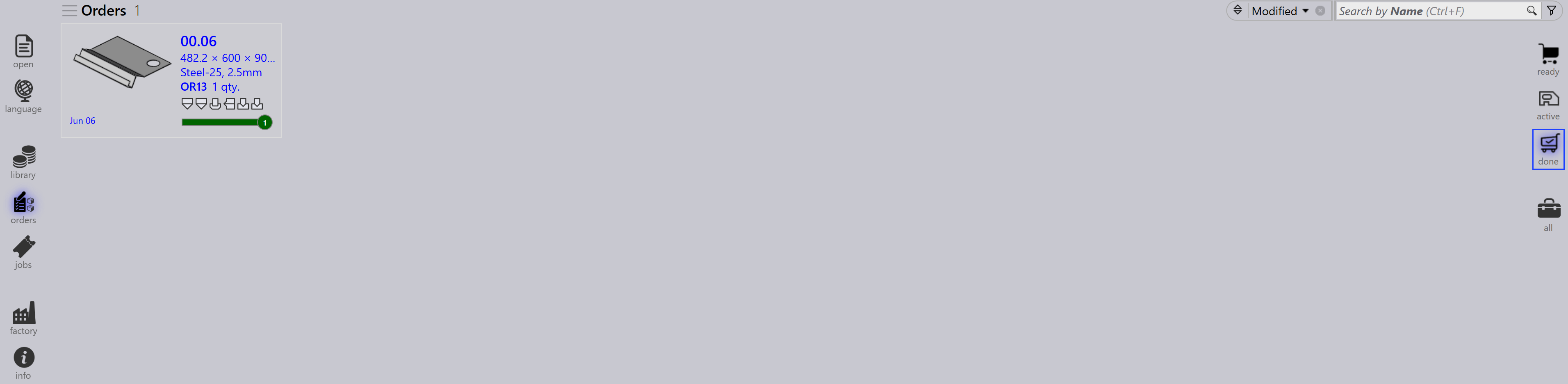
Selecting the Done view displays orders that have completed processing.
Done
  • Shows orders whose associated jobs are finished.

  • Indicates the workflow is complete.

  • Useful for review and record-keeping.

All

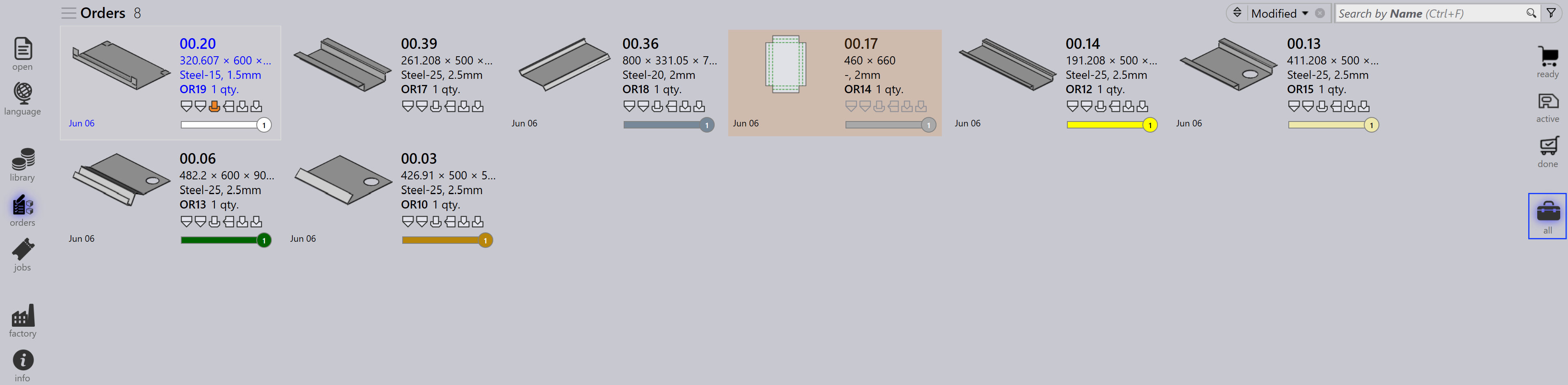
Selecting the All view displays all orders regardless of their stage.
All
  • Provides a complete overview of all orders.

  • Useful for searching and managing across all stages.

Order status bar

The status bar shown below each order tile indicates whether the order is linked to a job. There are two types:

  • No bar - the order is not assigned to any job.

  • With bar - the order is part of a job, and the bar shows the respective job status as listed below.

Order Status Description

Not Ready (Light Grey)

Not ready

Ready (White)

Ready

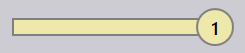
Bend planned (Light Yellow)

Bend Planned

Sheet Missing (Dark Grey)

Sheet missing

Bending Queue (Dark Yellow)

Bending queue

Bend Planned (Yellow)

Cutting Queue

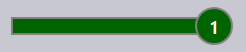
Completed (Dark Green)

Done(Completed)

Contents

  • Ready
  • Active
  • Done
  • All
  • Order status bar
Orders Jobs

      Copyright © 2025 TRUMPF Metamation. All rights reserved.

    Compiled by Bento