Praxis Reference Manual

  • Welcome to Praxis
  • Installation
    • Hardware requirement
    • Supported file formats
    • Prerequisites
    • Server installation
    • Client installation
    • Change license
  • Configuration
    • Add/Remove machine
    • Setup tooling
    • Configure users
    • Language
    • Material
      • Add new material and sheet
      • Export/Import material
      • Replace material
    • Map material
    • Map CAM pages
    • Map fields from CAD (lookup keys)
  • The user interface
  • Workflow
  • Library
    • Open
      • Import parts
      • Import orders
      • Import jobs
      • Import assemblies
    • Library view
      • Parts
      • Assembly
    • Part status
      • Part validation
      • Part panel
      • Part filters
    • Tooling status
      • Tooling validation
        • Bend tooling validation
        • Cut tooling validation
        • Fold tooling validation
      • Tooling panel
    • Saving filters
  • Orders
    • Orders view
  • Jobs
    • Create job
    • Job view
    • Job panel
    • Auto plan
    • Interactive nesting
    • Repacking
    • Nest management
      • Layout view
      • Layout panel
      • Report sender
    • Remnant management
      • Auto remnant management
      • Manual remnant management
    • Twinline nesting
    • Out-of-date
    • Job filters
  • Factory
    • Routes
    • Sheets
    • Users
    • Edit
    • Customers
    • Settings
      • Environment
      • Import
      • Bend
      • Cut
      • Notifications
      • Watch
      • Job
      • Reports
  • Impressum
Library
/
Open
/
Import assemblies

Import assemblies

Assemblies are groups of related parts combined into a single unit, allowing you to manage multiple parts together as one entity.

You can import assemblies using the following methods:

  1. Import via file

  2. Drag and drop

  3. Import from spreadsheet

Import via file

An assembly can be imported into the Part Library using the Import Assemblies…​ option.

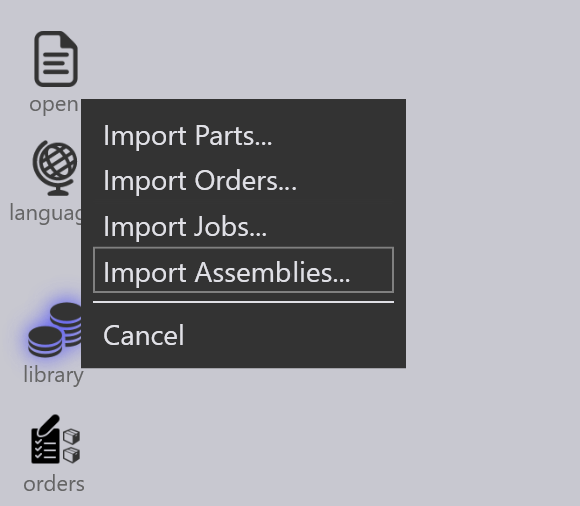
  • Click the Open icon in the command bar and select Import Assemblies…​, or use File → Open → Import Assemblies…​.

Import assembly
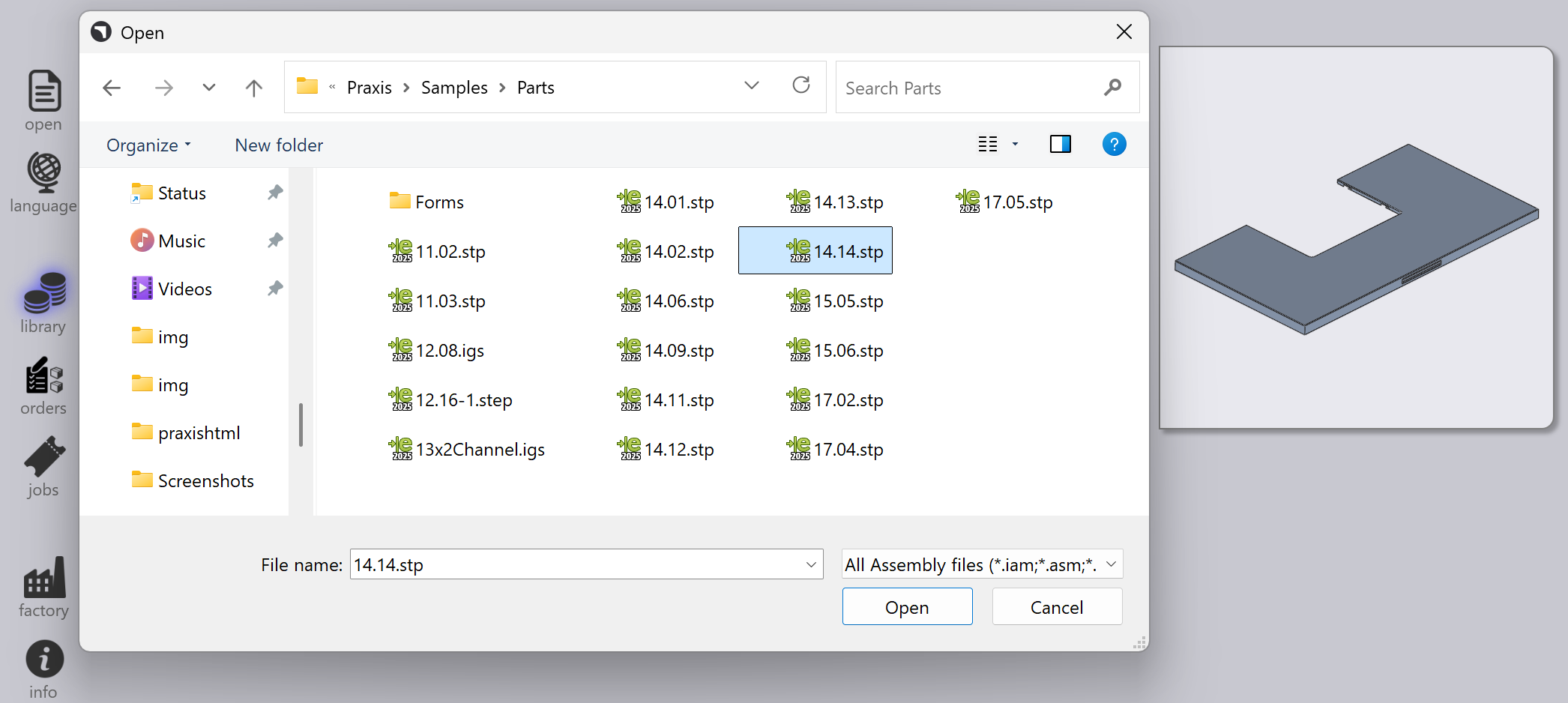
  • The Open dialog appears. Select the required assembly file(s).

  • A preview of the selected assembly is displayed.
AssemblyView
  • Click Open to import the assembly.

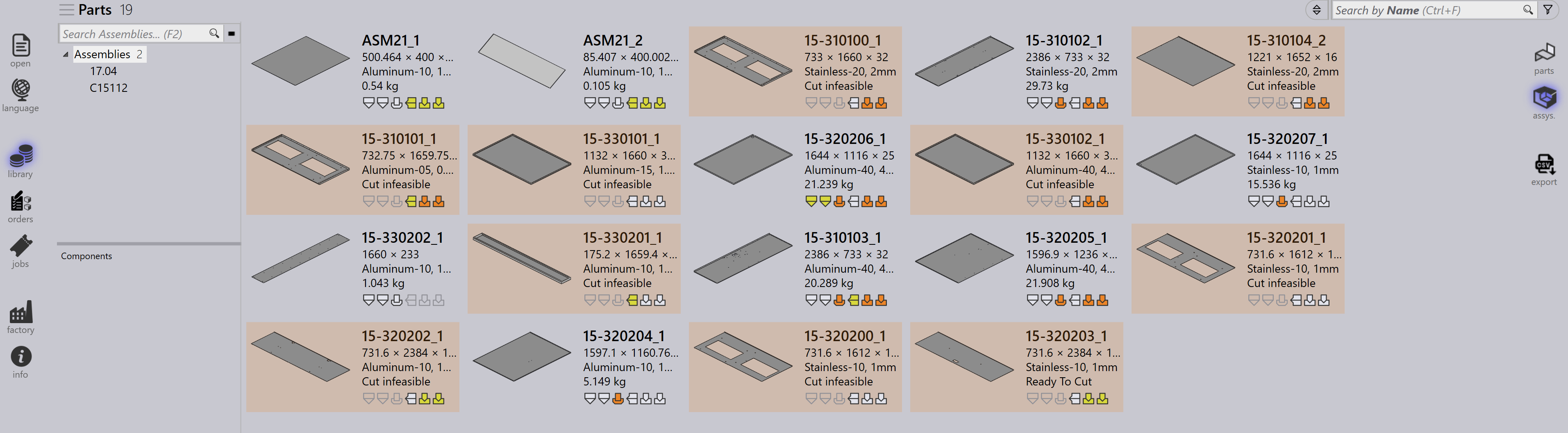
  • Imported assemblies are listed under the Assemblies view in the Part Library.
AssemblyParts

Drag and drop

  • Drag and drop a assembly directly into the Praxis Part Library.

Import from spreadsheet

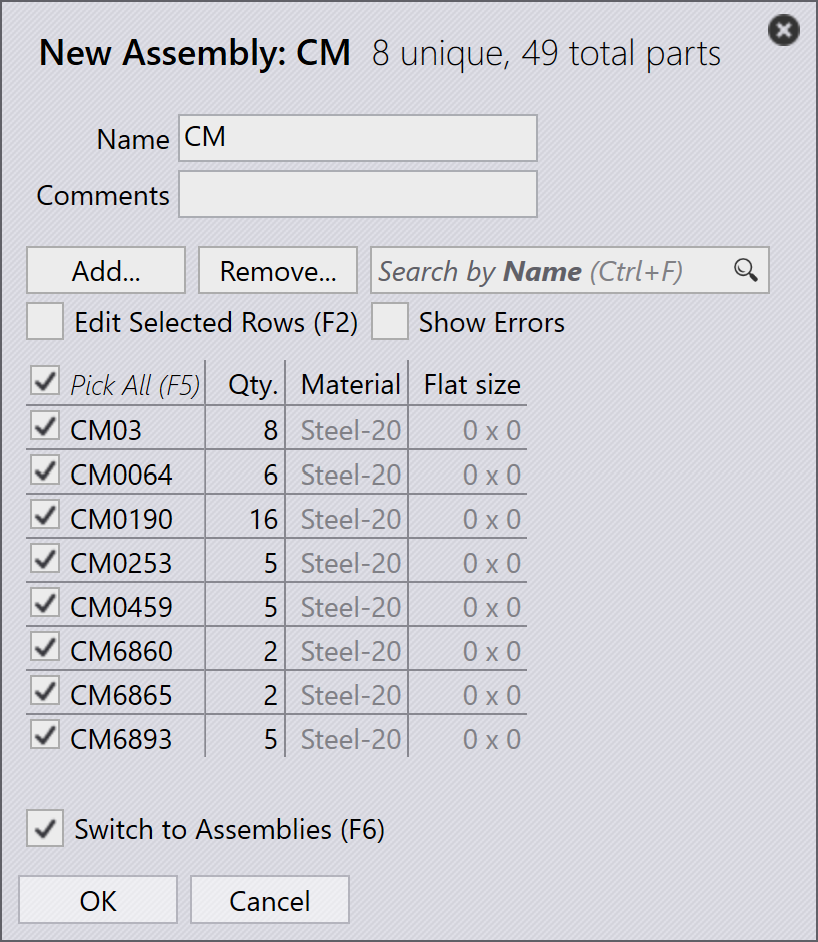
  • Use File → Open → Import Assemblies…​ and select a CSV, XLSX, or XML file, or drag and drop the file.

  • Review and update assembly details and quantities before import. Use Add…​ or Remove…​ to modify.

NewAssembly
  • After import, assemblies can be prepared and assigned Static Nests.

Contents

  • Import via file
  • Drag and drop
  • Import from spreadsheet
Import jobs Library view

      Copyright © 2025 TRUMPF Metamation. All rights reserved.

    Compiled by Bento