
Praxis Reference Manual

  • Welcome to Praxis
  • Installation
    • Hardware requirement
    • Supported file formats
    • Prerequisites
    • Server installation
    • Client installation
    • Change license
  • Configuration
    • Add/Remove machine
    • Setup tooling
    • Configure users
    • Language
    • Material
      • Add new material and sheet
      • Export/Import material
      • Replace material
    • Map material
    • Map CAM pages
    • Map fields from CAD (lookup keys)
  • The user interface
  • Workflow
  • Library
    • Open
      • Import parts
      • Import orders
      • Import jobs
      • Import assemblies
    • Library view
      • Parts
      • Assembly
    • Part status
      • Part validation
      • Part panel
      • Part filters
    • Tooling status
      • Tooling validation
        • Bend tooling validation
        • Cut tooling validation
        • Fold tooling validation
      • Tooling panel
    • Saving filters
  • Orders
    • Orders view
  • Jobs
    • Create job
    • Job view
    • Job panel
    • Auto plan
    • Interactive nesting
    • Repacking
    • Nest management
      • Layout view
      • Layout panel
      • Report sender
    • Remnant management
      • Auto remnant management
      • Manual remnant management
    • Twinline nesting
    • Out-of-date
    • Job filters
  • Factory
    • Routes
    • Sheets
    • Users
    • Edit
    • Customers
    • Settings
      • Environment
      • Import
      • Bend
      • Cut
      • Notifications
      • Watch
      • Job
      • Reports
  • Impressum
Configuration
/
Add/Remove machine

Add/Remove machine

Use Edit command to launch Machine selection dialog. It displays a hierarchical list of all Cutting, Bending machines along with the current selections.
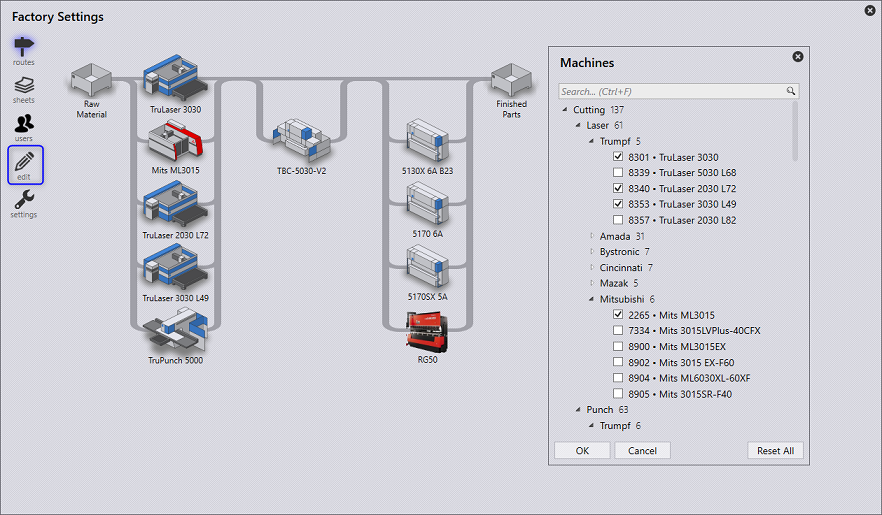
Add Machine
  • In the hierarchical tree-view, simplified machine name is displayed as machine label and full name is displayed in the tooltip. The folder tooltip displays the path (Ex: Trumpf • C Series • C60)

  • Brand specific icon is displayed for non-Trumpf press-brakes. The machine tooltip also displays the machine brand (Ex - Brand: Bystronic).

  • Search box can be used to search machines by Name, Full-name, Brand etc. Machine selection is retained during the search so you can pick-and-search at the same time.

  • Search can also be used to search by machine technology, size. So, typing 'fold' in the search box shows all folding (panel bender) machines. Similarly, typing 10ft displays all press brakes with 10ft table length (this is unit sensitive. Use m for meter in metric unit). Where available in the name, the axes count can also be used for searching (Ex: 2A, 5A etc.)

  • Reset All command resets the machine selection to the demo configuration.

Configuration Setup tooling

      Copyright © 2025 TRUMPF Metamation. All rights reserved.

    Compiled by Bento