
Manual remnant management
Configure manual remnant
-
Click Factory → Settings → Job.
-
Select Update sheet inventory on nest (un)release.
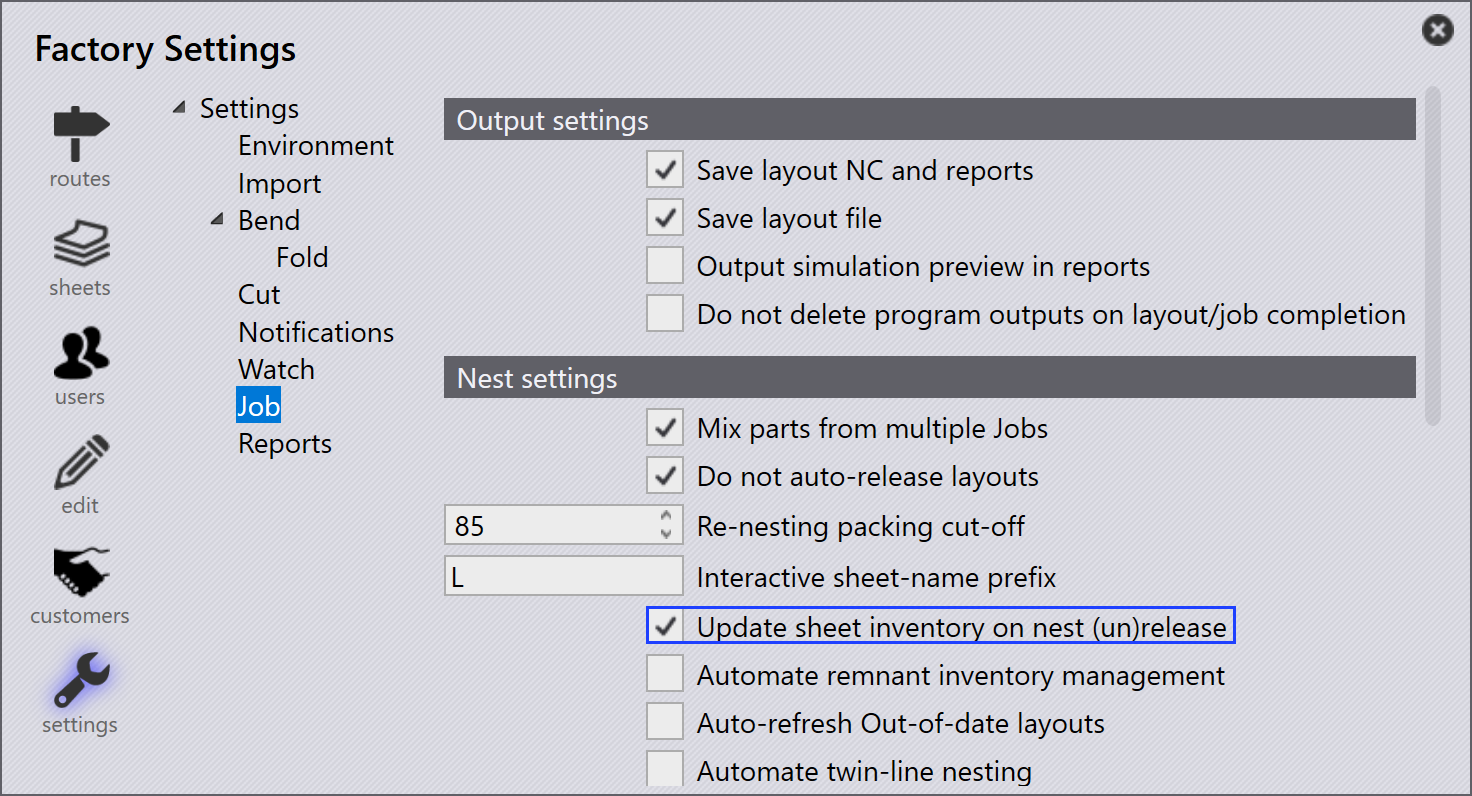
This ensures that remnants are tracked and updated in the sheet inventory whenever a nest is completed or released.
Manual remnant sheet from job
-
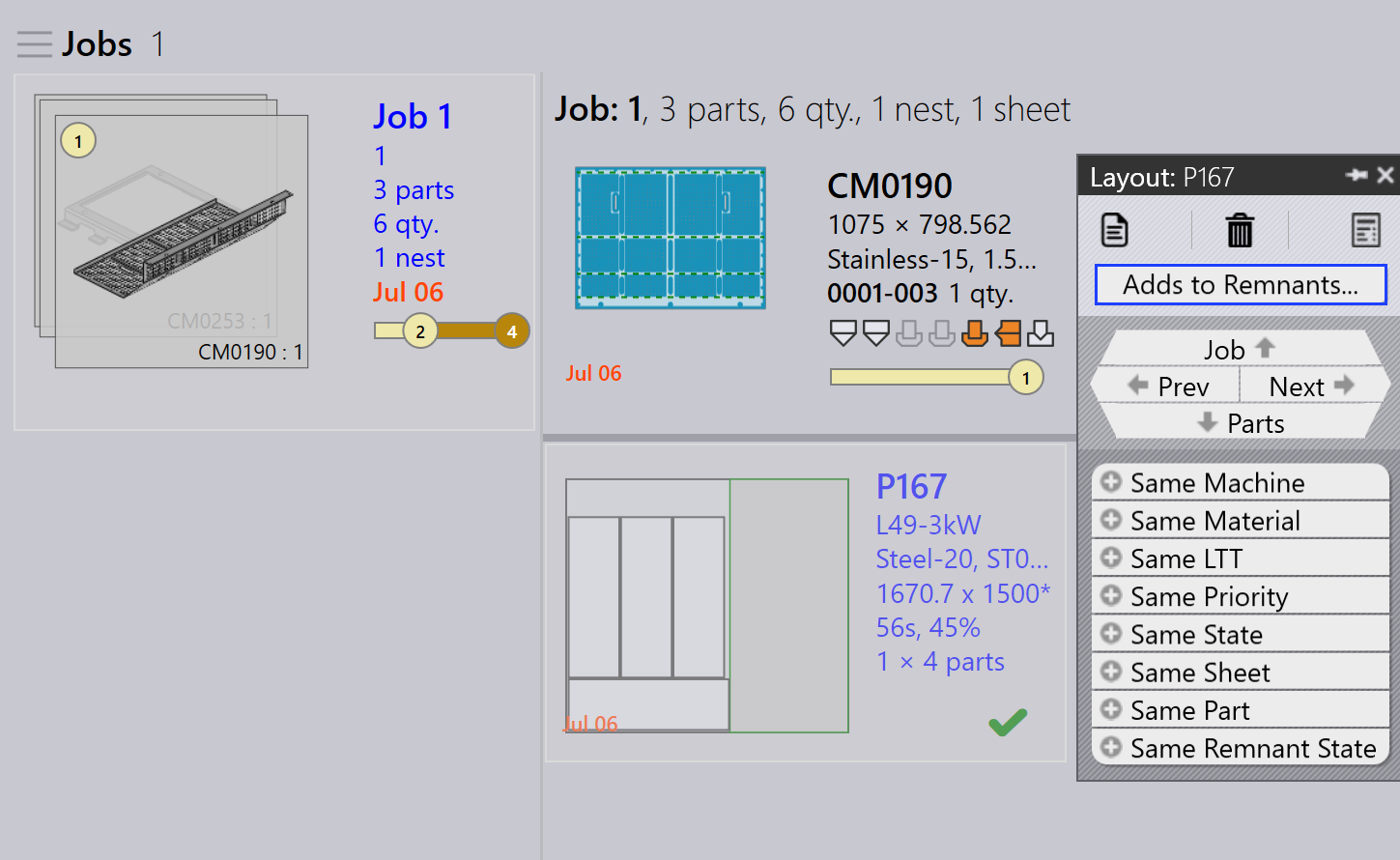
Right-click on a marked complete layout (layout with green color tick).
-
Click Adds to Remnants option.
-
Now, the remnant sheet is manually added to sheet database.
Manual remnant sheet from job nest
-
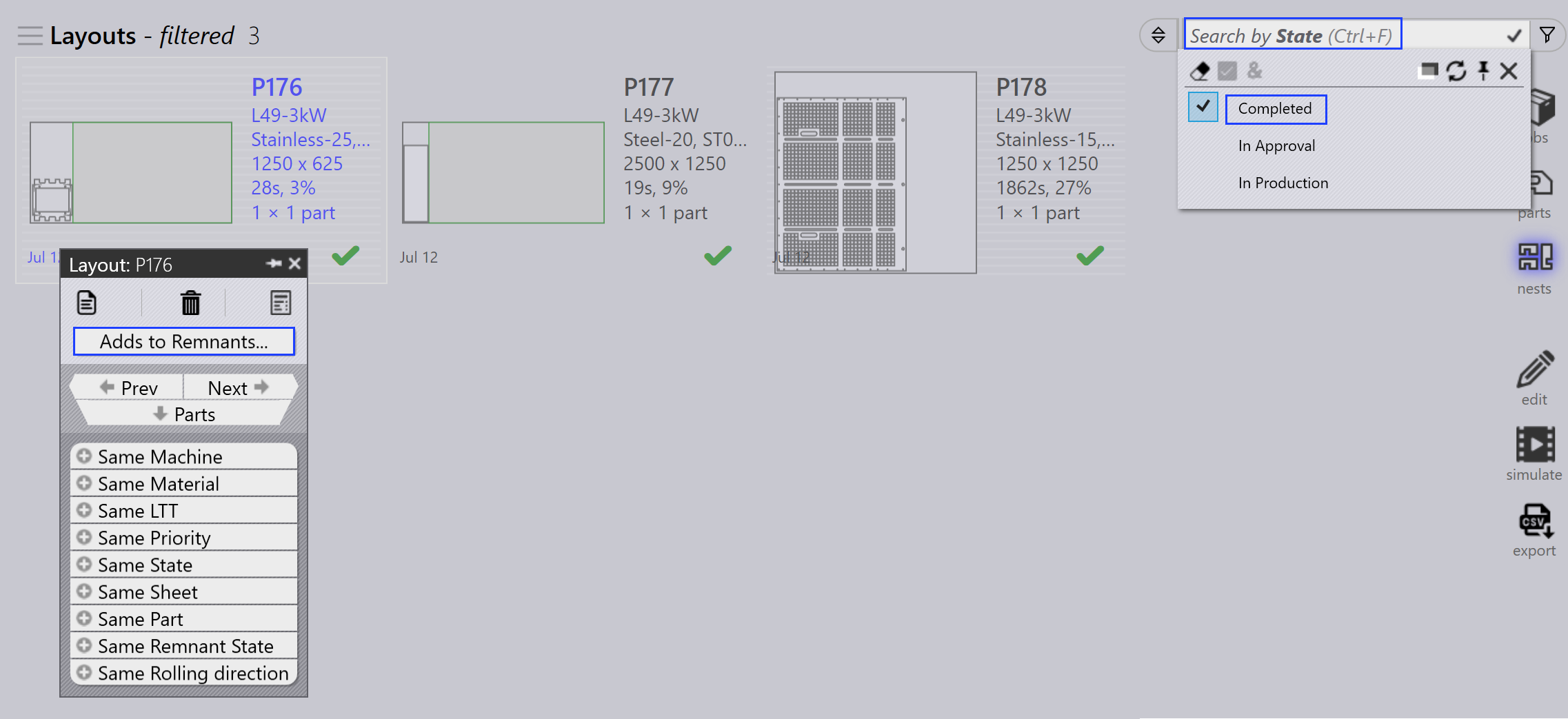
Switch to JOB → Nests Page. Use Filters and select State.
-
Pick Completed to shows all completed layouts.
-
Right-Click the layout for which manual remnant need to be created and click Adds to Remnants.
Remove remnants
If a manually created remnant sheet is damaged or lost, you can remove it from the sheet inventory without deleting it directly.
-
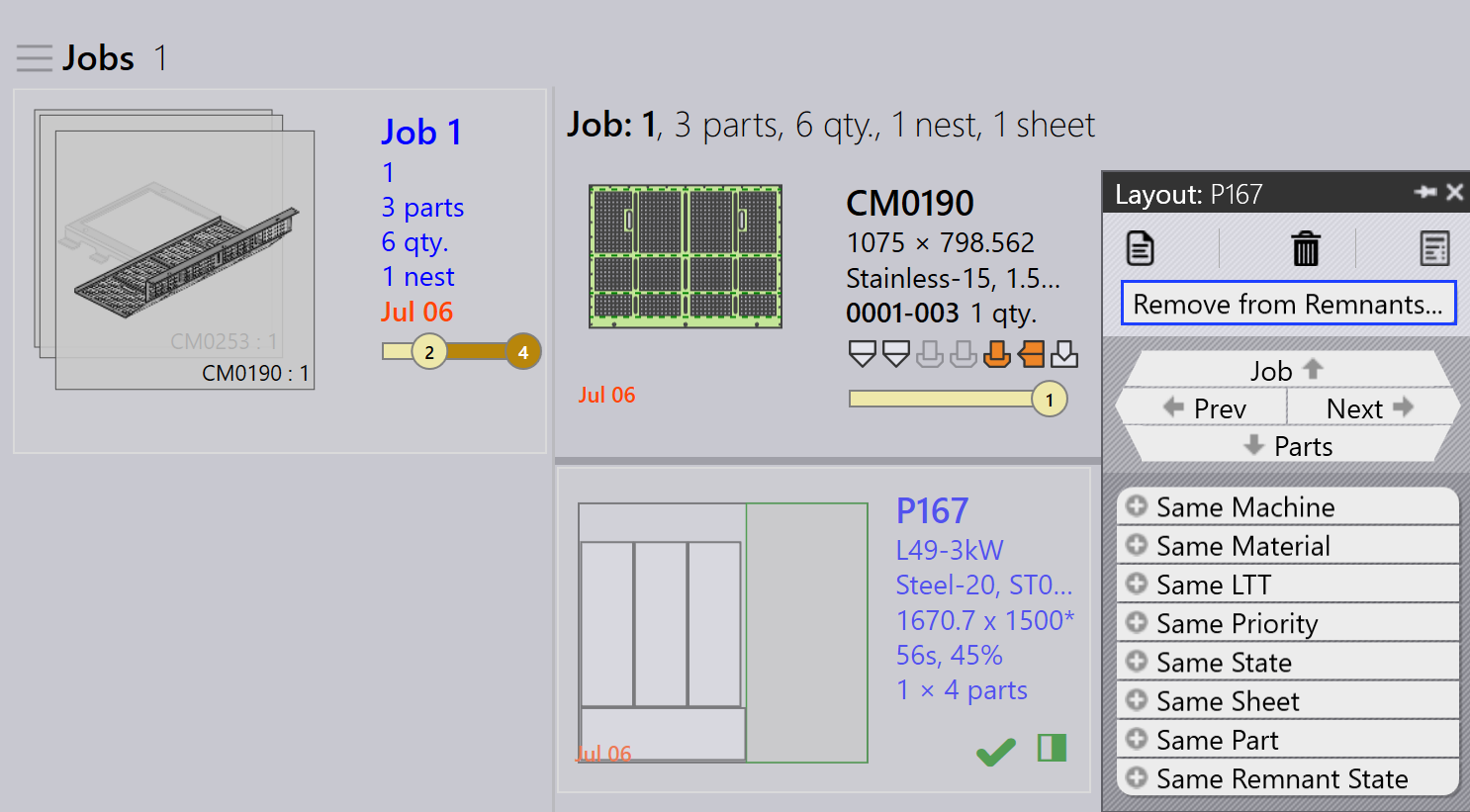
Right-click the remnant sheet you want to remove.
-
Click Remove from Remnants… option.
-
The remnant sheet is removed from the sheet database.
-
The partially shaded square icon that indicates the remnant sheet has been created is also cleared when the remnant is removed.
| Remnant sheets (created by Auto/Manual) are utilized with high priority during auto nest plan or interactive nest plan. |