
Praxis Reference Manual

  • Welcome to Praxis
  • Installation
    • Hardware requirement
    • Supported file formats
    • Prerequisites
    • Server installation
    • Client installation
    • Change license
  • Configuration
    • Add/Remove machine
    • Setup tooling
    • Configure users
    • Language
    • Material
      • Add new material and sheet
      • Export/Import material
      • Replace material
    • Map material
    • Map CAM pages
    • Map fields from CAD (lookup keys)
  • The user interface
  • Workflow
  • Library
    • Open
      • Import parts
      • Import orders
      • Import jobs
      • Import assemblies
    • Library view
      • Parts
      • Assembly
    • Part status
      • Part validation
      • Part panel
      • Part filters
    • Tooling status
      • Tooling validation
        • Bend tooling validation
        • Cut tooling validation
        • Fold tooling validation
      • Tooling panel
    • Saving filters
  • Orders
    • Orders view
  • Jobs
    • Create job
    • Job view
    • Job panel
    • Auto plan
    • Interactive nesting
    • Repacking
    • Nest management
      • Layout view
      • Layout panel
      • Report sender
    • Remnant management
      • Auto remnant management
      • Manual remnant management
    • Twinline nesting
    • Out-of-date
    • Job filters
  • Factory
    • Routes
    • Sheets
    • Users
    • Edit
    • Customers
    • Settings
      • Environment
      • Import
      • Bend
      • Cut
      • Notifications
      • Watch
      • Job
      • Reports
  • Impressum
Jobs
/
Nest management
/
Layout view

Layout view

  • Selecting the nests option shows a list of all nests in the currently selected job.
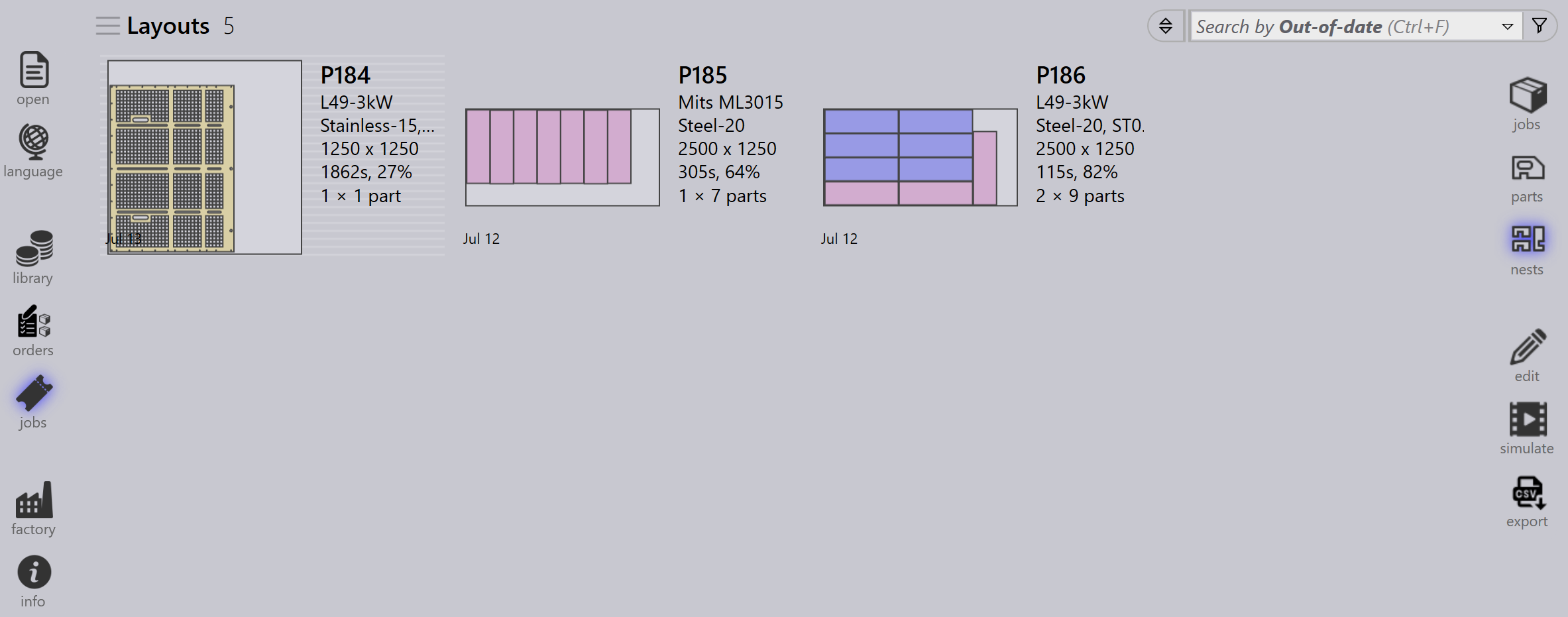
    Layouts window
  • Double-click a nest to see a detailed breakdown of that nest.

  • The nest breakdown displays:

    • Parts used in the nest.

    • Detailed information such as material used, cycle time, and other metrics.
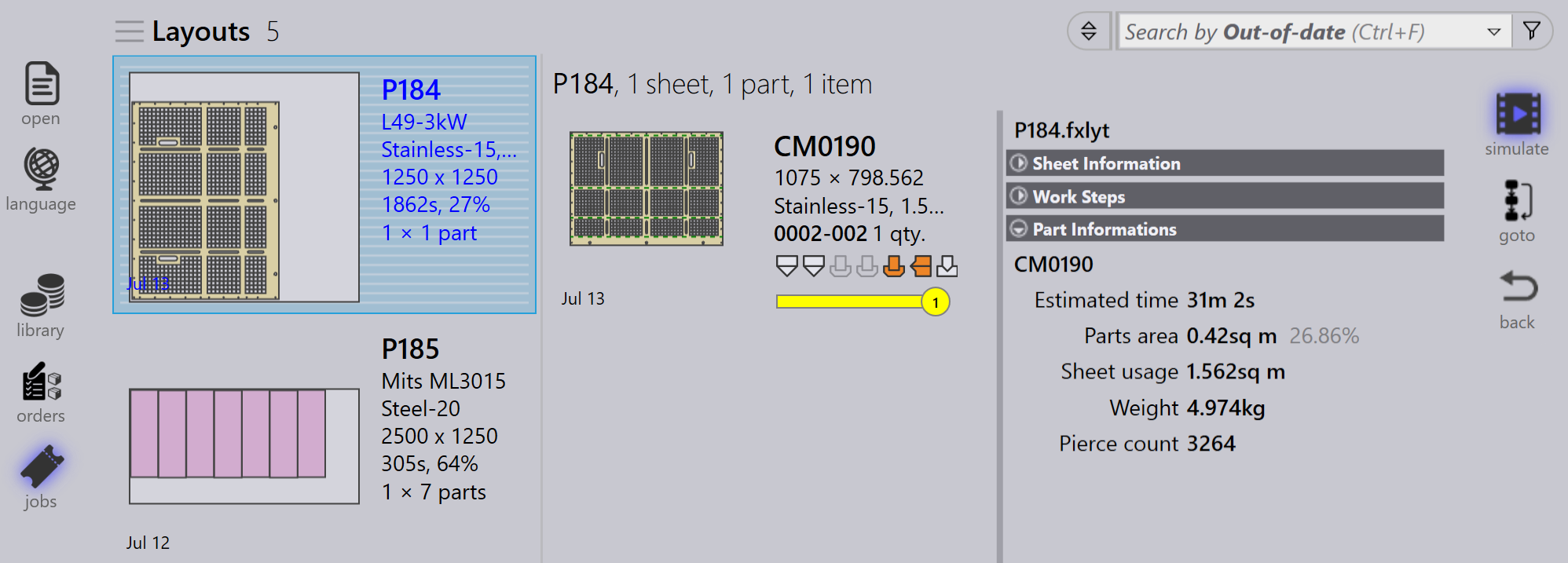
      Layout info
  • You can scroll through different nests and click on any part to perform the same actions available in the Parts area.

  • Right clicking on a nest will bring up Layout panel.
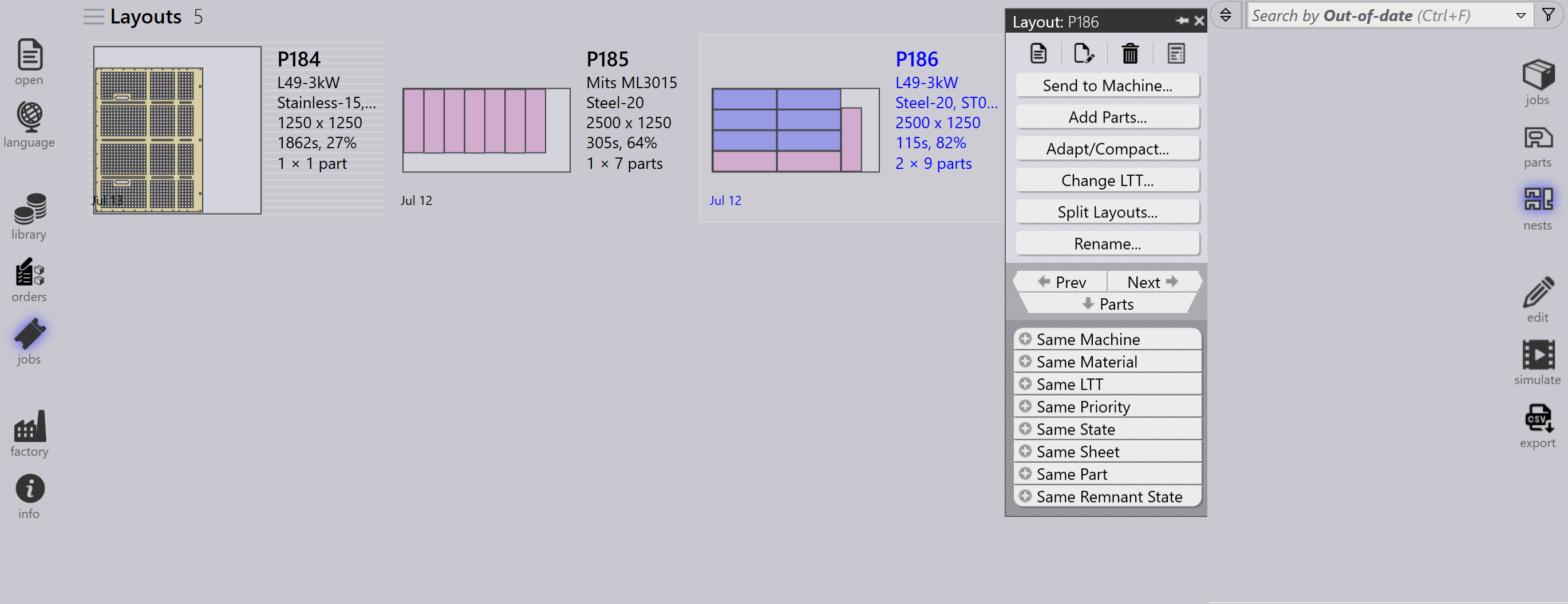
    Layout panel

    • Send to Machine…​ will release the nest for production to the machines at which point the nest option will change to Recall from Machine.

    • Add Parts…​ will allow to add additional parts to the nest.

    • Adapt/Compact…​ will allow to batch change materials or machines used in the nest.

    • Change LTT…​ will allow to apply a different laser technology for the selected material and thickness in the nest.

    • Split Layouts…​ will allow to take a nest that has several repeats into a new nest.

    • Rename…​ will allow to rename the nest.

Nest management Layout panel

      Copyright © 2025 TRUMPF Metamation. All rights reserved.

    Compiled by Bento