
Watch
Watch Settings allow Praxis to monitor a designated folder and automatically import files into the system. This helps automate the import of Parts, Jobs, Assemblies, and Orders without manual intervention.
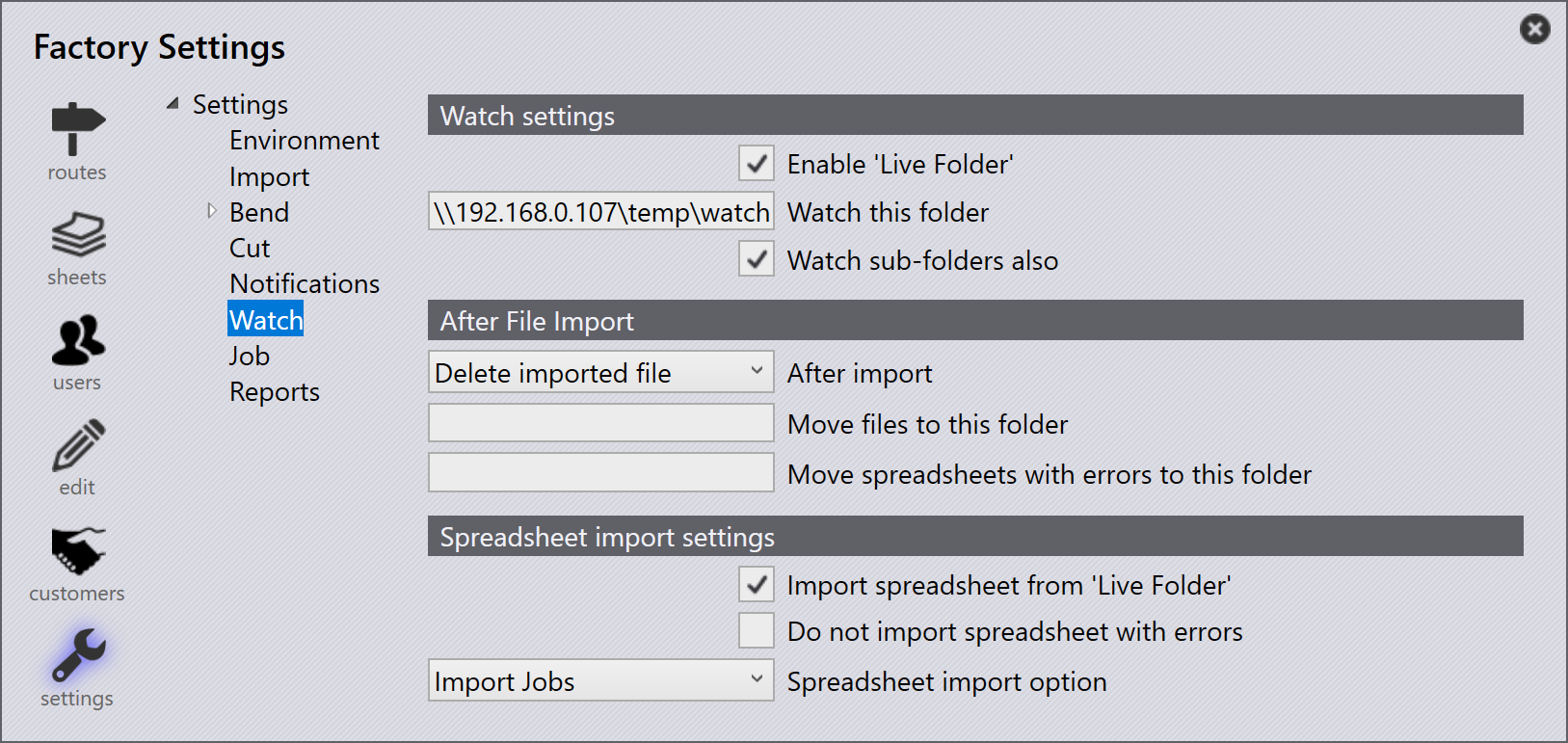
Watch settings
Enable 'Live Folder' - Enables automatic monitoring of the specified folder.
Watch this folder - Specifies the folder to be monitored for incoming files.
Watch sub-folders also - Includes all subfolders in the monitoring process.
After file import
After import - After the file is imported, the user has two options. The file can be deleted from the location or moved to a different location.
-
Delete imported file - Removes the source file after a successful import.
-
Move imported file - Moves the source file to the folder specified in Move files to this folder after a successful import.
Move files to this folder - Specifies the destination folder where successfully imported files should be moved when After import is set to Move imported file.
Move spreadsheets with errors to this folder - Moves failed imports to the specified error folder.
Spreadsheet import settings
Import spreadsheet from 'Live Folder' - Automatically imports spreadsheet files detected in the watch folder.
Do not import spreadsheet with errors - Prevents files containing validation errors from being imported.
Spreadsheet import option - Selects the type of data to import from the dropdown. Supported spreadsheet formats may include CSV, XLSX, or XML. The available options are:
-
Import Jobs - Imports job data from the spreadsheet.
-
Import Orders - Imports order data from the spreadsheet.
-
Import Assemblies - Imports assembly data from the spreadsheet.
-
Import Parts - Imports part data from the spreadsheet.
Additional information
|