
Notifications
Notifications inform users about CAD and tooling errors occurring within the system. They ensure that issues are communicated promptly so that appropriate action can be taken.
Email notification
The Email notification feature allows users to configure and receive automated email alerts for CAD and tooling errors. Once configured, the system automatically sends emails to the specified recipients whenever a relevant event occurs, ensuring that issues are addressed promptly.
To configure email notifications, navigate to: factory > settings > Notifications
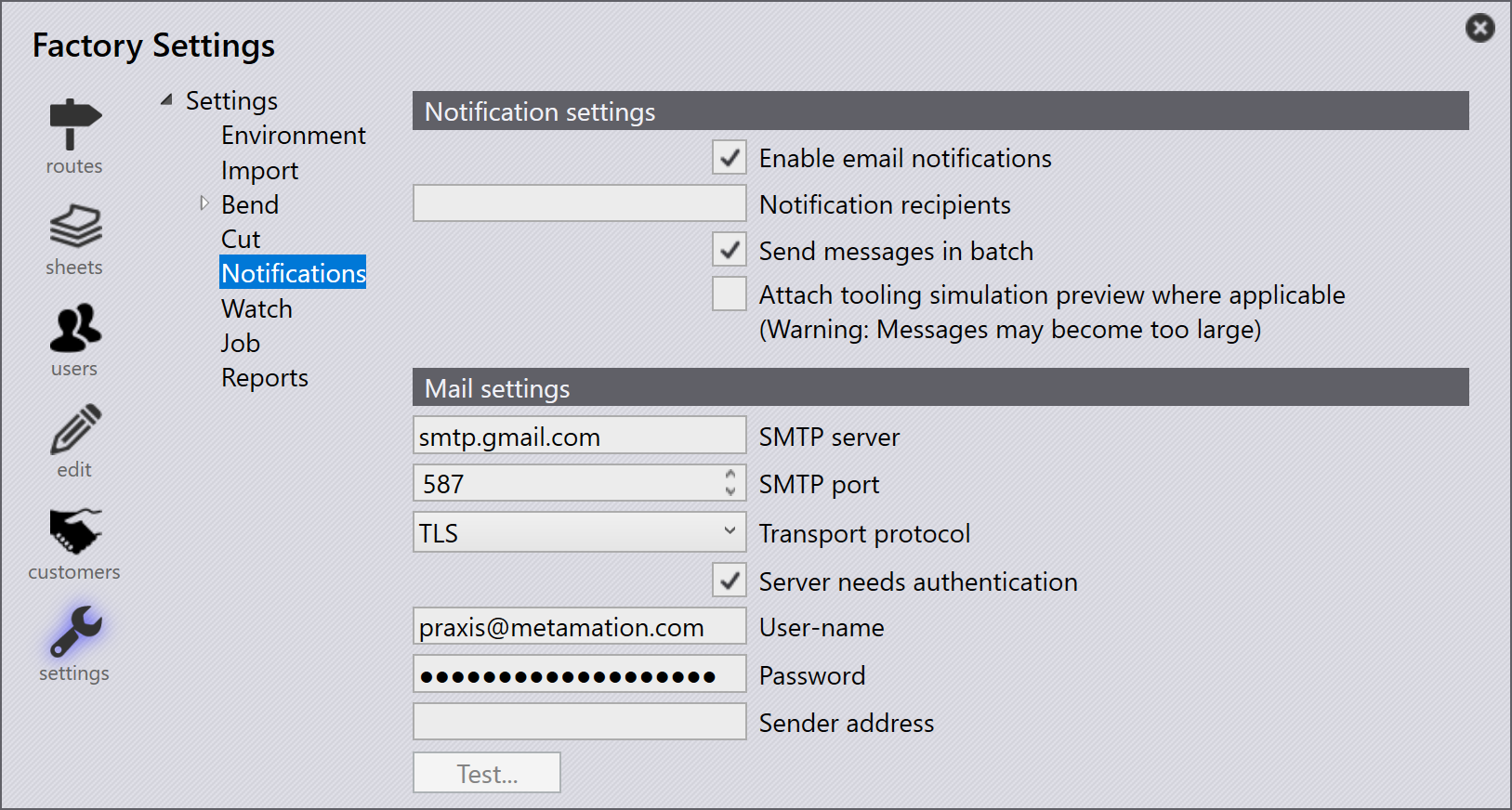
The Notifications page consists of the following sections:
Notification settings
The Notification settings section controls how email alerts are generated and delivered to recipients.
-
Enable email notifications - Enables the system to send notifications based on the configured conditions.
-
Notification recipients - Specifies the email address(es) of the recipients. Multiple recipients can be added by separating them with a comma (
,) or a space. -
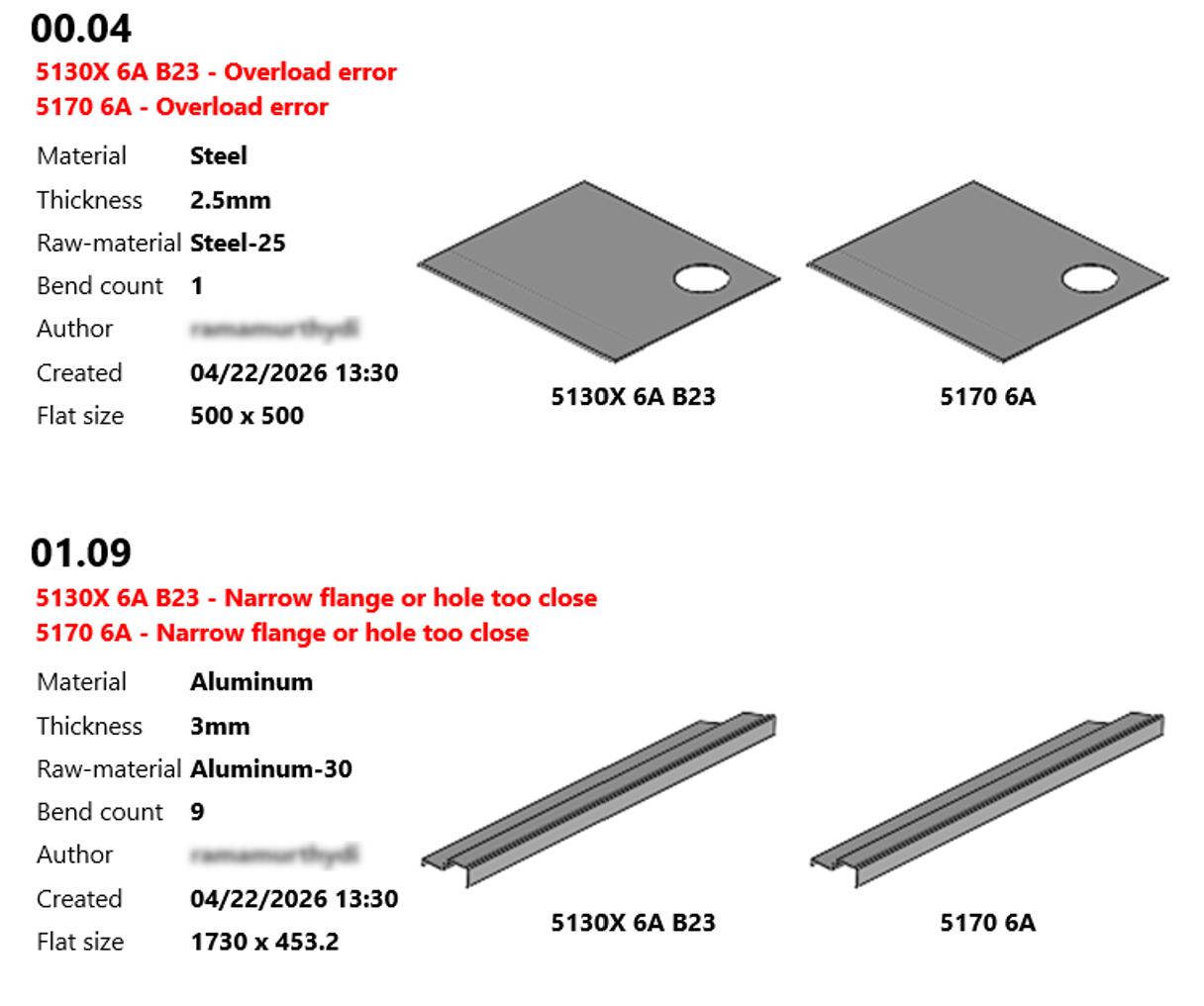
Send messages in batch - Combines multiple notifications into a single email. Messages generated within a defined time interval are grouped together, which helps reduce email volume and prevents clutter.
-
Attach tooling simulation preview where applicable - Attaches a tooling simulation preview to the notification email when available. This is useful for reviewing tooling-related issues directly from the email.
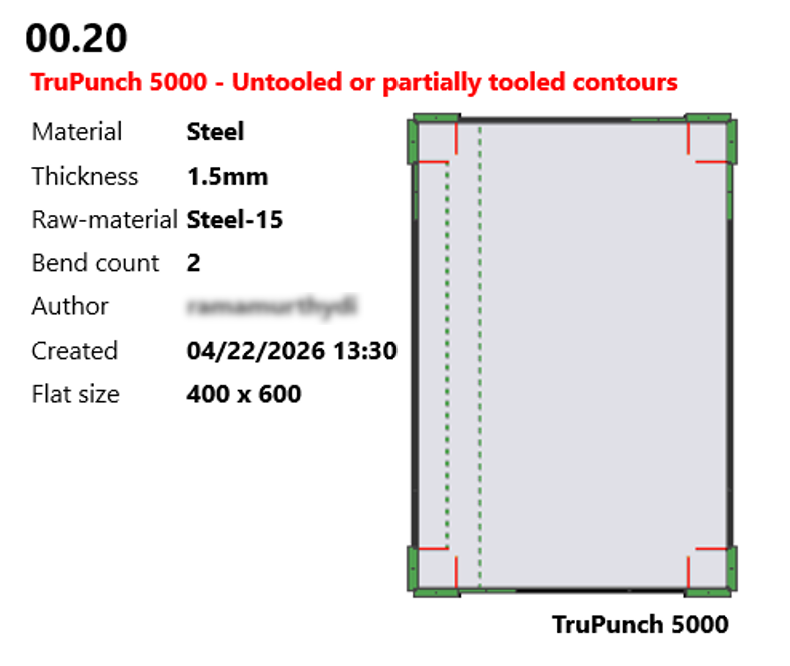
| Including the simulation preview may increase the email size significantly. |
Mail settings
The Mail settings section defines the outgoing mail server configuration that the system uses to deliver email notifications. These settings must be configured correctly for notifications to be sent successfully.
-
SMTP server - Specifies the SMTP server address used to send outgoing emails (for example,
smtp.gmail.com). This information is typically available in the account or settings section of the user’s mail client. -
SMTP port - Defines the port number used by the mail server to send emails across the internet. Common values include
465(SSL) and587(TLS). -
Transport protocol - Specifies the protocol used to securely send emails from the application to the mail server (for example, SSL or TLS).
-
Server needs authentication - Enables authentication for the SMTP server. When enabled, the user-name and password are validated by the server before emails are sent.
-
User-name - Specifies the email account used to authenticate with the SMTP server and send notifications.
-
Password - Specifies the password associated with the email account used for authentication.
-
Sender address - Specifies the sender email address that is displayed to recipients when notifications are received.
-
Test… - Sends a test email to verify the mail server configuration.
Click Test… to validate the setup. A confirmation message is displayed if the test is successful; otherwise, an error message is shown indicating the cause of the failure.
|