
Import orders
Orders can be created or imported using the following methods:
-
Importing orders from spreadsheet files.
-
Importing orders automatically through watch settings.
-
Creating orders from existing parts in the part library.
-
Creating orders from assembly static nests.
Import orders from spreadsheet
-
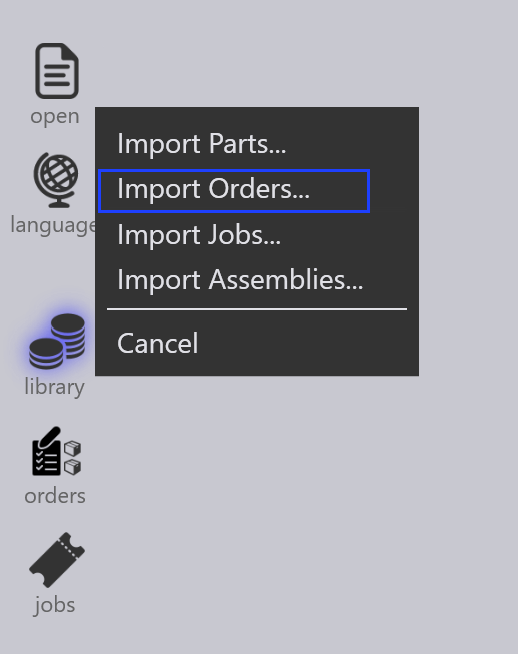
Navigate to Open → Import Orders….
-
Supported spreadsheet formats include CSV, XLSX, and XML.
-
Select the required spreadsheet file and click Open.
-
The import process is similar to the Job/Assembly import workflow.
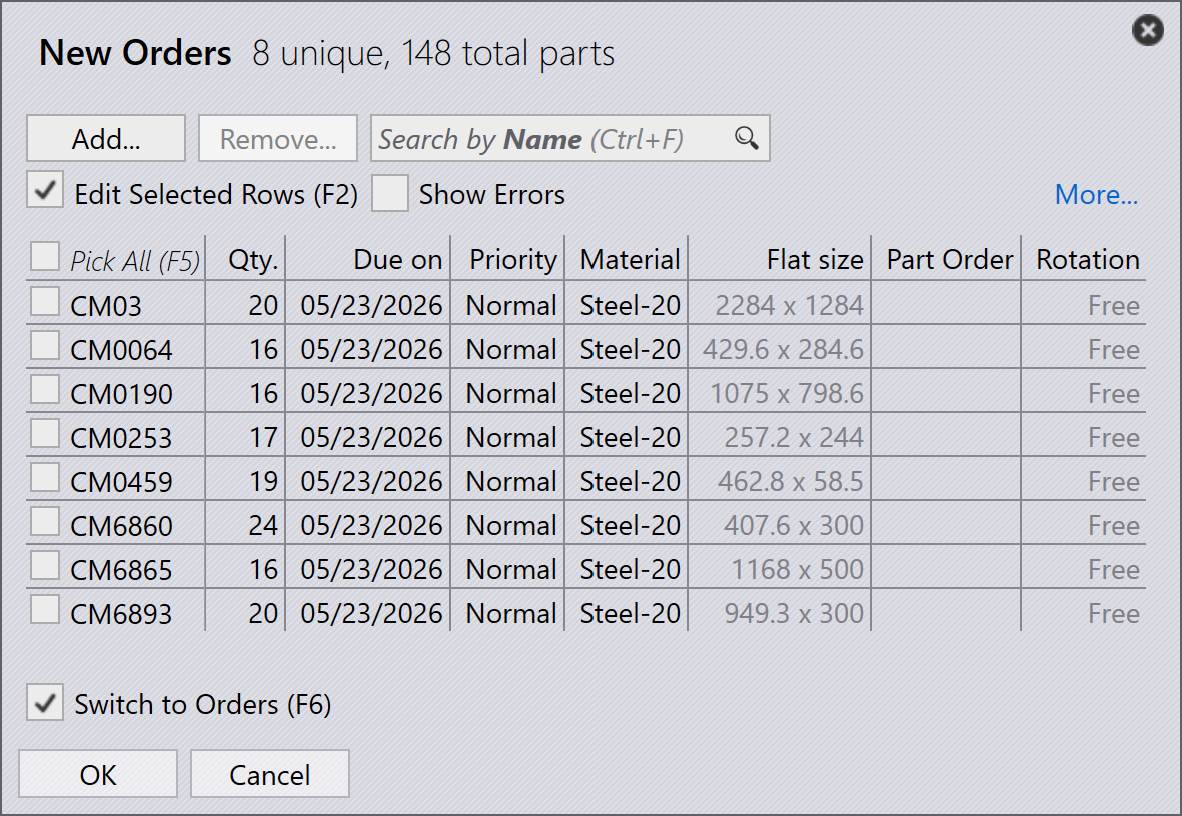
| You can also directly drag and drop the spreadsheet into the Orders page to import orders. |
Import orders using watch settings
-
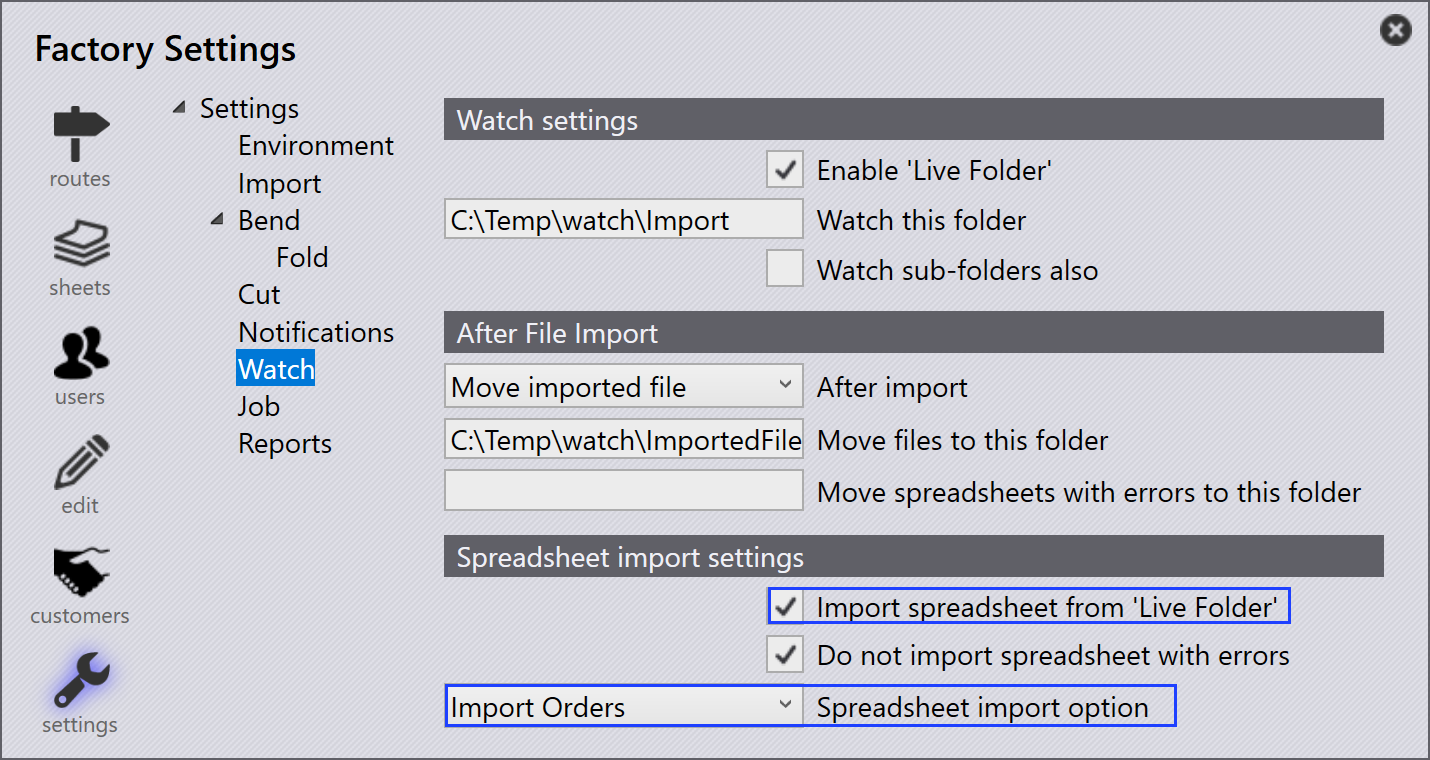
Enable the Import spreadsheet from 'Live Folder' option in Watch settings.
-
Select Import Orders in the Spreadsheet import option.
-
Configure the folder location from which orders should be imported.
-
The system continuously monitors the configured folder.
-
Newly added spreadsheet files are automatically imported into Orders.
| For detailed configuration steps, refer to the Watch settings documentation. |
Create orders from part library
-
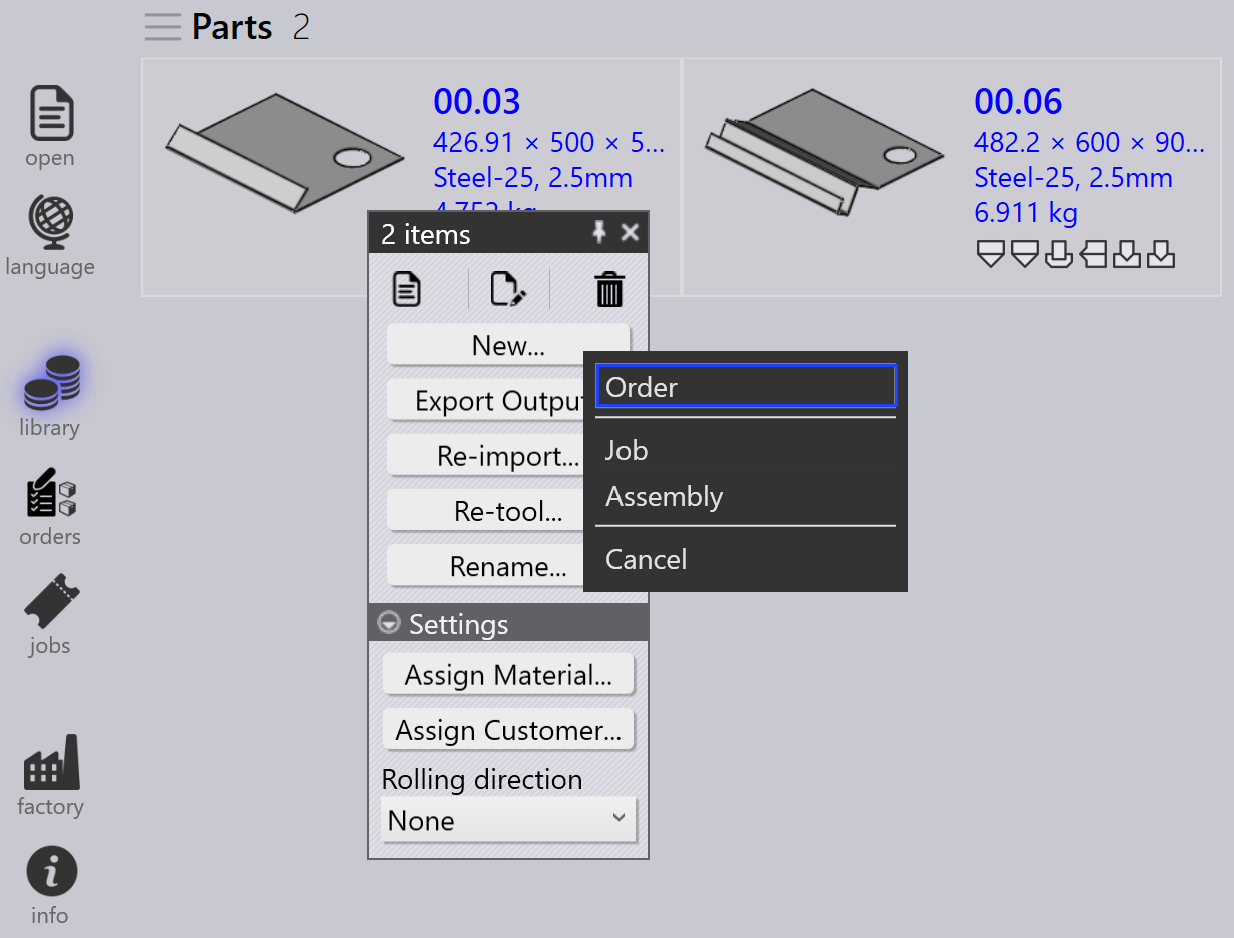
Select the required parts from the Part Library.
-
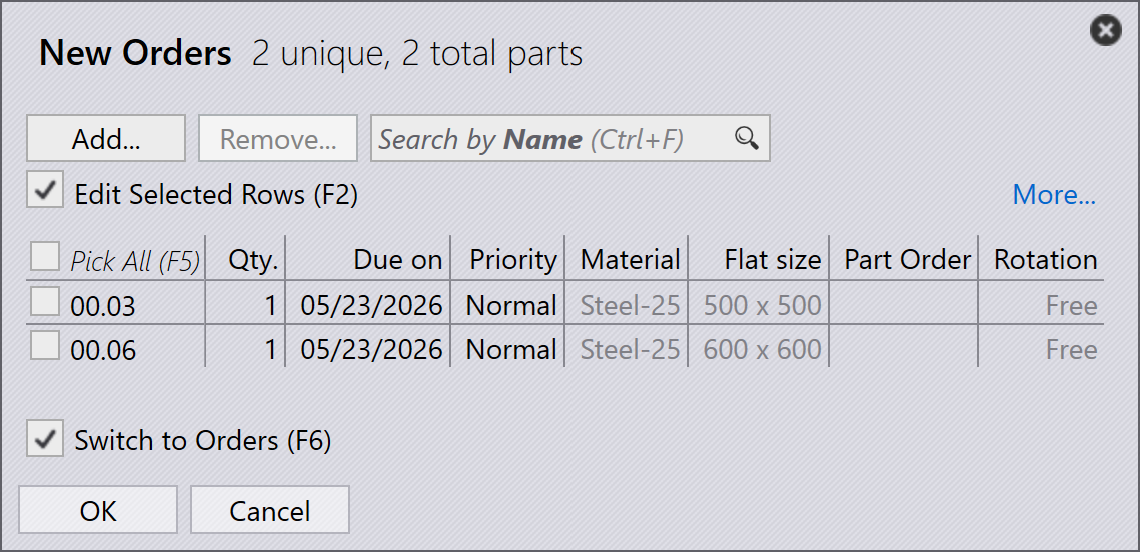
Right-click and choose New… → Order to open the New Orders dialog.
-
Enter the required details such as quantity, due date, and priority.
-
Click OK to create the orders.
-
The system automatically switches to the Orders page.
-
Created orders are displayed on the Orders Ready page for job creation.
Create orders from assembly
-
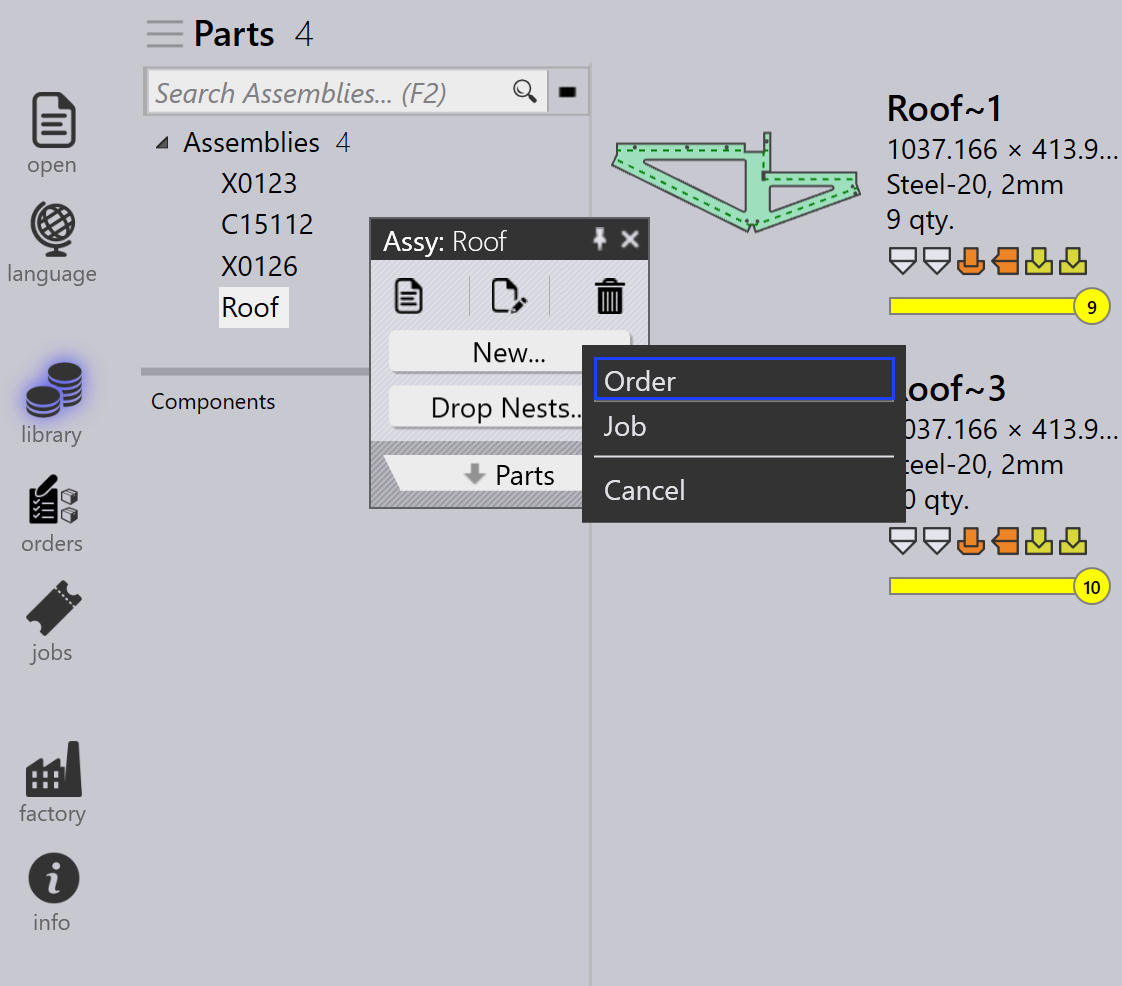
Right-click the required Assembly.
-
Select New… → Order to open the New Orders dialog.
-
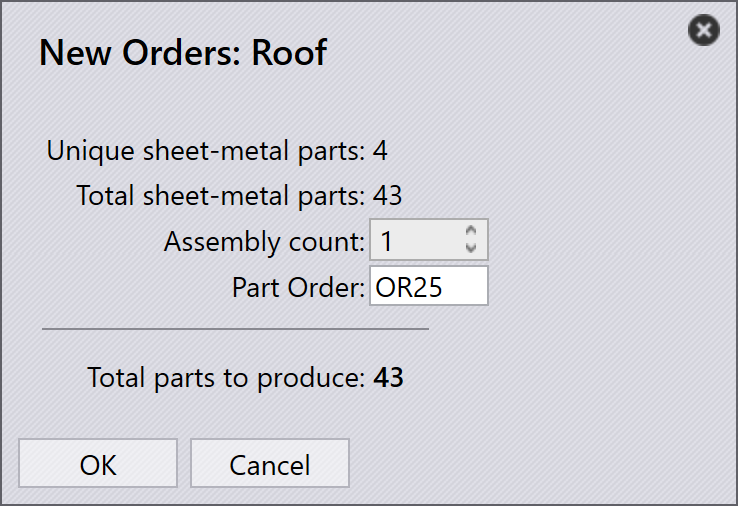
Enter the required Assembly count.
-
Click OK to create the orders.