Interactive nesting
Interactive nesting can be used to create a nest plan for a single part, a few parts from a job, a single job, or multiple jobs. It allows you to select machines and materials, set sheet parameters, and review the nesting results interactively.
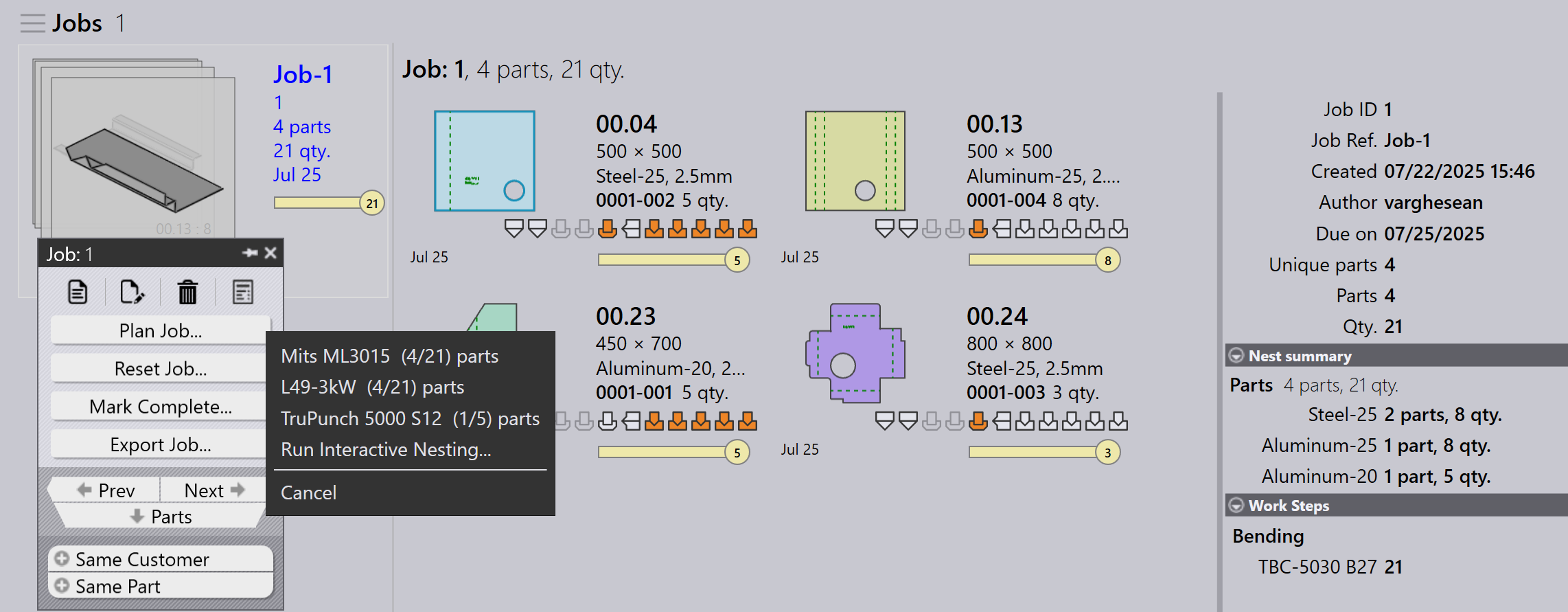
Right-click on a part or a job and select Plan Part…/Plan Job… → Run Interactive Nesting… option.
-
The Interactive Nesting window opens.
-
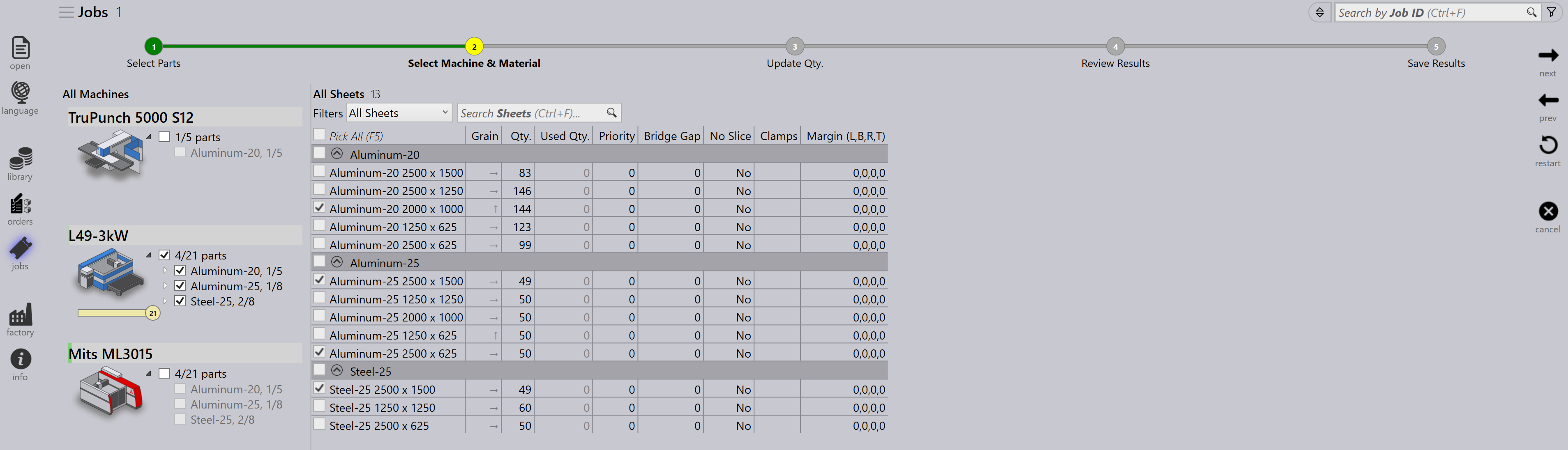
By default, the interactive nesting window switches to Select Machine & Material page.
-
Machines are shown with color bars indicating available production load:
-
Green bar: Scheduled hours
-
Grey bar: Available hours (out of an 8-hour shift)
-
-
Under each machine, selected Parts are grouped with their Raw-Material (Parts/Total Quantity).
-
If a part does not have a valid tooling solution for a machine, that part and material are ignored for processing for a given machine.
-
If a raw material is selected for one machine, it won’t be available for other machines.
-
Once the machine nest plan is set, select the preferred sheet and override sheet parameters like Priority, Quantity, Margins, etc.
-
You can filter sheets to show All Sheets, Standard Sheets, or Remnant Sheets. Click Next.
| It is not possible to increase the quantities at this stage. You can either keep same as sheet inventory quantity or reduce it and check nesting results. |
-
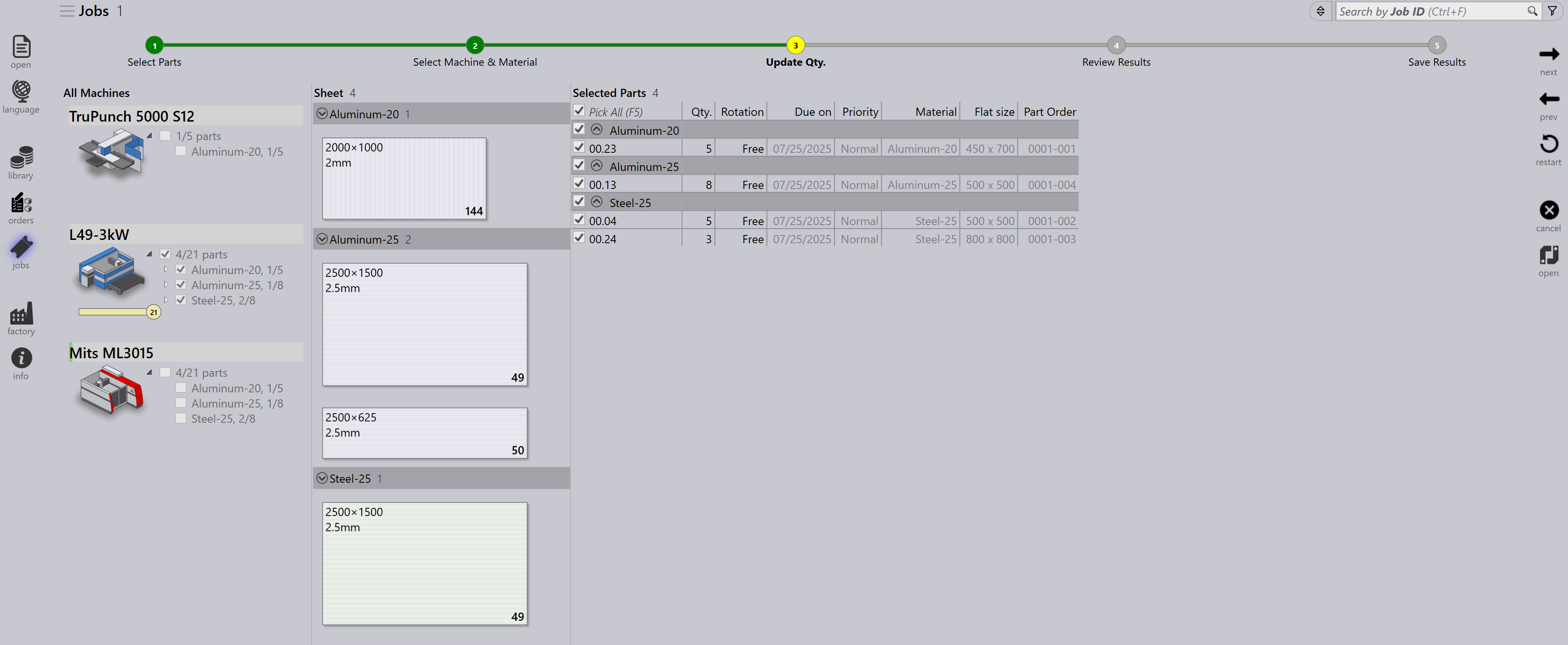
Update Qty appears in Interactive nesting plan window.
-
By default, Pick All (F5) includes all parts for nesting, or you can manually pick priority parts and adjust part quantities. Click Next.
-
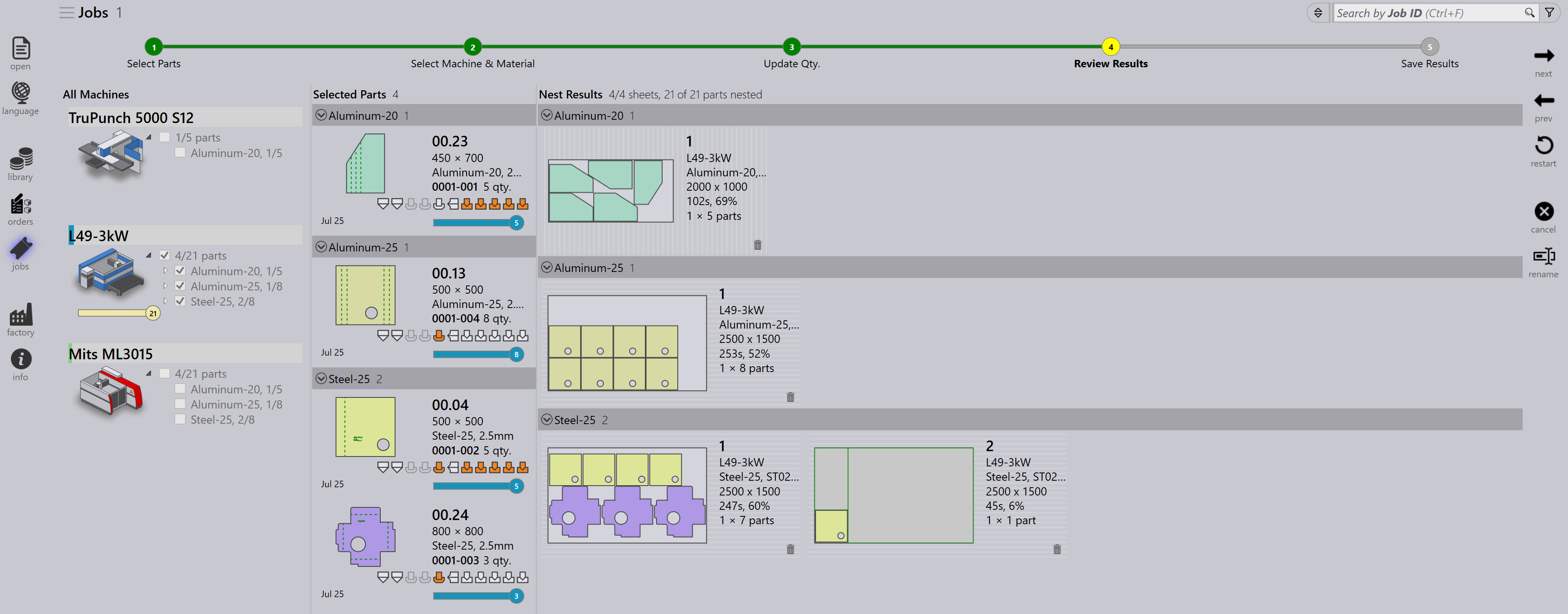
Nesting starts and part nested in sheet are updated with blue color status.
-
The machine’s production load updates based on the nest result.
-
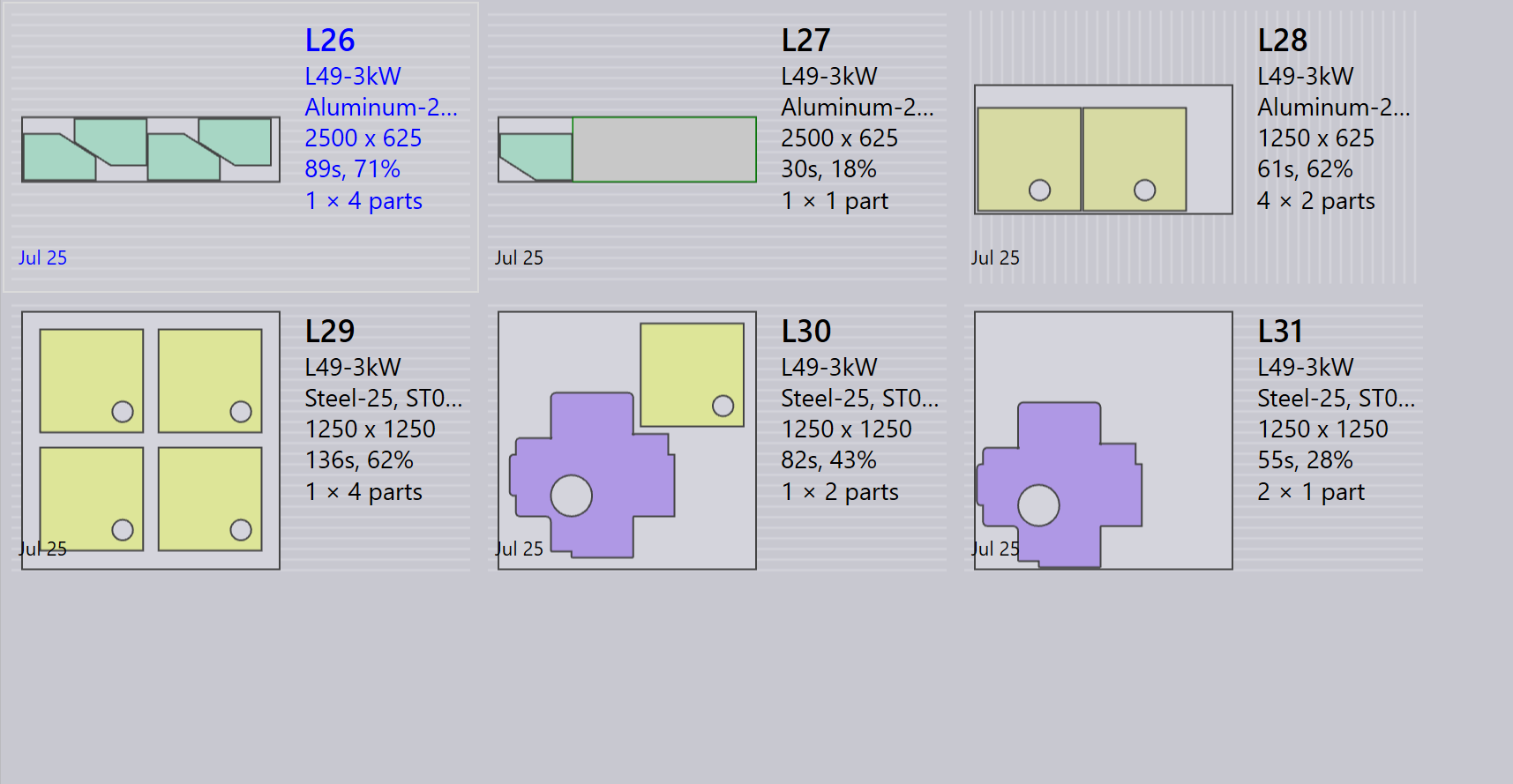
The nested layouts are drawn to the scale and are displayed in the Nest Results tab.
-
If some parts remain unnested, the message Some parts remain unnested appears — these parts stay in the original job.
-
Reason for not nesting may be sheet not available to nest
-
-
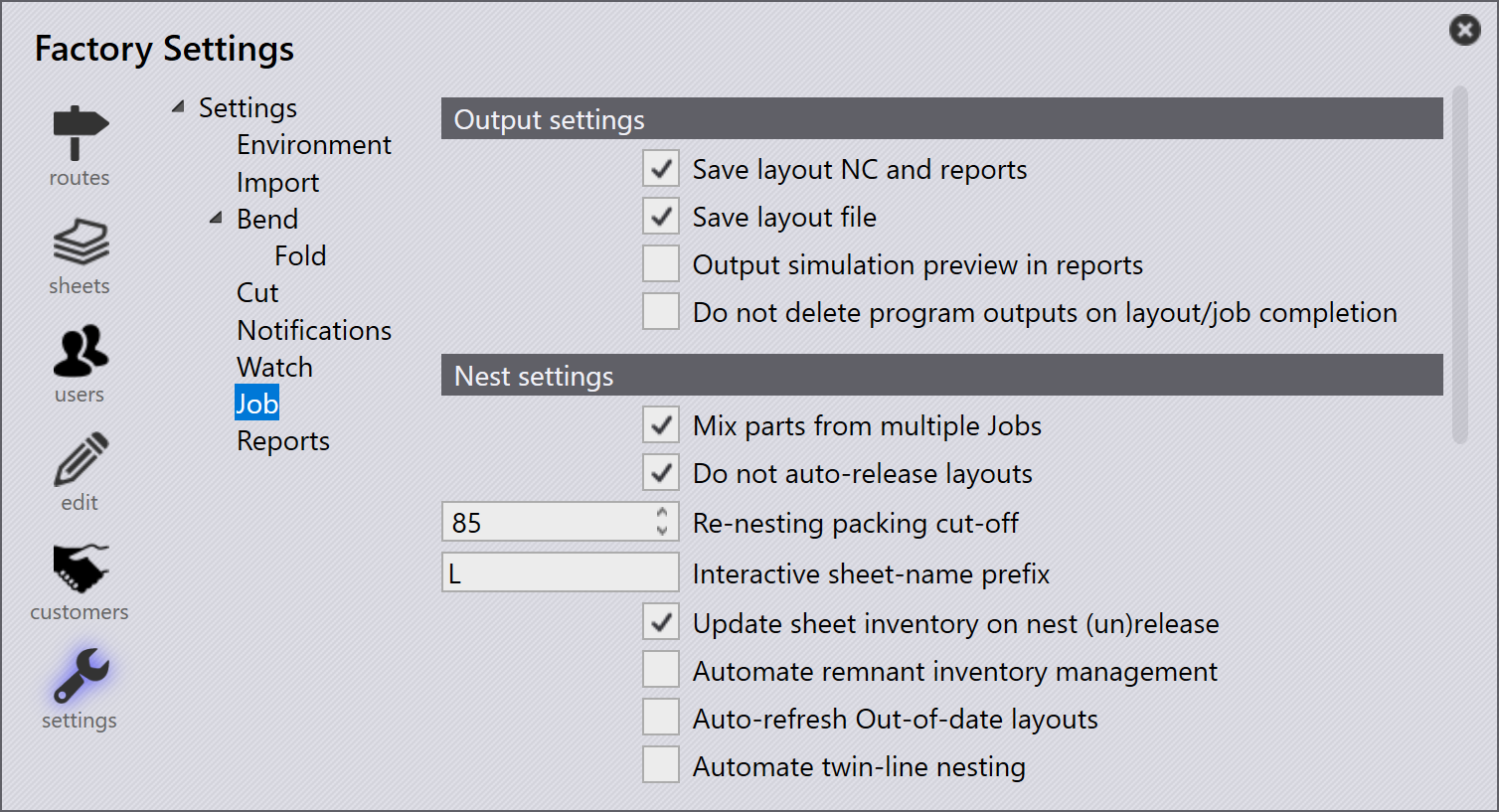
Interactive Nest result are prefixed as: factory → settings → Job→ Nest settings, Interactive sheet-name prefix.
-
The interactive nest layouts are prefixed with Letter L.