
Praxis Reference Manual

  • Welcome to Praxis
  • Installation
    • Hardware requirement
    • Supported file formats
    • Prerequisites
    • Server installation
    • Client installation
    • Change license
  • Configuration
    • Add/Remove machine
    • Setup tooling
    • Configure users
    • Language
    • Material
      • Add new material and sheet
      • Export/Import material
      • Replace material
    • Map material
    • Map CAM pages
    • Map fields from CAD (lookup keys)
  • The user interface
  • Workflow
  • Library
    • Open
      • Import parts
      • Import orders
      • Import jobs
      • Import assemblies
    • Library view
      • Parts
      • Assembly
    • Part status
      • Part validation
      • Part panel
      • Part filters
    • Tooling status
      • Tooling validation
        • Bend tooling validation
        • Cut tooling validation
        • Fold tooling validation
      • Tooling panel
    • Saving filters
  • Orders
    • Orders view
  • Jobs
    • Create job
    • Job view
    • Job panel
    • Auto plan
    • Interactive nesting
    • Repacking
    • Nest management
      • Layout view
      • Layout panel
      • Report sender
    • Remnant management
      • Auto remnant management
      • Manual remnant management
    • Twinline nesting
    • Out-of-date
    • Job filters
  • Factory
    • Routes
    • Sheets
    • Users
    • Edit
    • Customers
    • Settings
      • Environment
      • Import
      • Bend
      • Cut
      • Notifications
      • Watch
      • Job
      • Reports
  • Impressum
Configuration
/
Map fields from CAD (lookup keys)

Map fields from CAD (lookup keys)

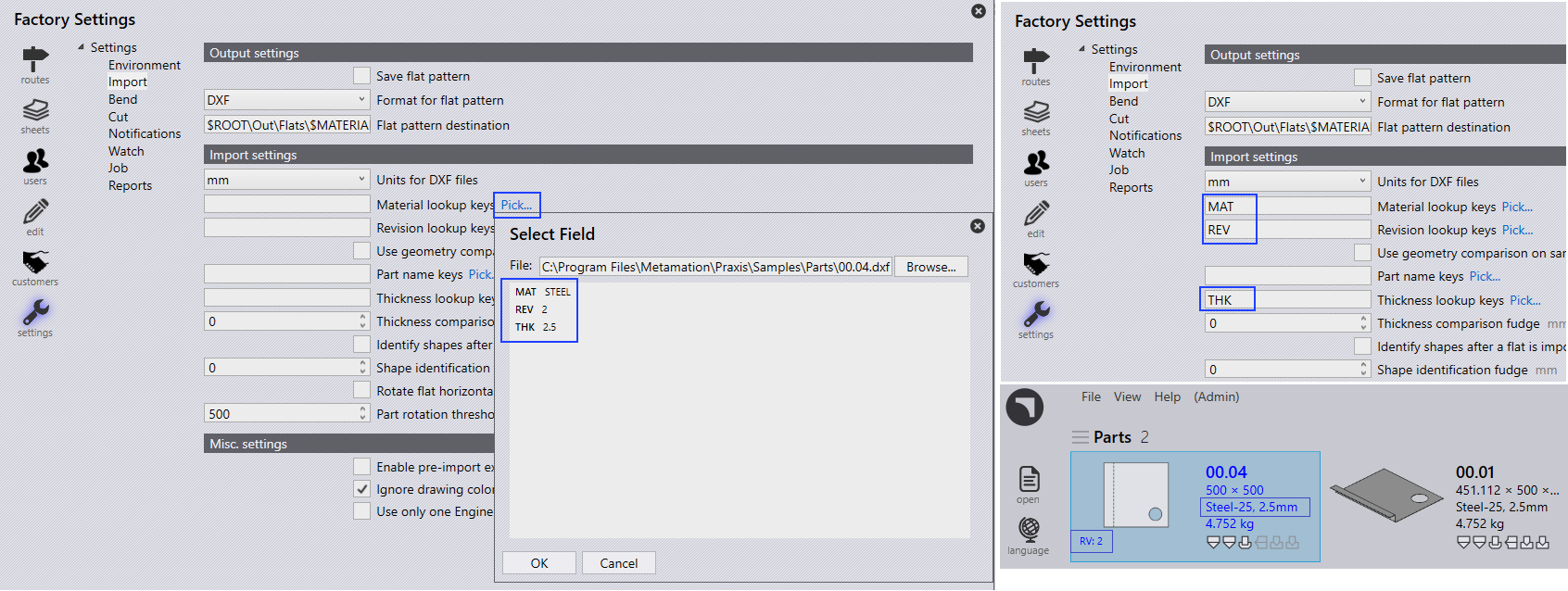
  • factory → Settings → Import, under Import settings section. Click Pick Material lookup keys. Select Fieldspage appears.

  • Click Browse. Select the file C:\Program Files\Metamation{APPNAME}\Samples\Parts\00.04.dxf.

  • Select Field populates with MAT, REV, THK information.

  • Select MAT and Click OK.

Material lookup keys field updated with MAT field. Similarly do for Revision and Thickness keys.

File → Open → Import parts, select the file - C:\Program Files\Metamation{APPNAME}\Samples\Parts\00.04.dxf. Part is imported with material, thickness and also revision.
Material

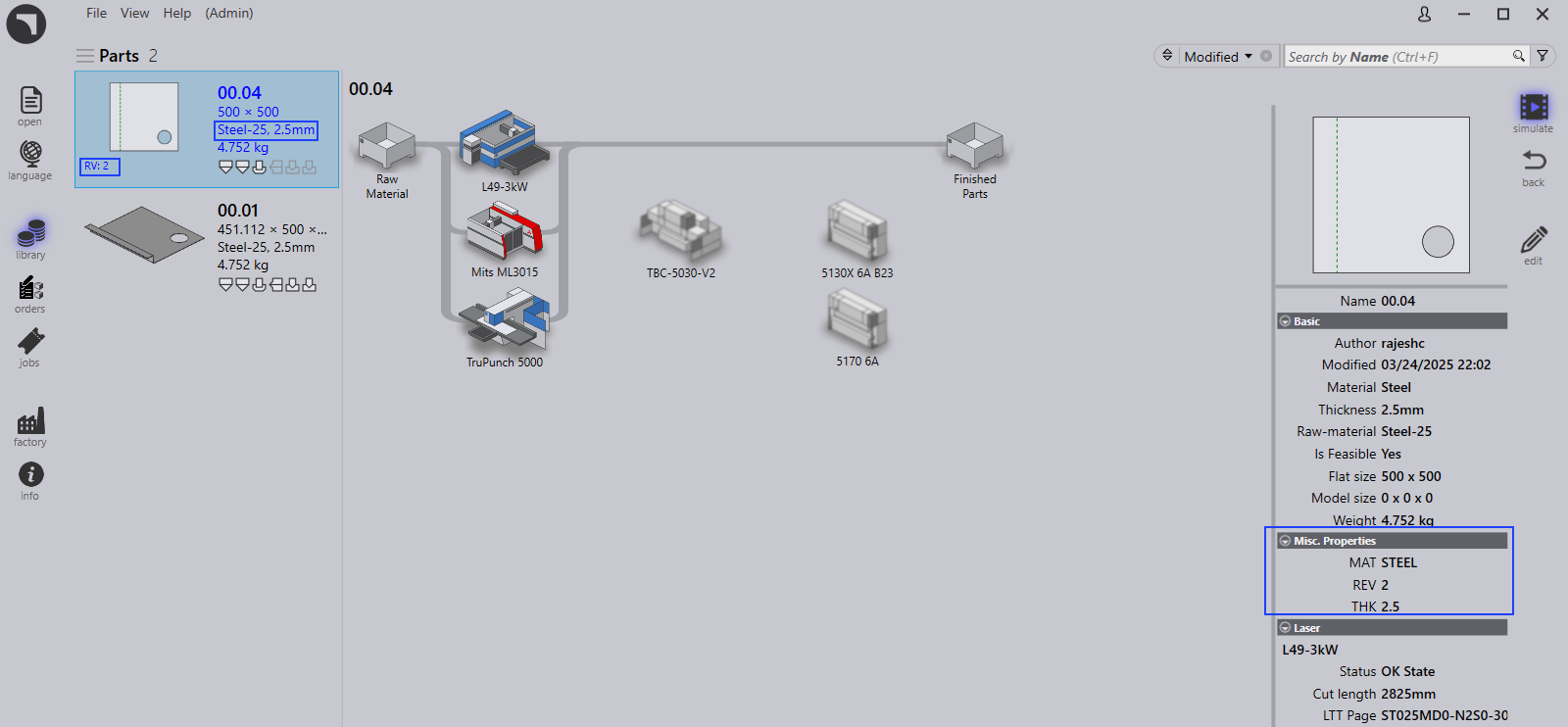
Double click Part 00.04 and Part detail page shows those mapped field information from the CAD file under Misc Properties.
Material
Map CAM pages The user interface

      Copyright © 2025 TRUMPF Metamation. All rights reserved.

    Compiled by Bento