Job filters
Job Page Filters help you locate Jobs, Active Parts, and Nests by displaying only items that match selected conditions. They simplify finding, sorting, and managing jobs or parts, improving overall efficiency in the workflow.
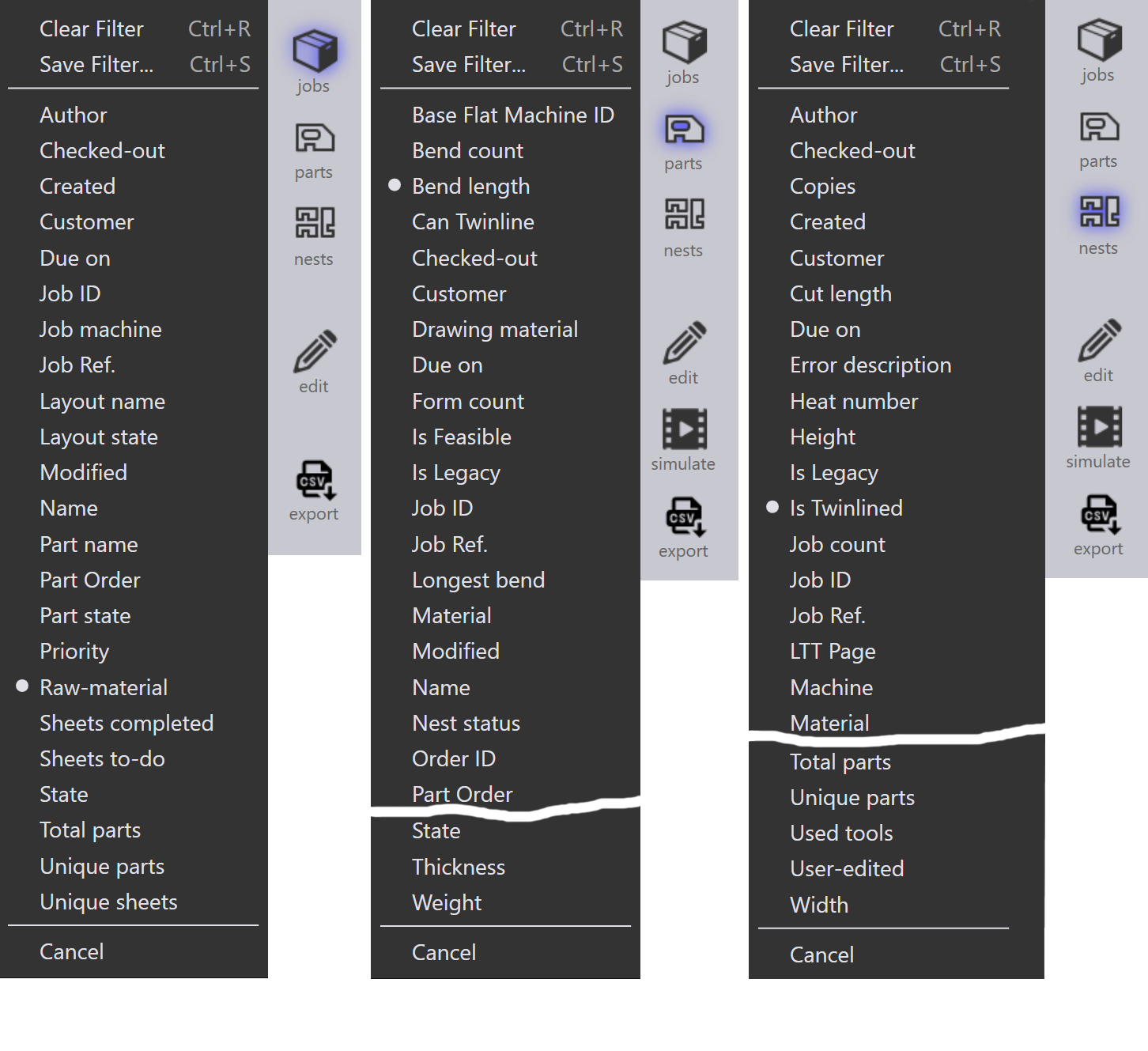
Examples of the filters available
Priority and Due on
-
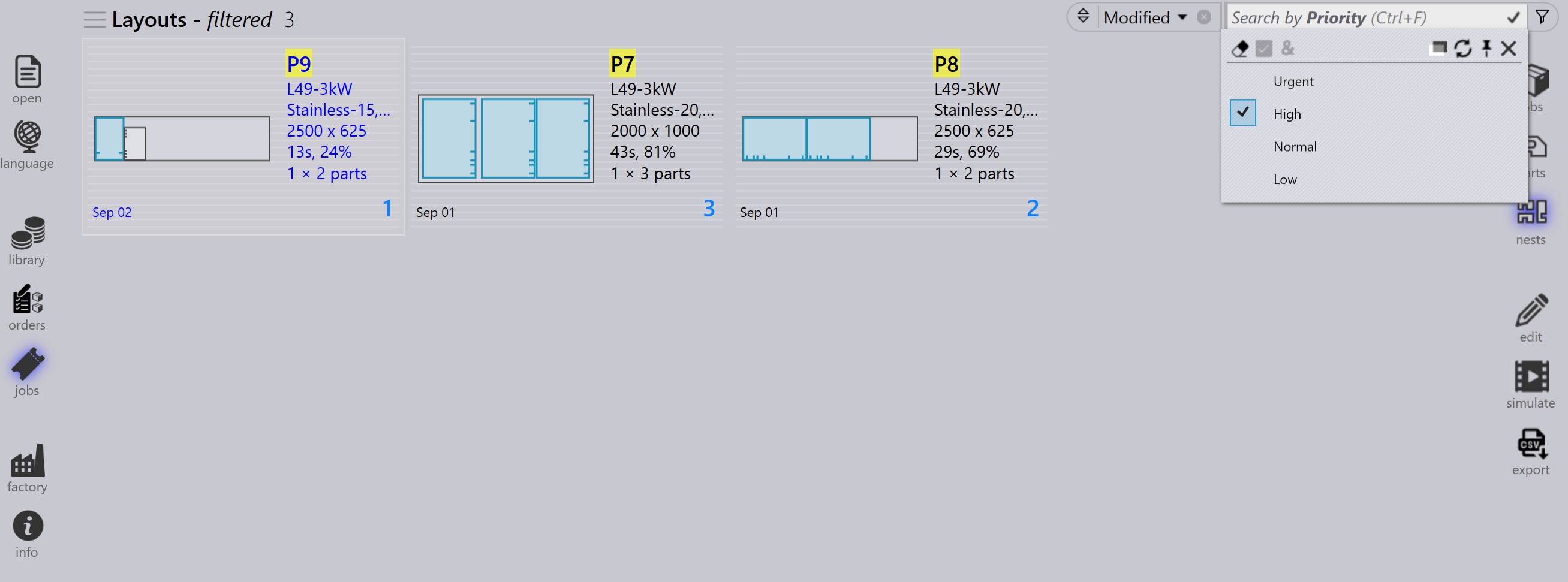
The Priority filter allows you to search and display parts or jobs based on their assigned priority (Urgent, High, Low, Normal).
-
When you select a particular priority level, only the parts with that specific priority will be highlighted or shown in the results.
-
For example, if you choose High Priority, the system will filter and highlight only the parts marked as High Priority on the nest.
-
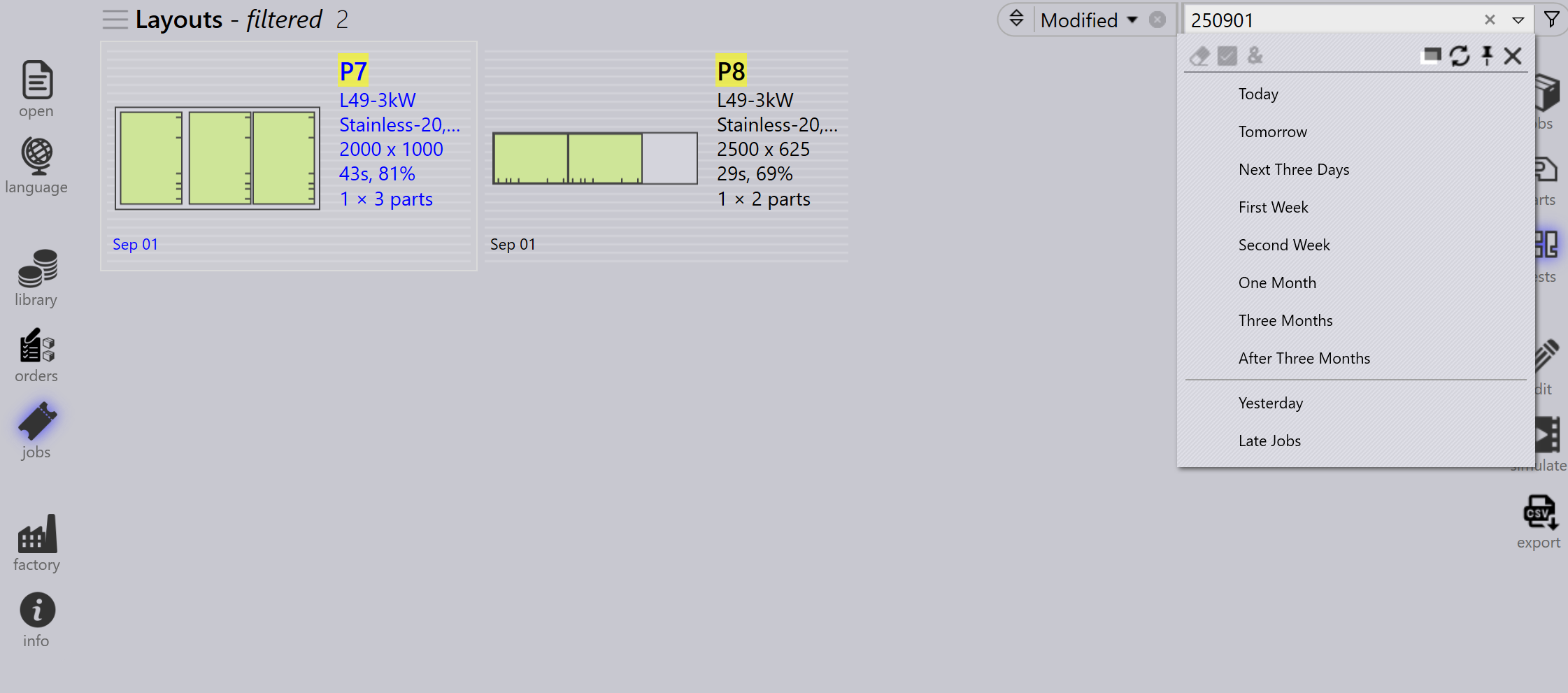
Due on filter allows you to search and display parts or jobs on their assigned dates.
-
When you select a particular due date, only the parts with that specific due date will be highlighted or shown in the results.
-
Apart from pre-defined due date filters like Today, Yesterday, Tomorrow etc., you can also key-in the custom date values/ranges in yymmdd format into the search textbox.
-
You can also use expressions with inequality operators (<, <=, >, >=, =) followed by the date value. Example: >=250901 would search all items which are due on or after 1st Sept 2025.
If the filter list hides the search content, you can make it transparent
using the Toggle opacity
 command. command.
|
Part name/ Layout name
-
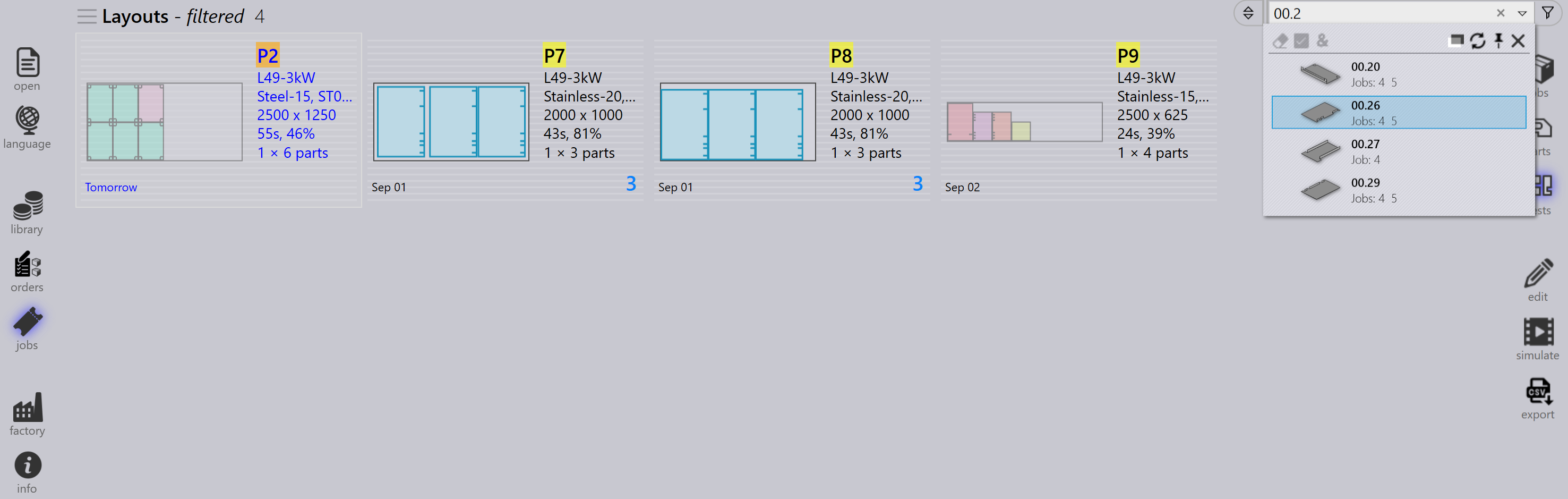
Part name filter will be available in jobs and nest page.
-
As you type the part name, a suggestion list is displayed to help select the correct part quickly.
-
Selecting one or more items from the suggestion list narrows the search results to only the selected parts.
-
On the Jobs page, this behavior is extended to include Layout Names, allowing users to search by either part name or layout name.
Remnant
-
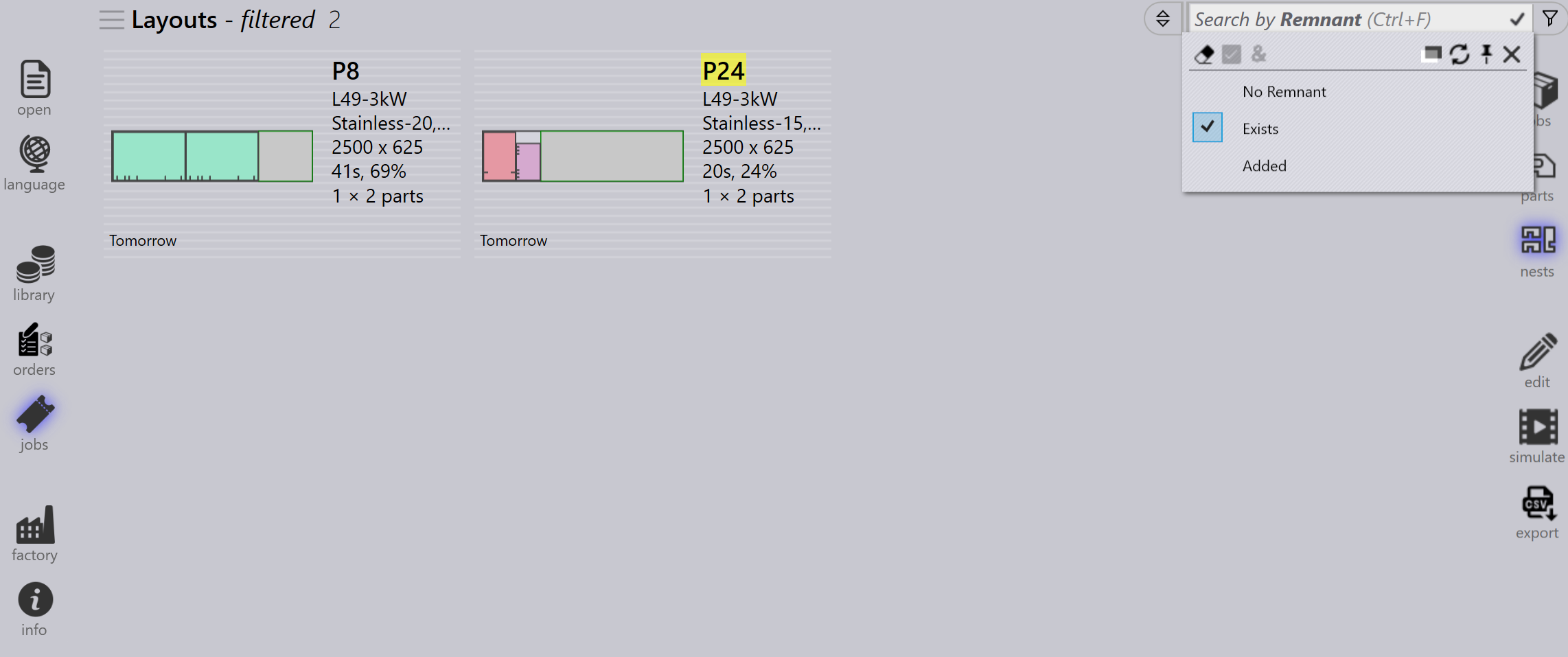
Use the Remnant filter to search layouts based on remnant availability.
-
The dropdown displays the following options:
-
No Remnant - lists layouts where no remnant is created.
-
Exists - lists layouts where a remnant already exists.
-
Added - lists layouts where a new remnant is added.
-
-
Helps identify and manage leftover sheet materials efficiently.