
Praxis Reference Manual

  • Welcome to Praxis
  • Installation
    • Hardware requirement
    • Supported file formats
    • Prerequisites
    • Server installation
    • Client installation
    • Change license
  • Configuration
    • Add/Remove machine
    • Setup tooling
    • Configure users
    • Language
    • Material
      • Add new material and sheet
      • Export/Import material
      • Replace material
    • Map material
    • Map CAM pages
    • Map fields from CAD (lookup keys)
  • The user interface
  • Workflow
  • Library
    • Open
      • Import parts
      • Import orders
      • Import jobs
      • Import assemblies
    • Library view
      • Parts
      • Assembly
    • Part status
      • Part validation
      • Part panel
      • Part filters
    • Tooling status
      • Tooling validation
        • Bend tooling validation
        • Cut tooling validation
        • Fold tooling validation
      • Tooling panel
    • Saving filters
  • Orders
    • Orders view
  • Jobs
    • Create job
    • Job view
    • Job panel
    • Auto plan
    • Interactive nesting
    • Repacking
    • Nest management
      • Layout view
      • Layout panel
      • Report sender
    • Remnant management
      • Auto remnant management
      • Manual remnant management
    • Twinline nesting
    • Out-of-date
    • Job filters
  • Factory
    • Routes
    • Sheets
    • Users
    • Edit
    • Customers
    • Settings
      • Environment
      • Import
      • Bend
      • Cut
      • Notifications
      • Watch
      • Job
      • Reports
  • Impressum
Library
/
Part status
/
Part filters

Part filters

The Part Library Filters let you quickly search for and locate parts in the library by applying specific conditions. By narrowing results to only the parts that meet your criteria, these filters make it easier to manage and access relevant parts efficiently.
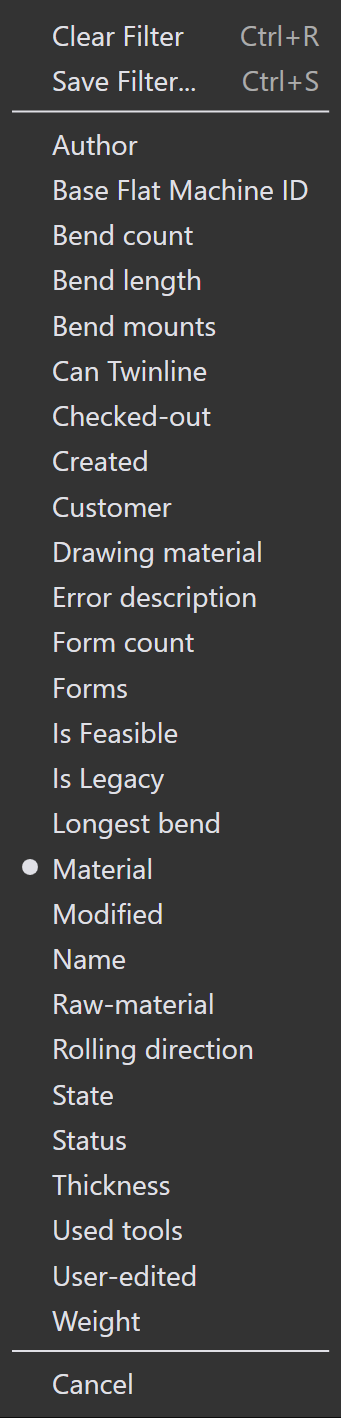
Part Library

Status

  • Use the Status filter to search parts based on tooling status.

  • The dropdown displays tooling states as colored boxes and all available machines and their applicable errors.

  • The colored boxes represent the following states:

    • White: Tooling OK

    • Orange: Tooling has error

    • Yellow: Tooling has warning

    • Grey: Tooling suppressed

  • If a part has narrow flange or tooling not assigned errors, selecting these will display the respective parts.
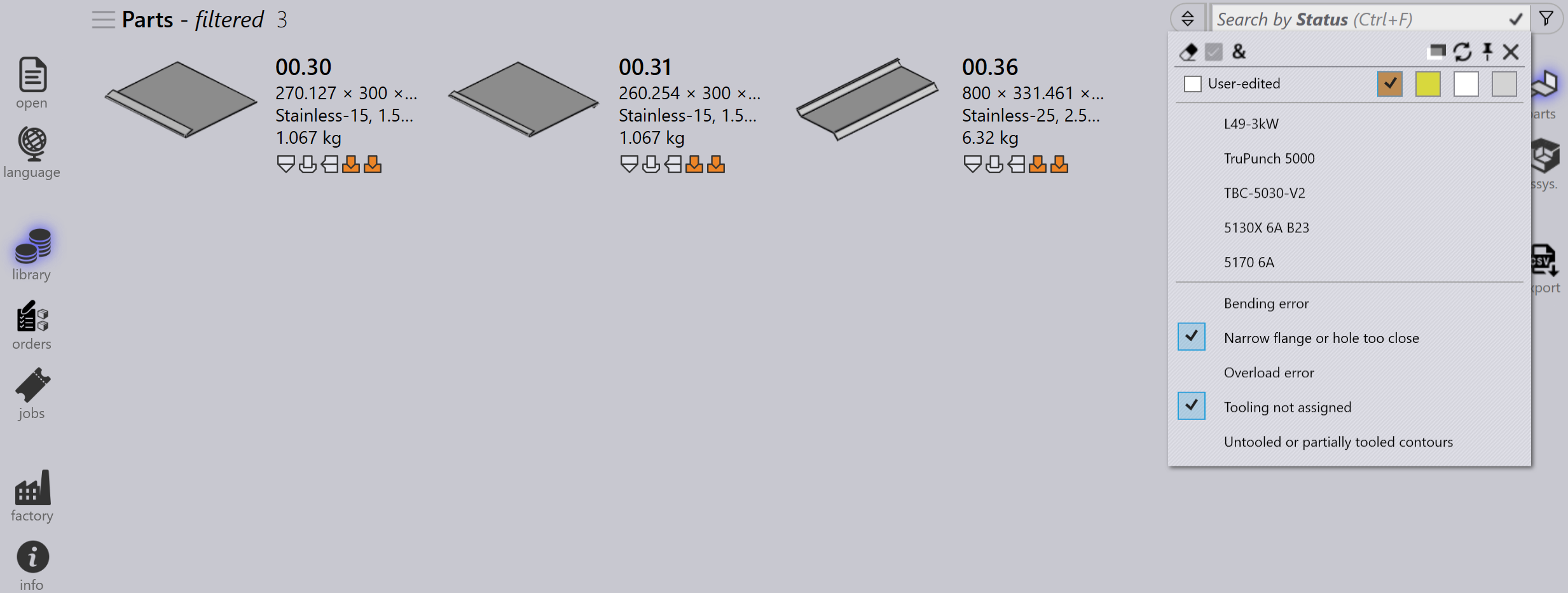
    Status
  • Parts with suppressed tooling on the selected machine will be displayed by clicking on the grey colored box.
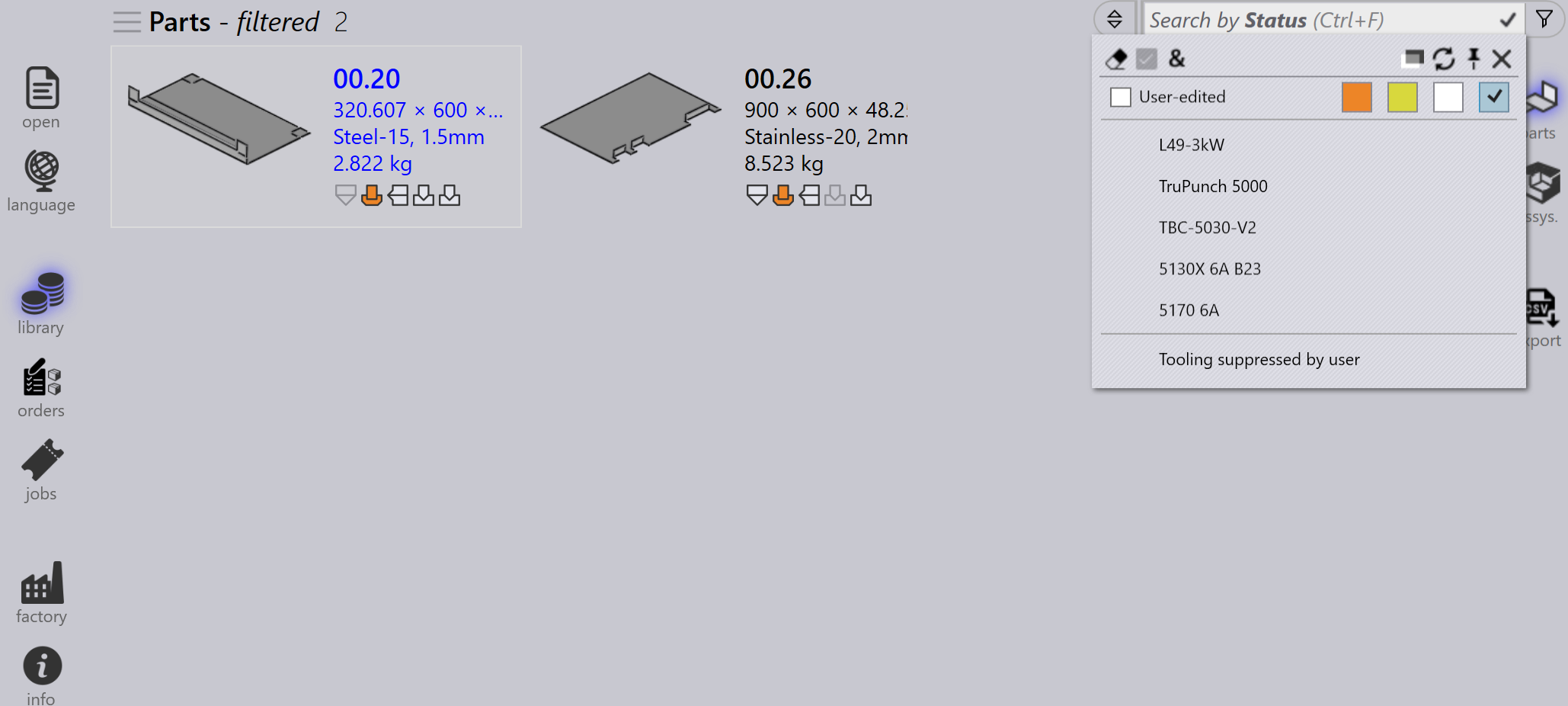
    Suppressed

Bend mounts

  • Use the Bend mounts filter to search parts based on the bend tool used.

  • The dropdown shows all available bend tools and can be filtered by tool name, type (punch, gooseneck, radius, etc.) or description.

  • Select multiple tools and click Match all to sort the tools which use both the selected tools.
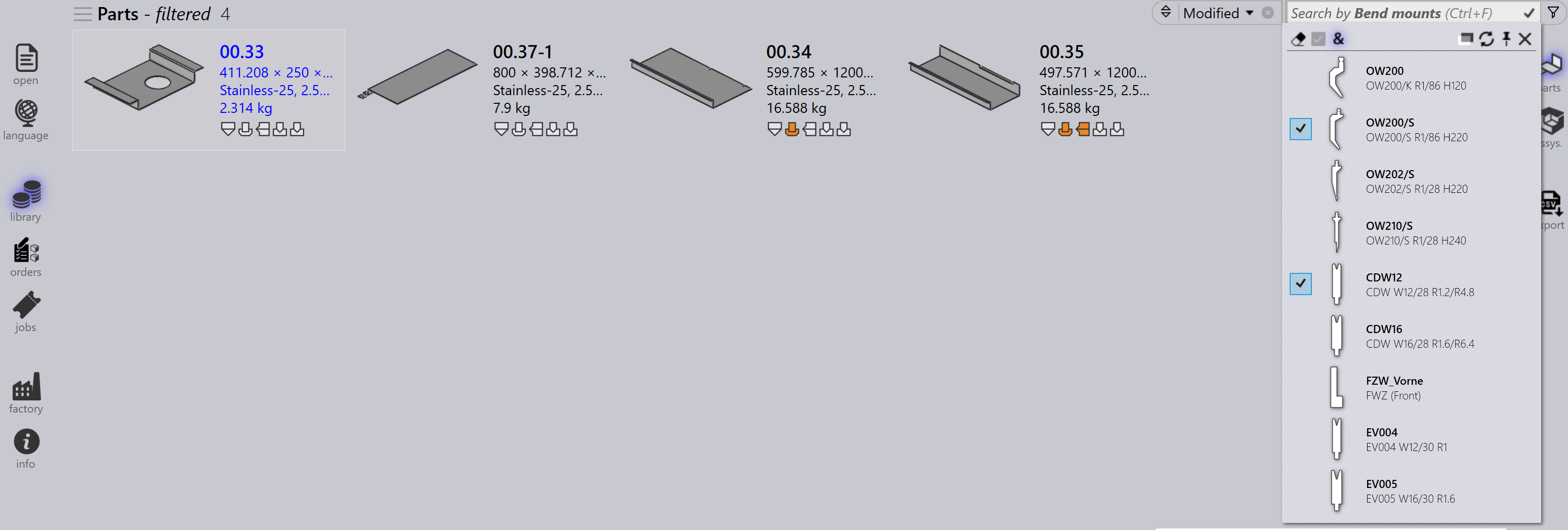
    Bend Mount

Used tools

  • Filtering by Used tools works similar to filtering by Bend mounts.

  • Tool icons are shown in proportional sizes (not exact, but relative).

  • When the tooling preview is open, hovering the mouse over a tool in the filter list highlights that tool in the preview pane.

  • Multiple tools can be selected and applied using Match all.
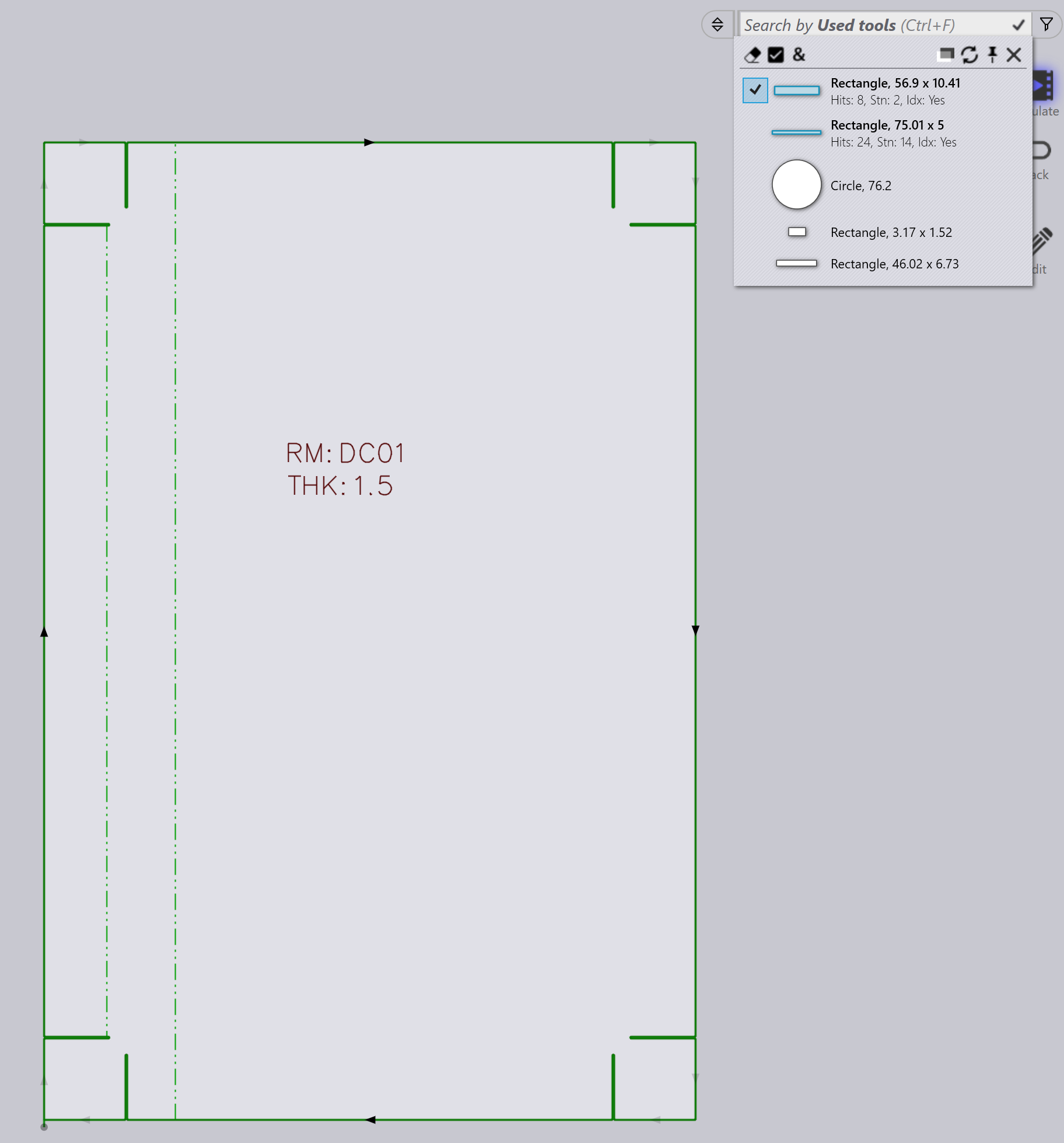
Used Tool

State

  • Use the State filter to search parts based on their current state.

  • The dropdown displays all applicable states depending on the library parts available.

  • The list of states changes dynamically according to the selected parts and their status.

  • For example, select Material Missing to view parts in an unresolved material state.
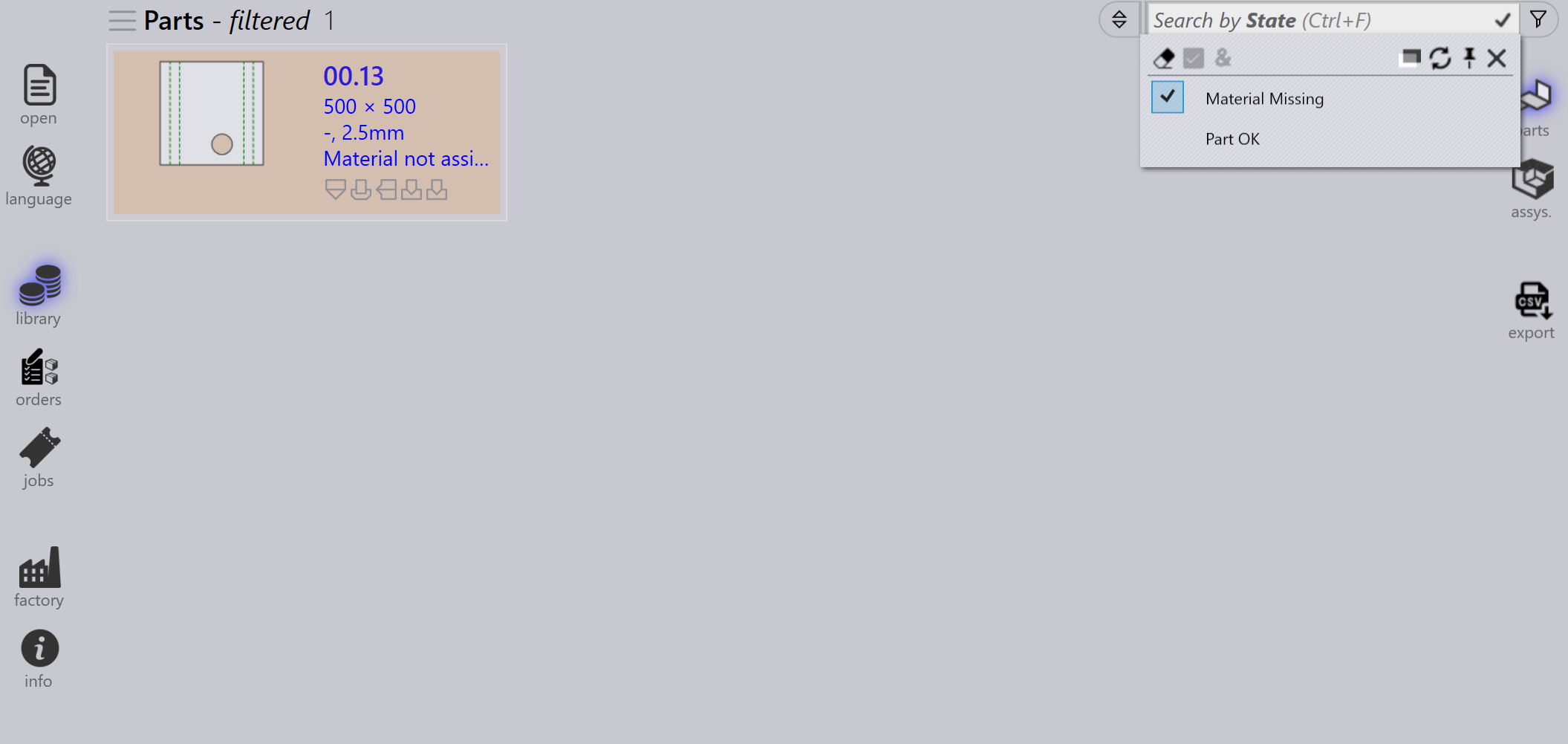
    State

Contents

  • Status
  • Bend mounts
  • Used tools
  • State
Part panel Tooling status

      Copyright © 2025 TRUMPF Metamation. All rights reserved.

    Compiled by Bento