Praxis Reference Manual

  • Welcome to Praxis
  • Installation
    • Hardware requirement
    • Supported file formats
    • Prerequisites
    • Server installation
    • Client installation
    • Change license
  • Configuration
    • Add/Remove machine
    • Setup tooling
    • Configure users
    • Language
    • Material
      • Add new material and sheet
      • Export/Import material
      • Replace material
    • Map material
    • Map CAM pages
    • Map fields from CAD (lookup keys)
  • The user interface
  • Workflow
  • Library
    • Open
      • Import parts
      • Import orders
      • Import jobs
      • Import assemblies
    • Library view
      • Parts
      • Assembly
    • Part status
      • Part validation
      • Part panel
      • Part filters
    • Tooling status
      • Tooling validation
        • Bend tooling validation
        • Cut tooling validation
        • Fold tooling validation
      • Tooling panel
    • Saving filters
  • Orders
    • Orders view
  • Jobs
    • Create job
    • Job view
    • Job panel
    • Auto plan
    • Interactive nesting
    • Repacking
    • Nest management
      • Layout view
      • Layout panel
      • Report sender
    • Remnant management
      • Auto remnant management
      • Manual remnant management
    • Twinline nesting
    • Out-of-date
    • Job filters
  • Factory
    • Routes
    • Sheets
    • Users
    • Edit
    • Customers
    • Settings
      • Environment
      • Import
      • Bend
      • Cut
      • Notifications
      • Watch
      • Job
      • Reports
  • Impressum
Orders

Orders

An order defines what parts need to be manufactured, in what quantity, and by when. It drives production planning and execution in Praxis. Orders can be created or imported using various methods, and they can be converted into jobs for production planning.

Order panel
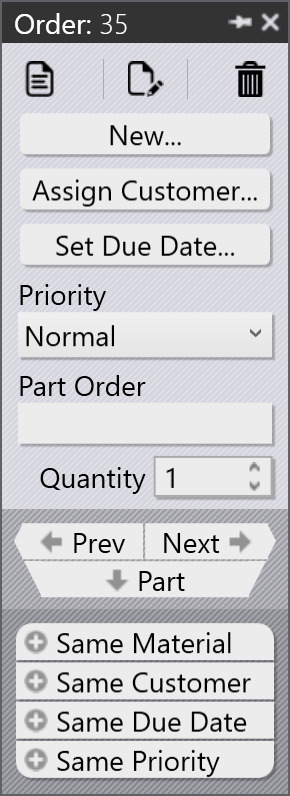
OrderPanel

Read-only

Open in read-only mode for viewing
Opens the selected order in read-only mode.

Edit

Check-out the document for editing
Enables editing of the selected order.

Delete

Delete
Deletes the selected order.

New

New…​
Converts the order into a job, assembly, or another order.

Assign Customer

Assign Customer…​
Assigns a customer to the order.

Due Date

Set Due Date…​
Sets the due date for the order.

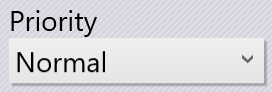
Priority

Priority
Specifies the priority level of the order.

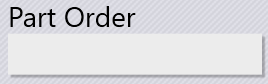
Part Order

Part Order
Specifies the reference ID assigned to a part within the order.

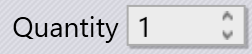
Quantity

Quantity
Specifies the number of parts or instances in the order.

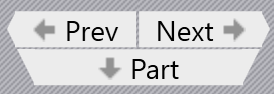
Prev Next

Prev / Next / Part
Navigates to the previous or next part within the order.

Filters

Sort and filter
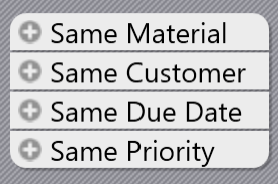
Use these filters to view other orders that share the same material, customer, due date, or priority.

Edit orders

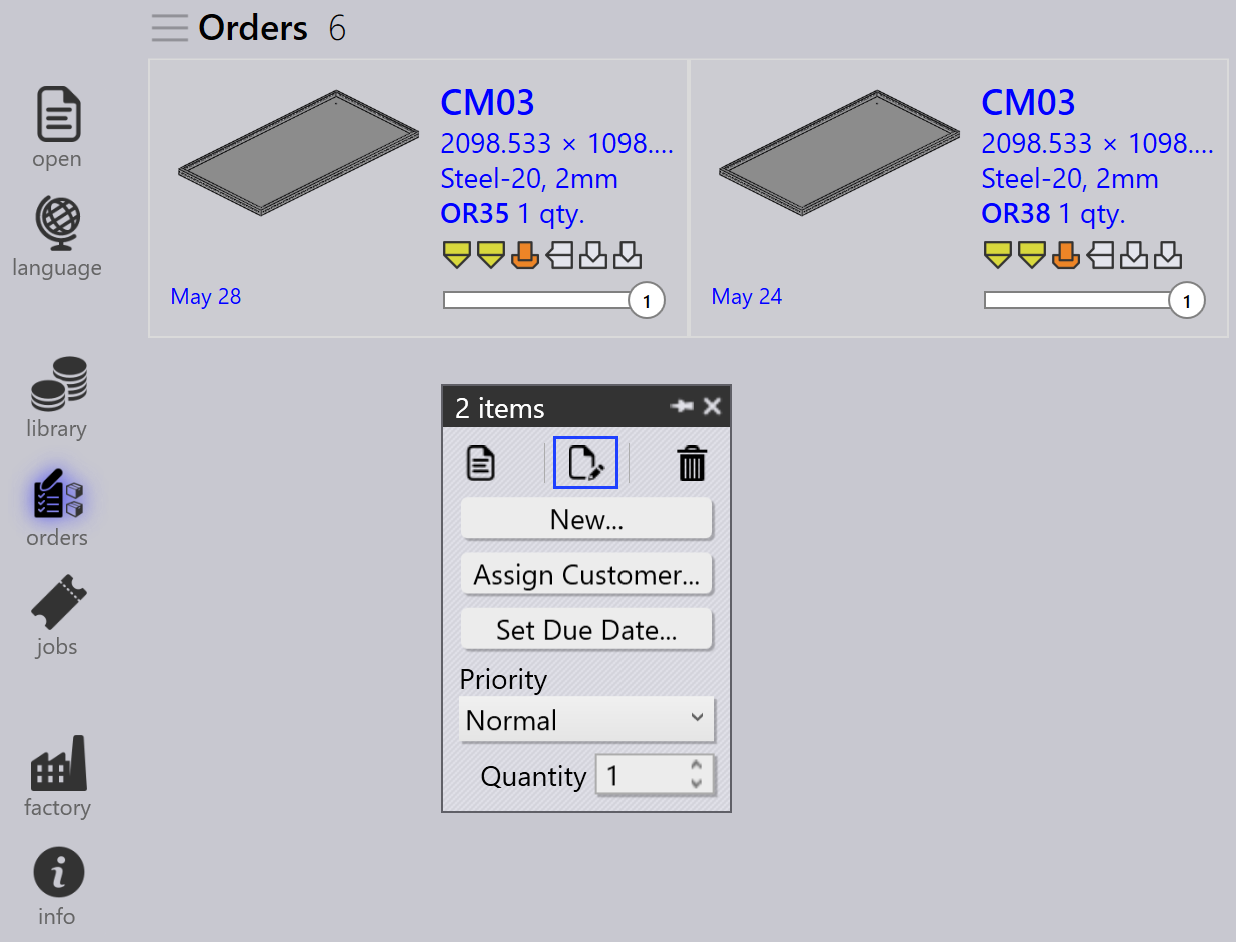
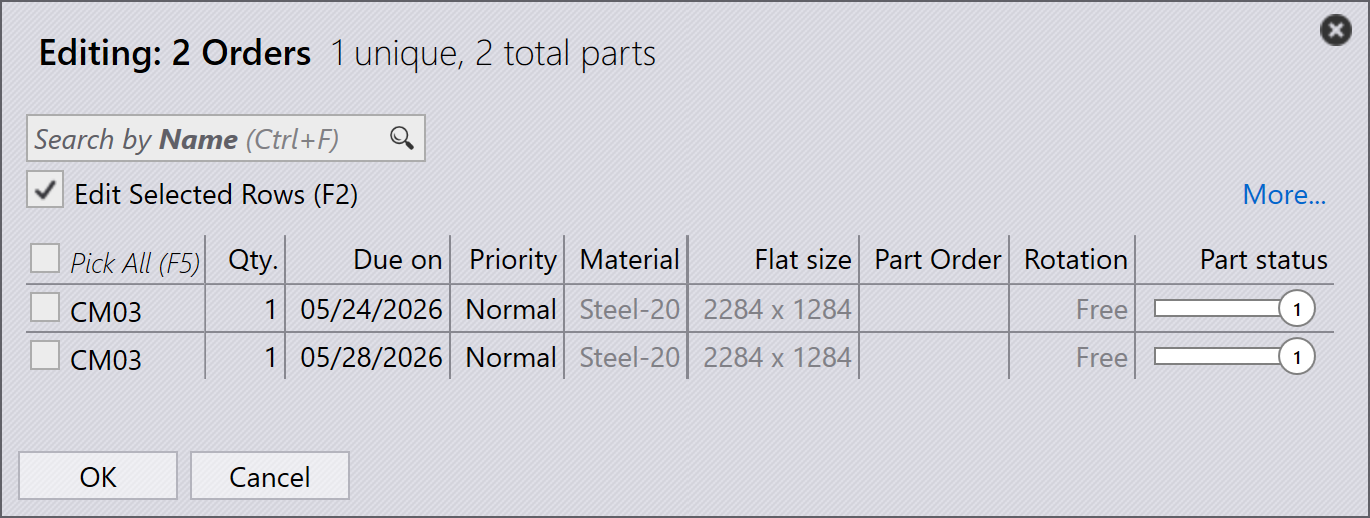
Select one or more orders and right-click to modify common order details such as quantity, due date, priority, and customer information.

If multiple selected orders require different values, use the Check-out for Editing option to edit each order individually based on the requirement.
Edit
Quantity

Any updates made to the orders are applied immediately to the database. Use the Delete command to remove orders from the order library.

The Delete command removes only the orders. Parts linked to the respective orders are not deleted from the Part library.

Planning orders

Select one or more orders, right-click, and click New…​ → Job to convert the selected orders into jobs. Use the Sort and Filter options to group relevant orders together before job creation.
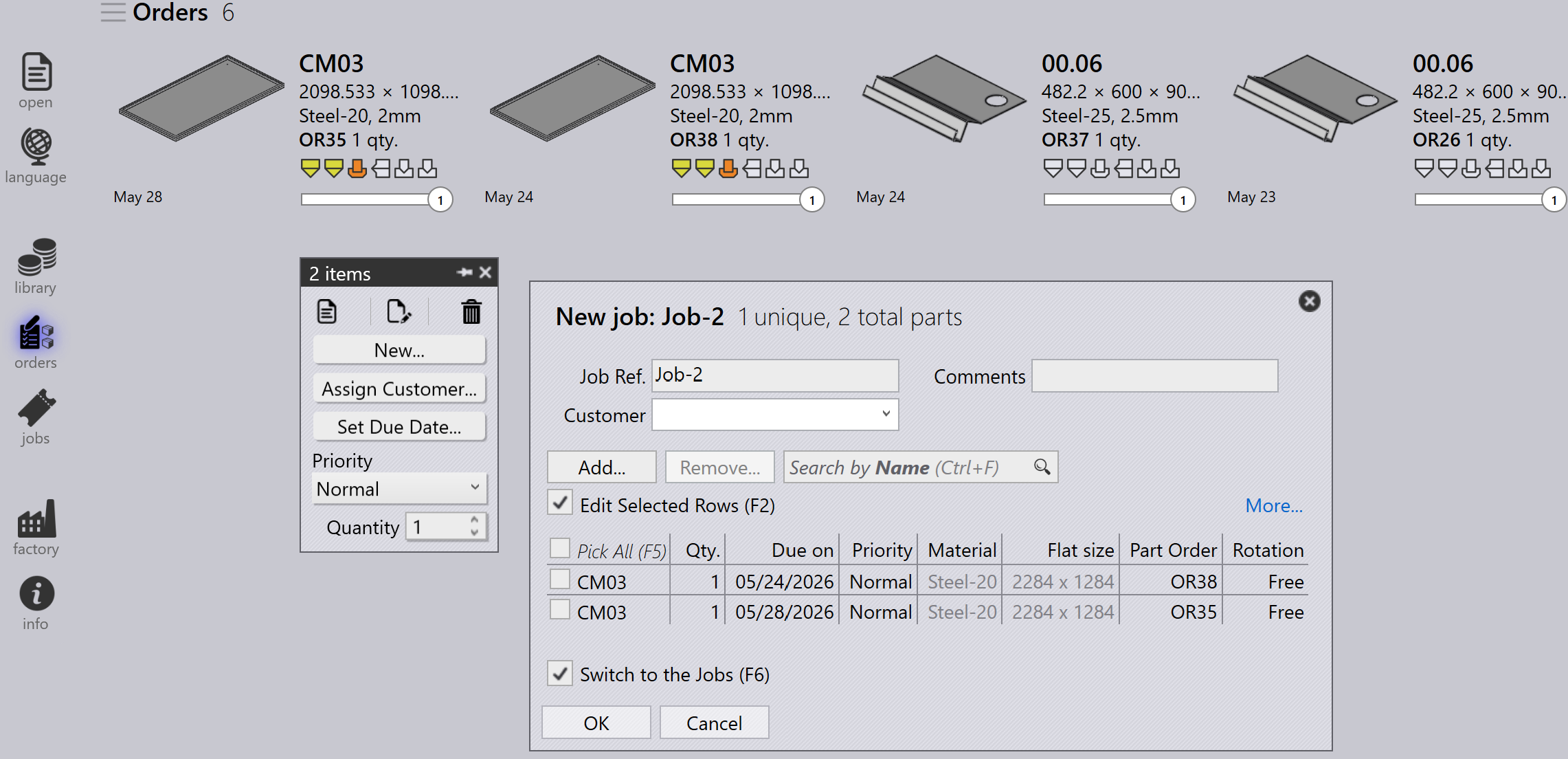
Order Job

Once the orders are converted into a job:

  • The job is moved to the Jobs page

  • The orders are removed from the Orders list

  • The standard job planning workflow can then be used for production planning and nesting
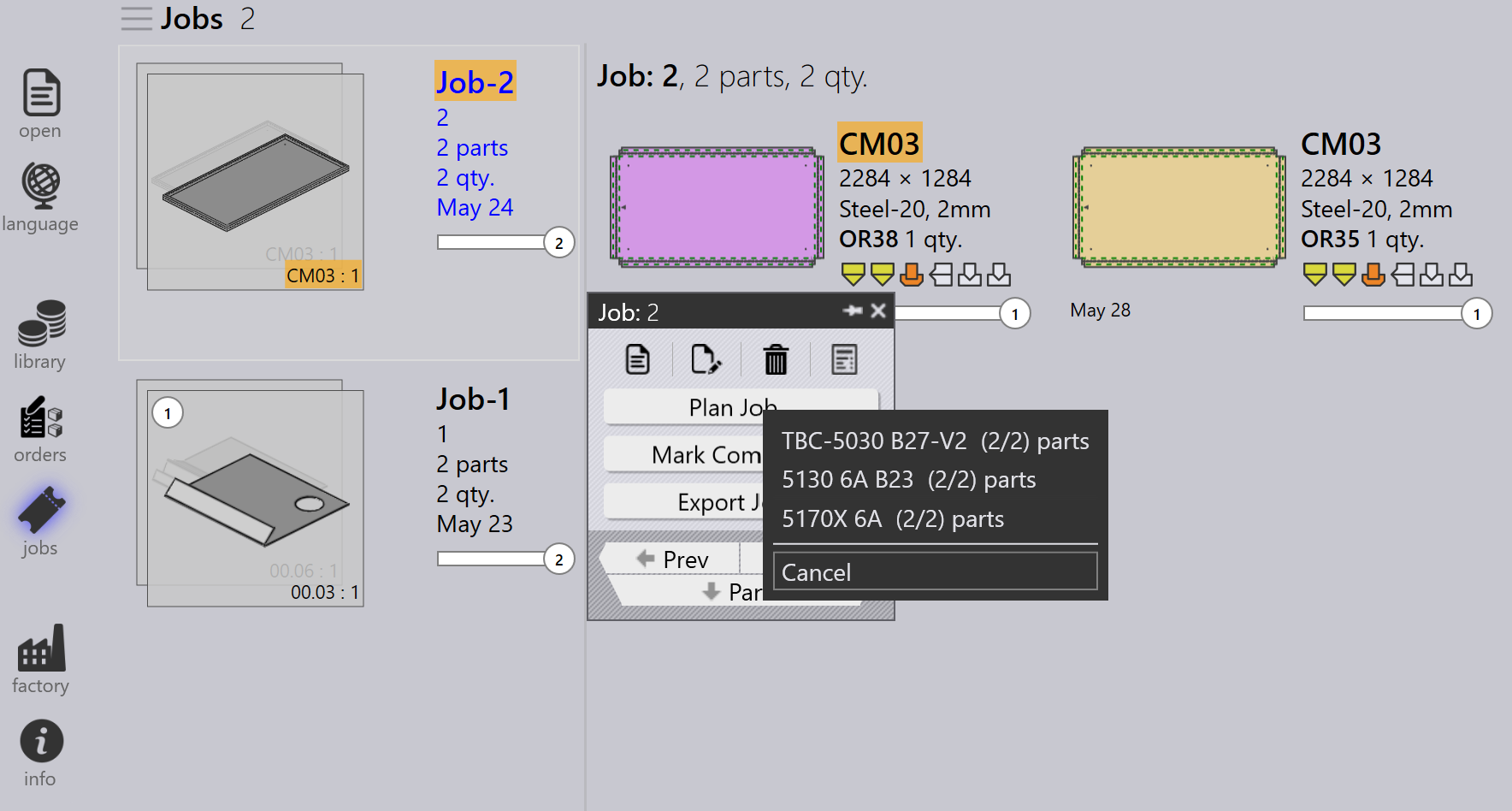
Order Plan

For more information about job planning workflow, refer to the Auto Plan

Additional information

  • If a job containing orders is deleted, the associated orders are automatically moved back to the Orders Ready page, unless the job or part is marked as Completed.
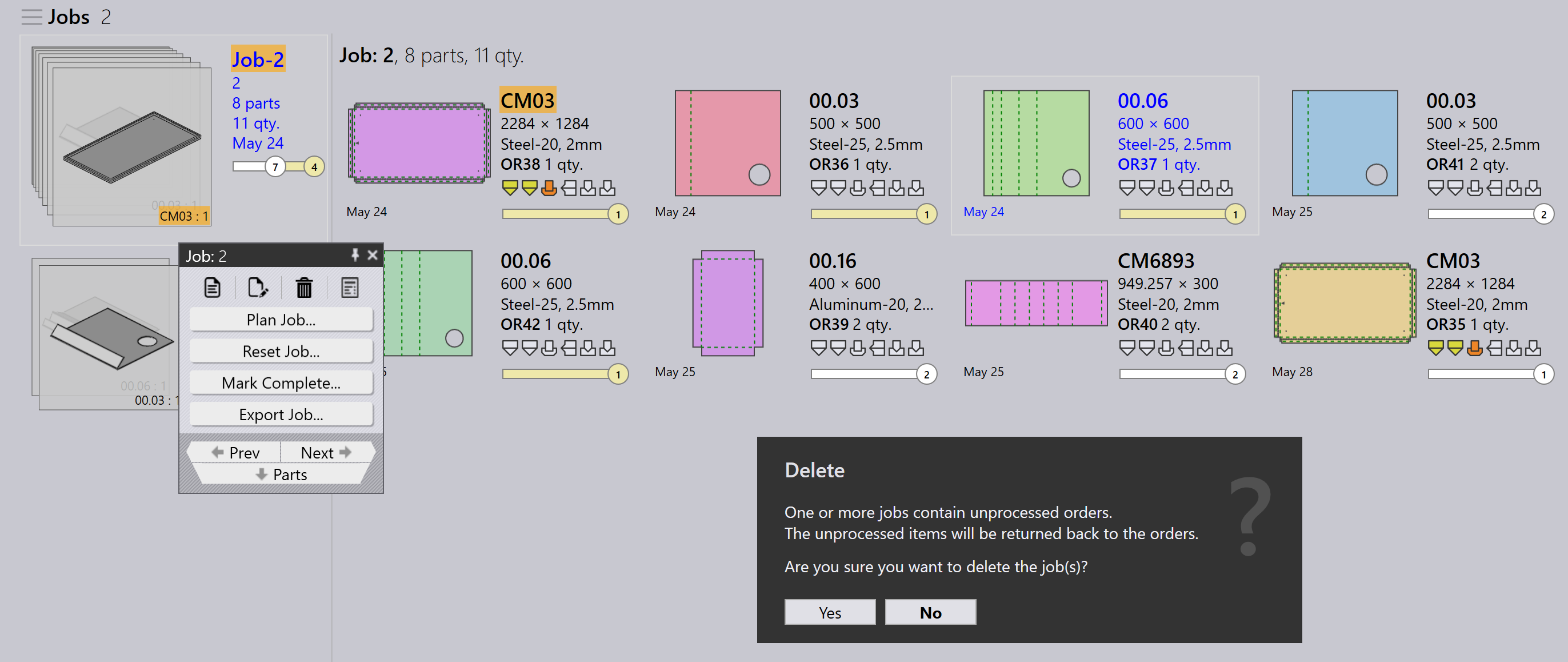
Add
  • Orders can be added to or removed from an existing job through the Edit Job window based on production requirements.

Contents

  • Order panel
  • Edit orders
  • Planning orders
  • Additional information
Saving filters Orders view

      Copyright © 2025 TRUMPF Metamation. All rights reserved.

    Compiled by Bento