Praxis Reference Manual

  • Welcome to Praxis
  • Installation
    • Hardware requirement
    • Supported file formats
    • Prerequisites
    • Server installation
    • Client installation
    • Change license
  • Configuration
    • Add/Remove machine
    • Setup tooling
    • Configure users
    • Language
    • Material
      • Add new material and sheet
      • Export/Import material
      • Replace material
    • Map material
    • Map CAM pages
    • Map fields from CAD (lookup keys)
  • The user interface
  • Workflow
  • Library
    • Open
      • Import parts
      • Import orders
      • Import jobs
      • Import assemblies
    • Library view
      • Parts
      • Assembly
    • Part status
      • Part validation
      • Part panel
      • Part filters
    • Tooling status
      • Tooling validation
        • Bend tooling validation
        • Cut tooling validation
        • Fold tooling validation
      • Tooling panel
    • Saving filters
  • Orders
    • Orders view
  • Jobs
    • Create job
    • Job view
    • Job panel
    • Auto plan
    • Interactive nesting
    • Repacking
    • Nest management
      • Layout view
      • Layout panel
      • Report sender
    • Remnant management
      • Auto remnant management
      • Manual remnant management
    • Twinline nesting
    • Out-of-date
    • Job filters
  • Factory
    • Routes
    • Sheets
    • Users
    • Edit
    • Customers
    • Settings
      • Environment
      • Import
      • Bend
      • Cut
      • Notifications
      • Watch
      • Job
      • Reports
  • Impressum
Jobs
/
Repacking

Repacking

Praxis does not have a separate Repacking module. Instead, repacking is handled through job-level options that give flexibility in how parts are combined.

There are three ways by which repacking can be done.

  • Repacking with Mix parts from multiple Jobs.

  • Manual Repacking Using Add Parts Interactive Wizard.

  • Manual Repacking Using Flux.

Repacking with mix parts from multiple Jobs

  • To enable this option go to factory → settings → Job → Nest settings → Mix parts from multiple Jobs.
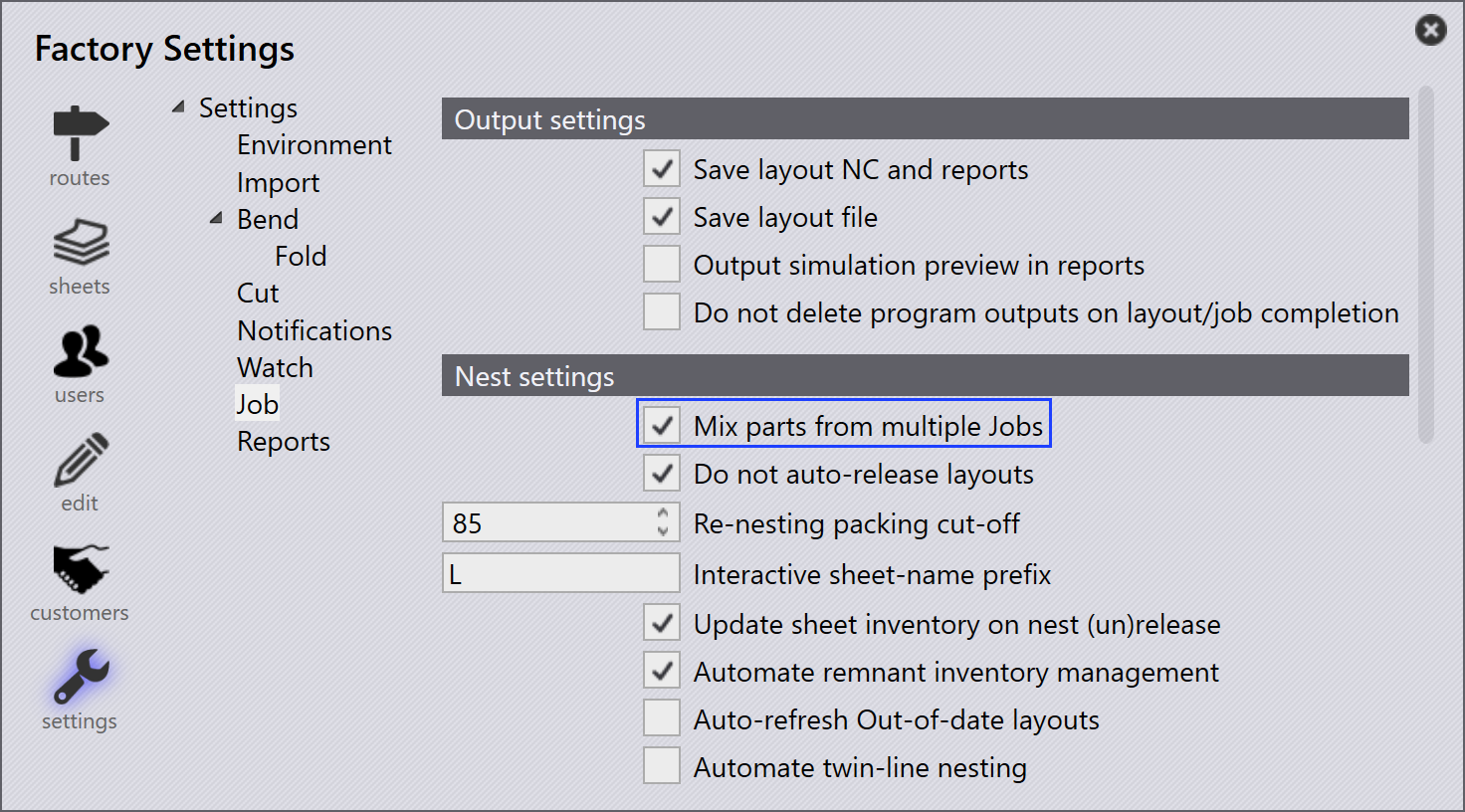
Mix Parts
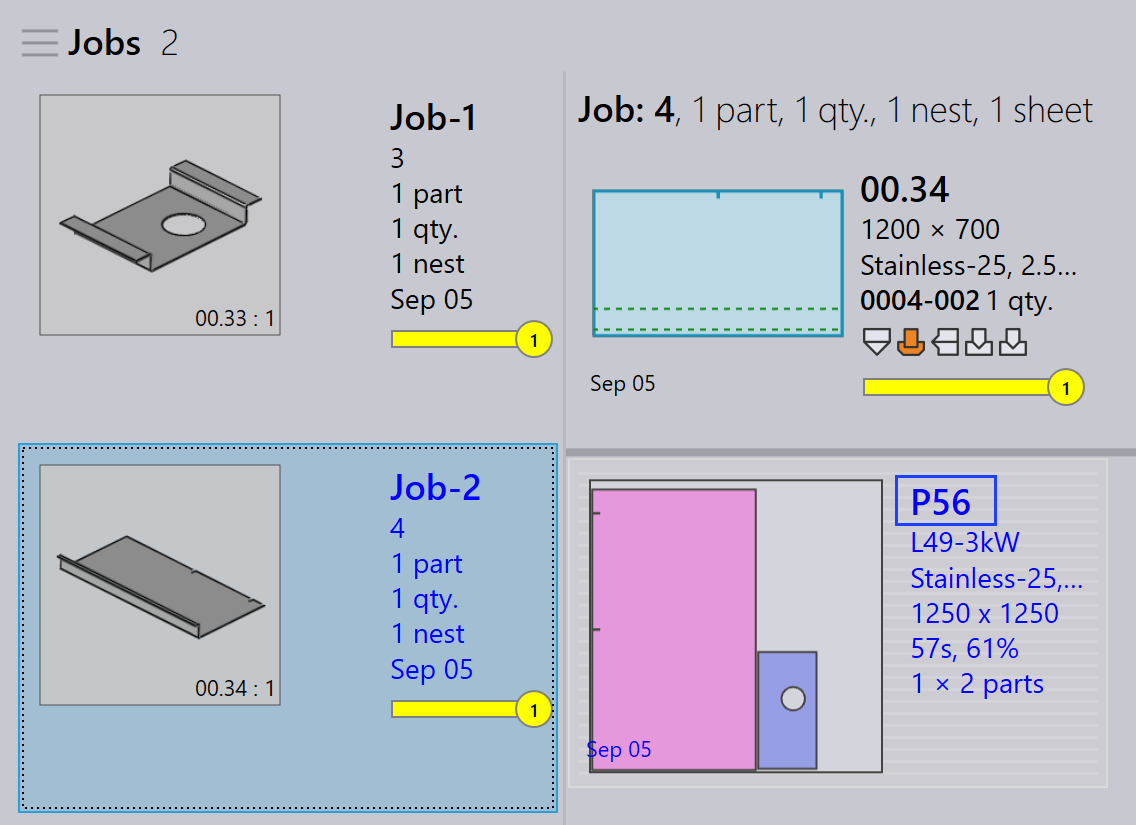
  • When enabled, this option allows parts from different jobs to be grouped together during auto nesting or interactive nesting, resulting in a combined packing or nesting.

  • For example:

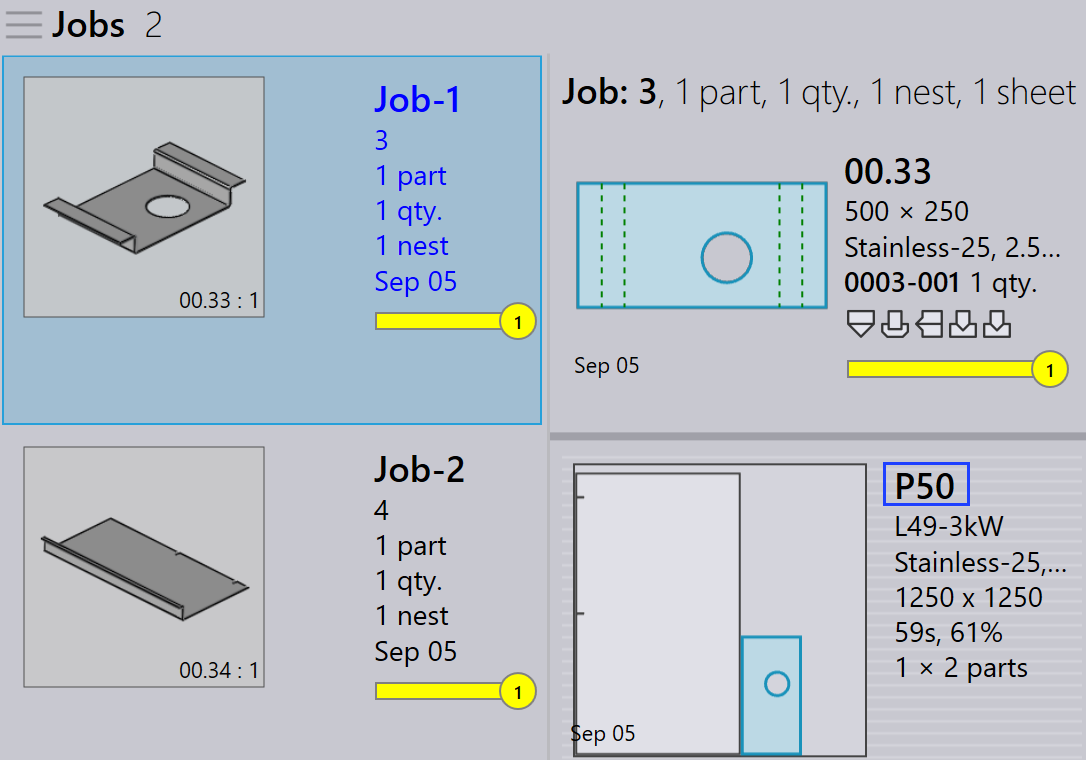
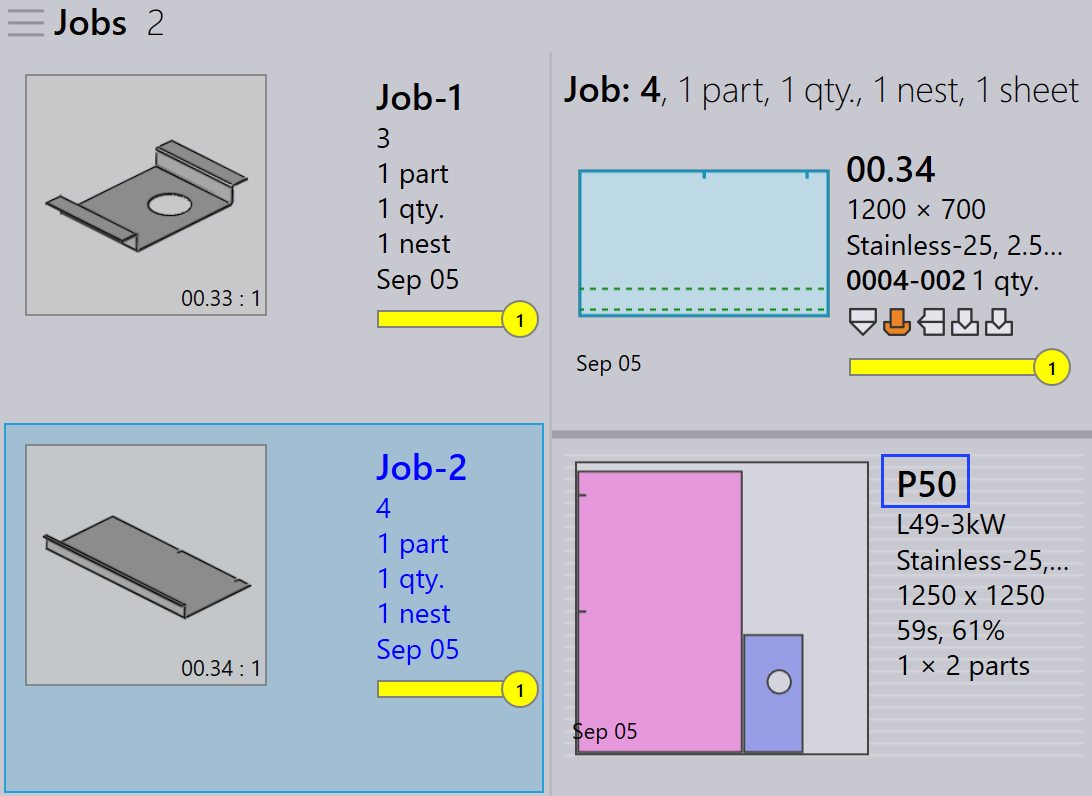
    • Job-1 has 1 part, Job-2 has 1 part.

    • With Mix parts from multiple Jobs enabled, Praxis can repack these 2 parts into a single optimized nest.

Mix Nest1 Mix Nest2

  • Without this option, parts from each job remain separated during nesting/packing with different layout names.

  • Repacking can also be performed manually without enabling this option.

Manual repacking using add parts interactive wizard

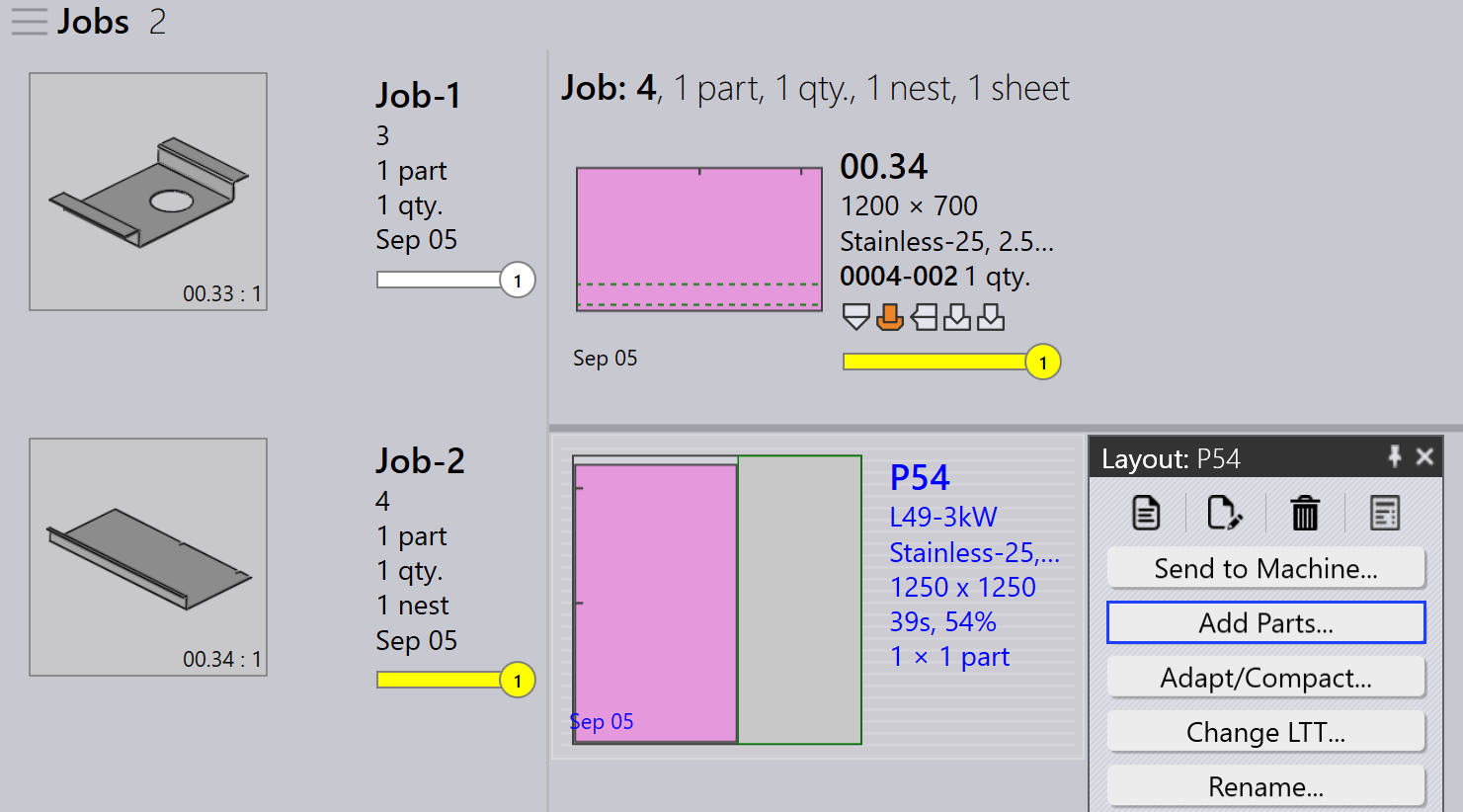
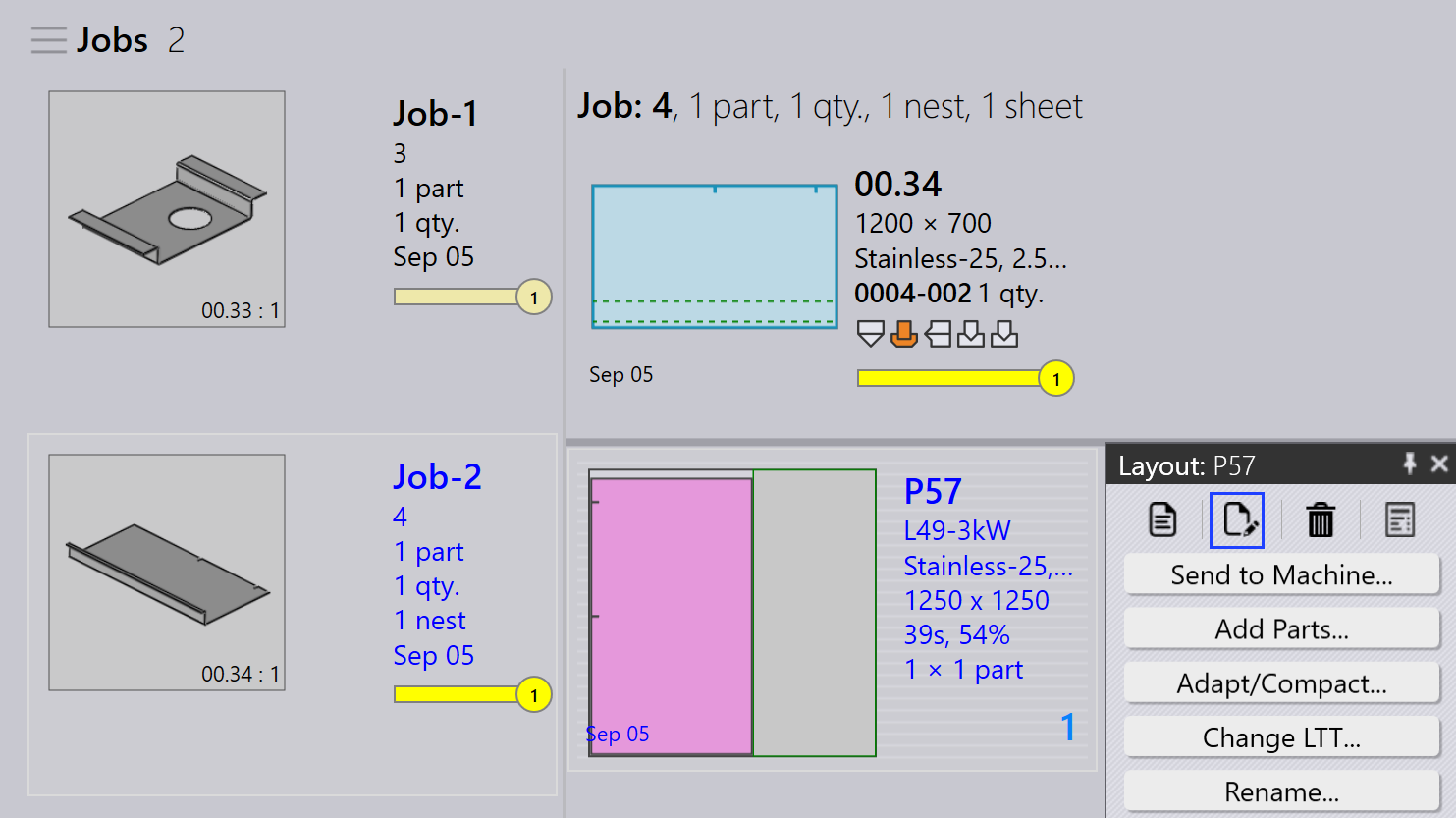
  • From the layout view, select the parts you want to repack.

  • Right-click the part and choose Add Parts…​ from the layout panel.

Add Parts
  • Follow the prompts in the wizard to complete the repacking process.

  • Choose Show other job parts and add them to the current job.
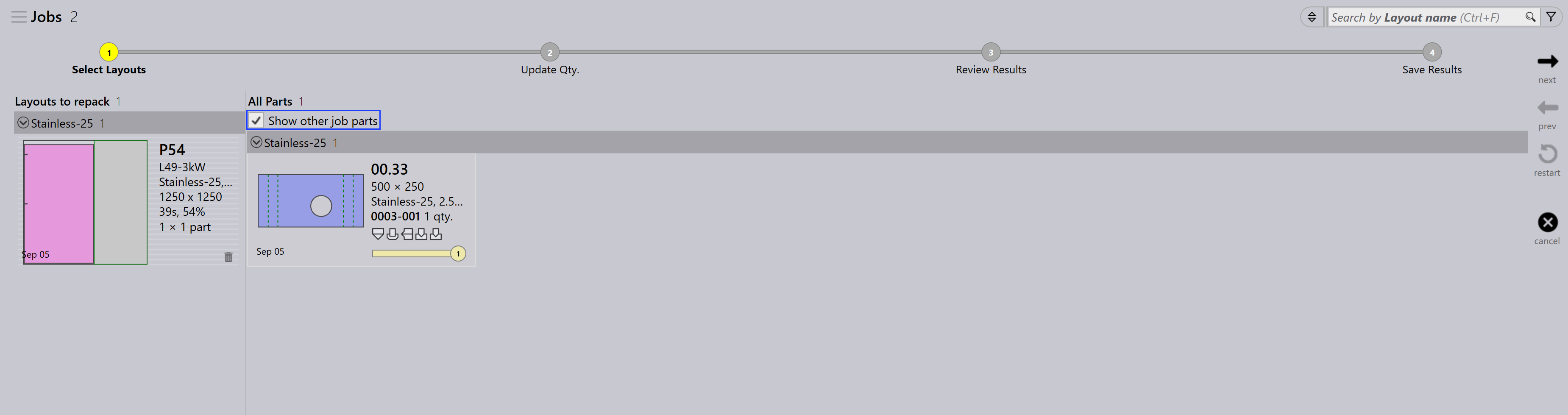
Manual Repacking2
  • Review the changes and confirm the repacking.
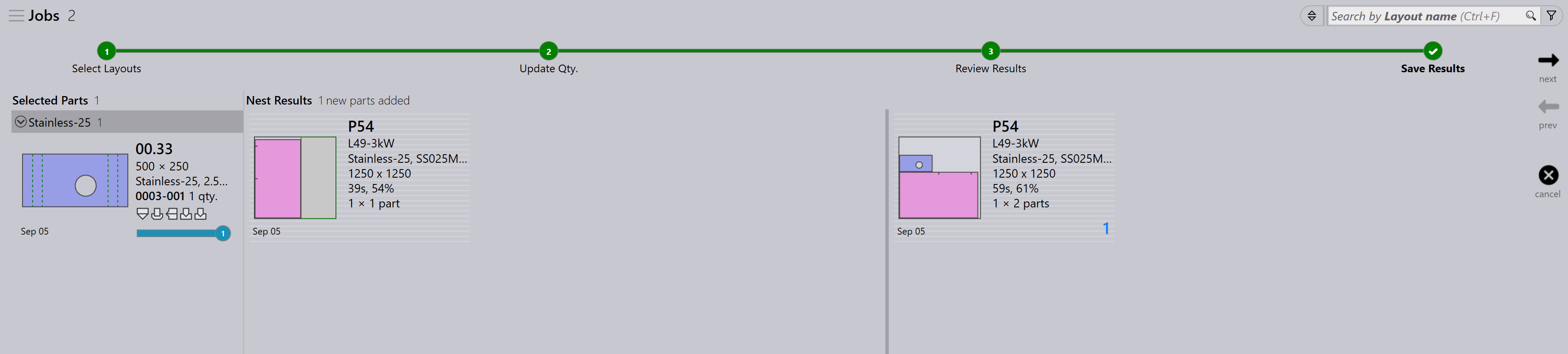
Manual Repacking1

For more details see Add Parts.

Manual repacking using Flux

  • Open the Flux by clicking on Edit.

Flux Layout
  • In the Flux interface, click on Add.

Add
  • A new window appears where you can select the parts to be repacked. Click Show…​ and then select Other job parts. After making your selection, click Pick.
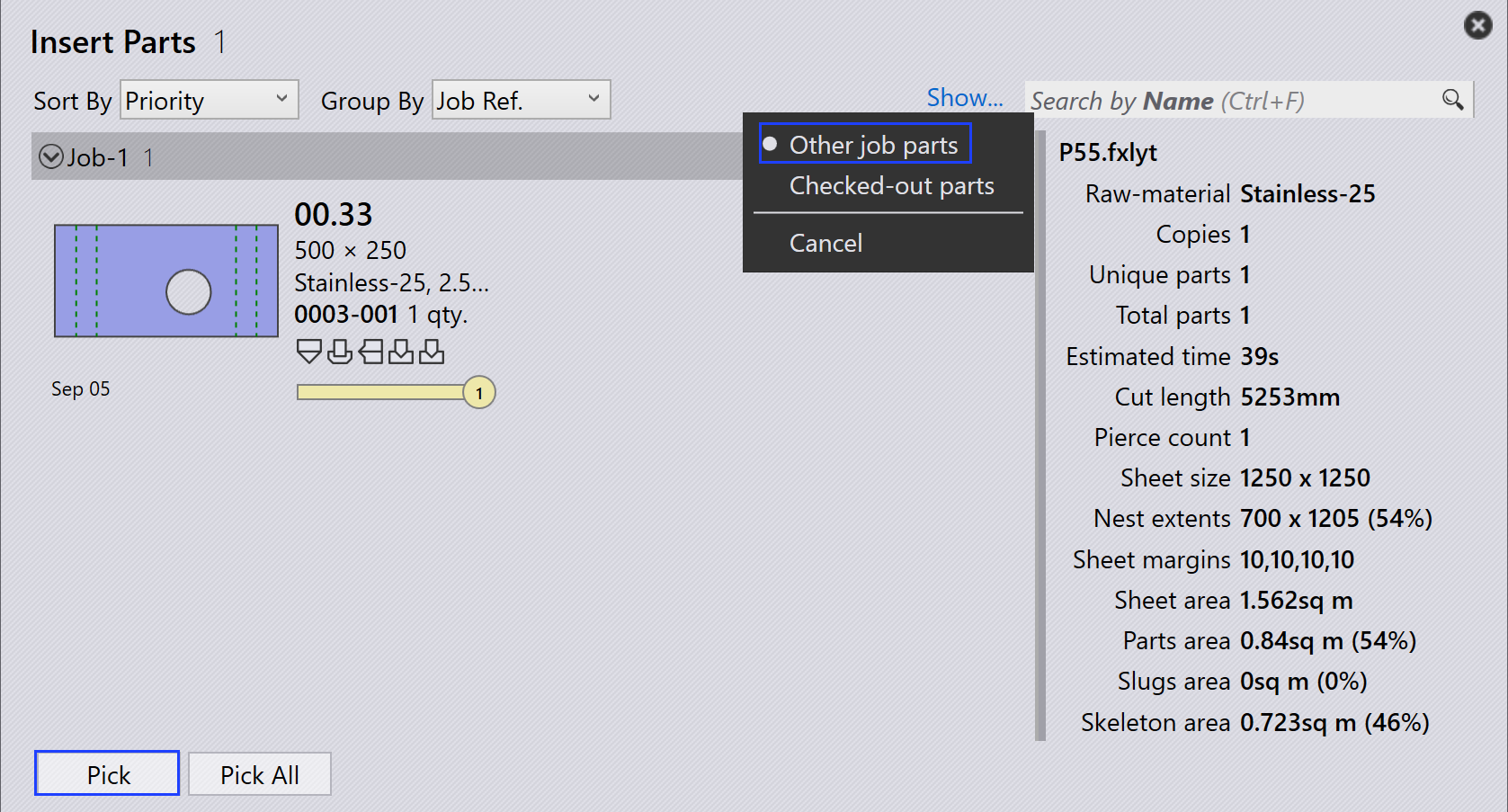
Pick
  • A new window appears where you can define, where the part needs to be repacked.
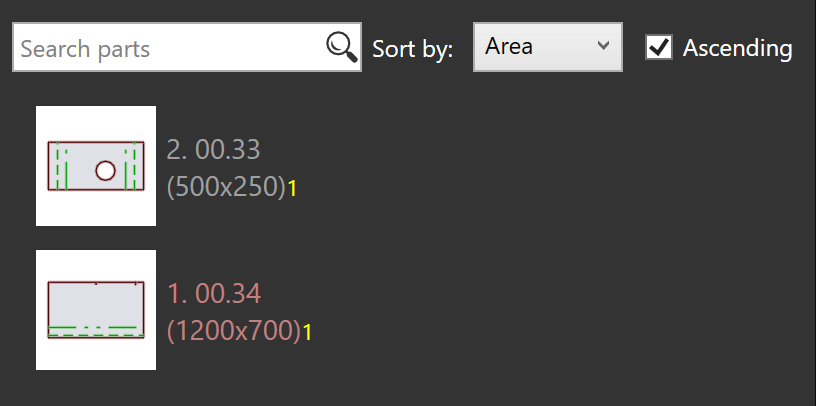
Selection
  • Click on Save changes to Praxis and the repacked layout will be available in Praxis.
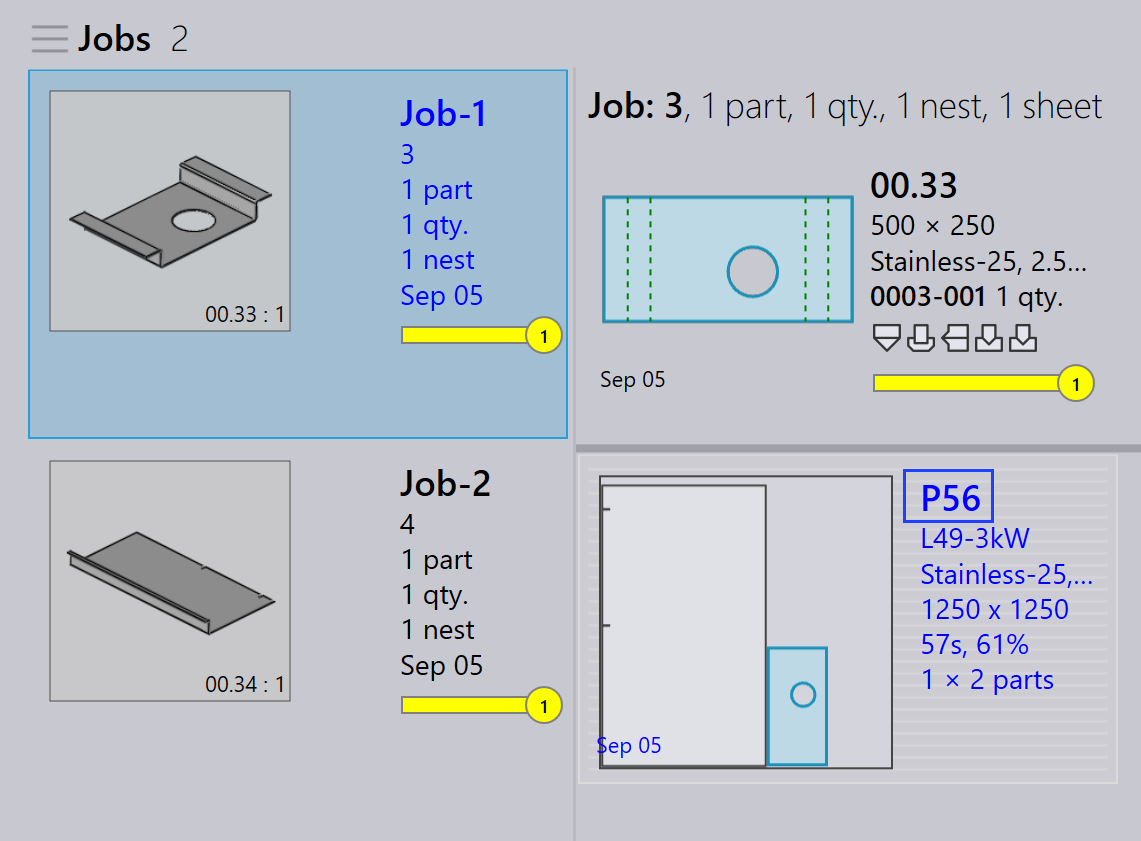
Flux Repack1 Flux Repack2

Contents

  • Repacking with mix parts from multiple Jobs
  • Manual repacking using add parts interactive wizard
  • Manual repacking using Flux
Interactive nesting Nest management

      Copyright © 2025 TRUMPF Metamation. All rights reserved.

    Compiled by Bento